 ASPNetWorld

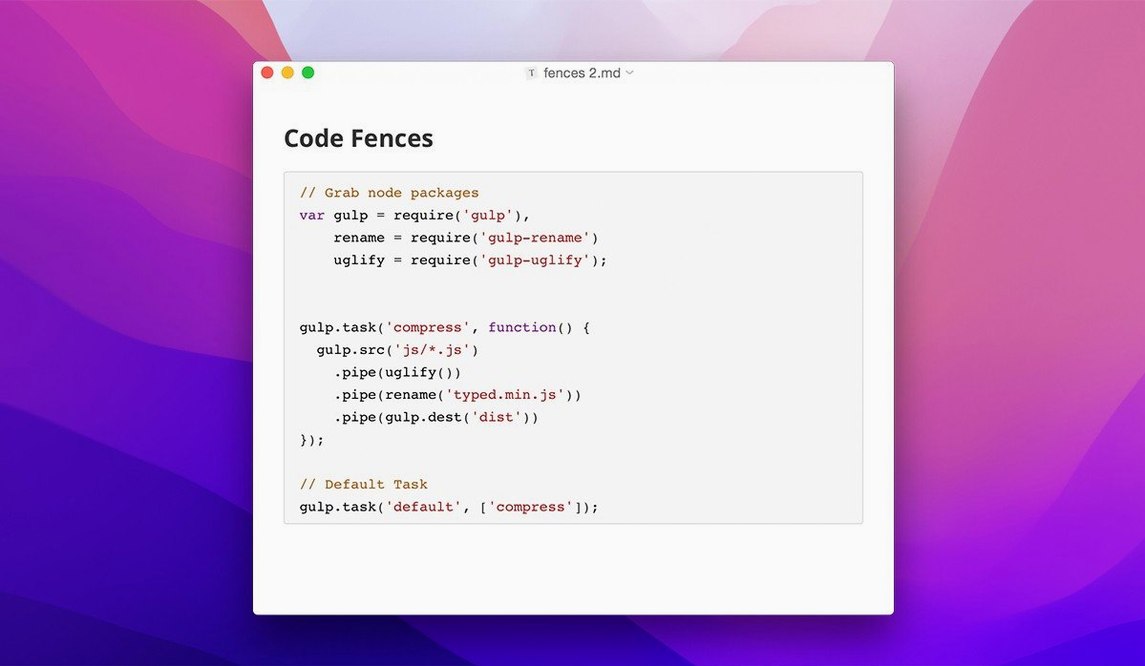
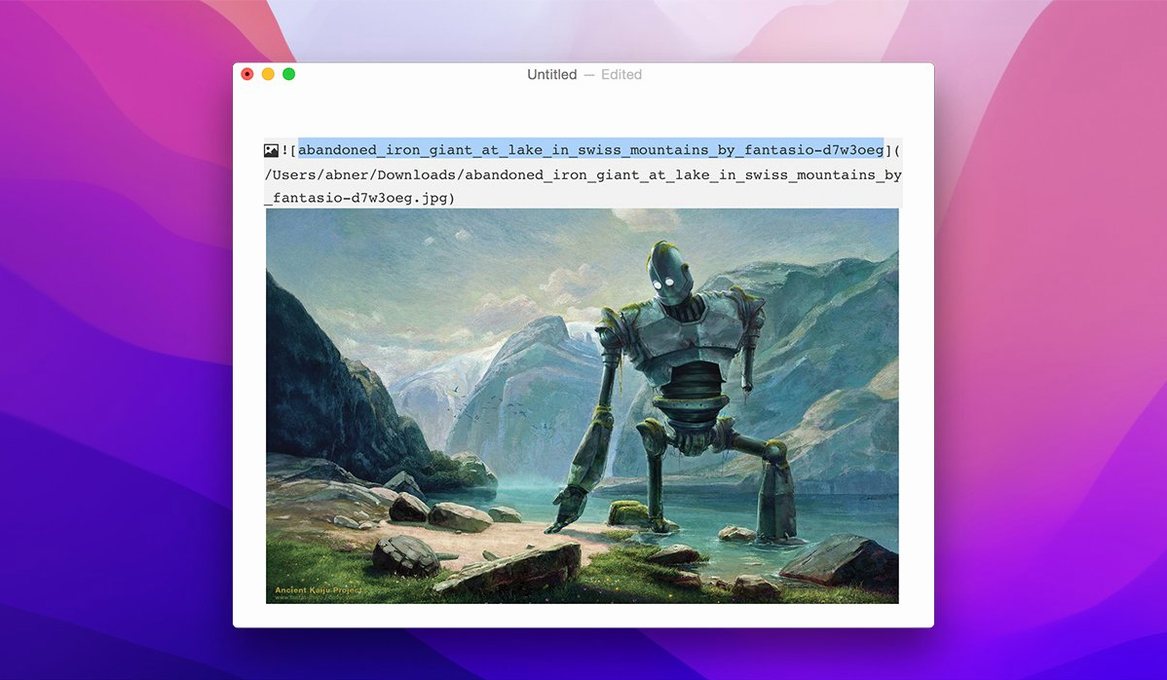
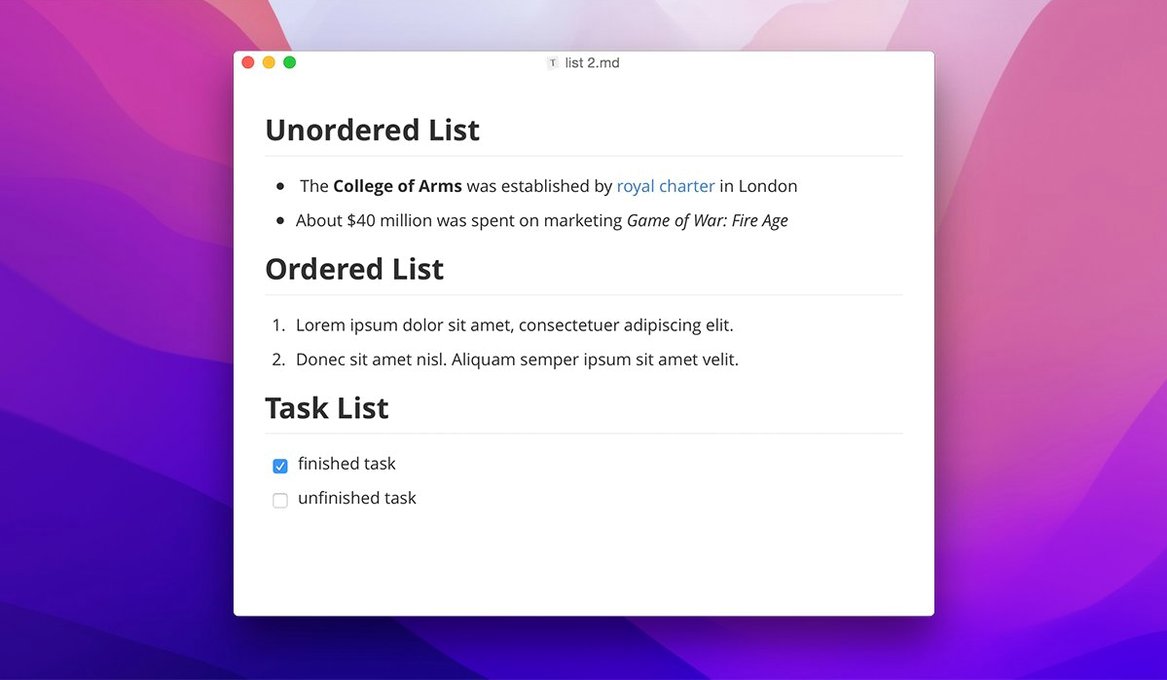
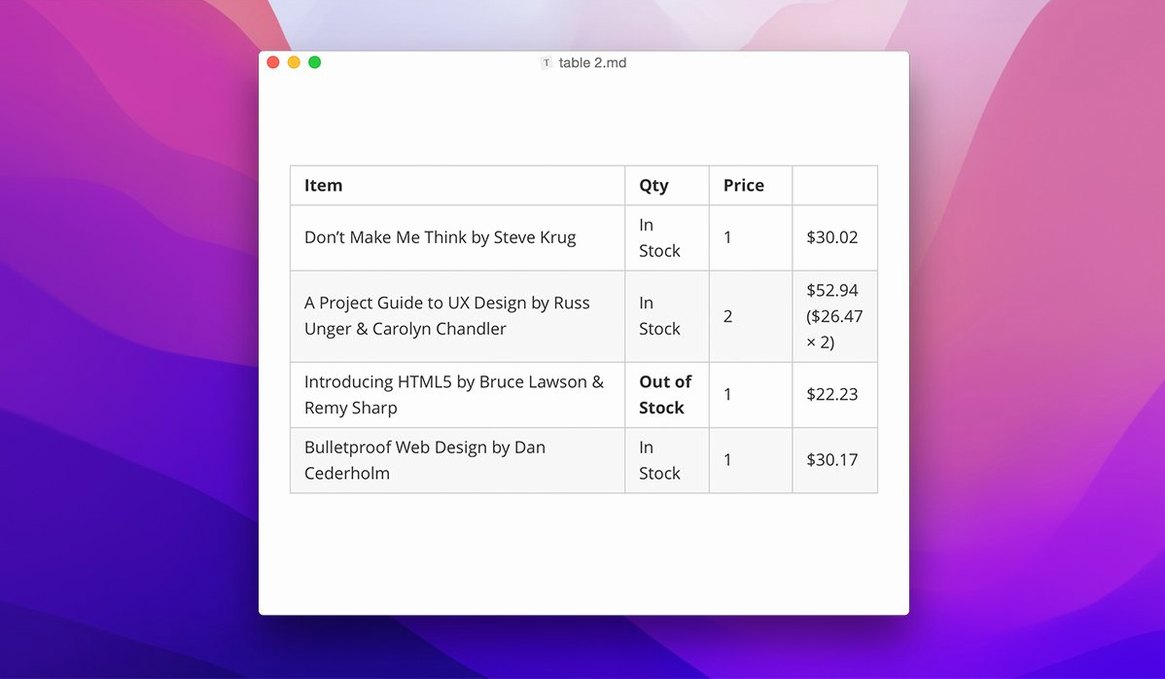
Typora is a Markdown editor that hides the syntax as you type, replacing raw formatting symbols with a clean, live preview of the finished document.
- Runs on Macs with either Apple Silicon or 64-bit Intel processors, from macOS 10.13.6 upwards.
- Offers a WYSIWYG workflow: headings, lists and emphasis render immediately rather than in a separate preview window.
- Supports custom CSS themes, so the writing surface can match your taste or house style.
- Includes a floating editor toolbar and keyboard navigation in the file tree, both added in the 1.14 series.
- Can show non-Markdown files in the sidebar and export via lightweight, plain-format options.
- Speaks your language — the interface covers over thirty, from Arabic to Vietnamese.
The appeal is simple: you get the portability of plain text with the calm of a formatted page. For anyone who writes documentation, notes or long-form prose on a Mac, that combination is hard to beat.
Switch on Continue where you left off and save the restore list
Out of the box, Typora makes sensible choices, but a handful of preferences will make it feel properly yours within ten minutes. Head to Typora > Settings and work through the panels in order.
Under General, turn on Continue where you left off. The default behaviour opens a blank document; this option restores your last working file and cursor position, which is far more useful if you write in regular sessions. While you are there, set On Launch to Open folder rather than a new file — pick your main writing directory and the sidebar will greet you with a ready-made file tree every time.
In the Editor section, switch Indent size on save to four spaces if you collaborate with Python or YAML pipelines, and tick Preserve leading spaces for code fences. Anyone pasting indented snippets from a terminal will thank themselves later. Also check Enable typewriter mode: it keeps the active line centred vertically, which feels terribly civilised on a large display.
The Markdown panel is where Typora reveals its flexibility. Decide early whether you want Unordered list marker to be a hyphen, asterisk or plus — consistency matters once a document grows beyond a page. I suggest setting the Code fence line wrapping toggle to off unless you specifically need it; long log lines wrapping inside a code block can be confusing, and a horizontal scrollbar is usually clearer.
Finally, visit Appearance > Themes and open the theme folder. Drop a CSS file in there and Typora picks it up instantly. Even if you keep the stock theme, adjusting the font size to 16 or 18 points while you settle in makes the first days gentler on the eyes.
Git-tracked Markdown for docs that ship biweekly
Imagine a technical writer maintaining API documentation for a platform that ships new endpoints every fortnight. She keeps her source in a Git repository, writes in Markdown, and builds HTML with a static-site generator. Typora sits open on her Mac from the moment she arrives at her desk.
She begins by opening the project folder. The sidebar shows her the full directory tree, including YAML config files and JSON schemas — visible because of the 1.14 option to show non-Markdown files. She selects the changelog document, and the live preview renders the heading hierarchy while she scrolls through yesterday’s entries. No source-mode switching, no raw hash marks blinking at her. She types a new release note, uses the floating toolbar to drop in a table for the parameter list, and wraps a method name in backticks without ever seeing the backticks appear on screen. The formatted result just appears.
A colleague pings her with a request to add a deprecation notice. She opens a new tab with Cmd-T, pastes the boilerplate from a snippet library, and the YAML front matter renders as an unobtrusive grey block at the top of the document. She hits Cmd-Shift-E to export a PDF for the product manager, and the export uses her custom CSS so the styling matches the team’s published documentation. The whole loop — open, edit, preview, export — happens inside a single window. For a writer who lives in plain text but answers to stakeholders who expect polished output, the removal of friction is the whole story.
Idles under 200 MB on Apple Silicon
Typora is built on Electron, a framework that can make Mac users twitchy about RAM, but the application runs with surprising restraint. On an Apple Silicon Mac it typically idles under 200 MB of memory with a handful of documents open. Scrolling through a 15,000-word manuscript with inline images and several LaTeX blocks remains smooth; the text reflows without the stutter that afflicts some heavyweight editors.
Launch speed is quick — around two seconds from a cold start on an M-series machine, and not noticeably slower on an older Intel MacBook Pro. The editor thread stays responsive even during a pandoc-based export, which runs asynchronously and does not block typing. I have left Typora running across a week of sleep-wake cycles and never come back to a spinning beach ball.
Stability has been solid through the 1.14 releases. Version 1.14.10 fixed a clipped welcome panel and a source-mode export glitch, and those were minor edge cases rather than crash triggers. Autosave is quiet and reliable; I have yet to lose work to an unexpected quit. The only real caution is that third-party themes can occasionally misrender math blocks — stick to well-maintained themes and the rendering pipeline holds up beautifully.
CPU use is negligible during typing and only spikes momentarily during large-file export. Battery impact on a MacBook is low enough that you will not notice a difference compared to a native Cocoa text editor in day-to-day writing sessions. If you work from cafés and trains, Typora will not be the app that kills your afternoon charge.
Drag a snippet file to insert its contents instantly
- Set up a snippets folder. Create a dedicated directory for reusable Markdown fragments — licence headers, table templates, callout blocks — and bookmark it in the sidebar. Dragging a file into a document inserts its contents, which is faster than retyping standard structures.
- Learn three keyboard shortcuts.
Cmd-Shift-Ltoggles the sidebar,Cmd-Shift-Vpastes without formatting, andCmd-/jumps to Source Code Mode when you need to untangle a stubborn block of raw Markdown. Muscle memory on those three will cover ninety per cent of your friction points in the first week. - Use outline view. The document outline, accessible from the sidebar or
Cmd-Shift-O, lists all headings as a clickable tree. For documents longer than a screenful, this is your fastest navigation tool. Get into the habit of checking the outline after writing a section; if the hierarchy looks wrong, your heading levels probably need attention. - Test your export early. Write a short sample document with the elements you use most — code fences, tables, images, footnotes — and export it to HTML, PDF and plain text on day one. Styles that look perfect in the editor can misbehave slightly in PDF margins or HTML spacing, and catching that early saves a last-minute scramble before a deadline.
- Keep the console handy. Typora’s Help > Developer Tools opens a console window. It is not something you will need often, but if an export fails or a theme goes strange, the console errors will tell you exactly what broke. Bookmark the fact rather than the tool; you will be glad of it months from now.
Staying in Source Code Mode forfeits the hybrid preview
Treating it as a plain text editor. Typora is designed to hide the Markdown, and newcomers sometimes fight that by staying in Source Code Mode all day. If you never leave source mode, you are carrying the cognitive load that Typora was built to remove. Let the live preview do its job; drop into source view only for targeted fixes like untangling a mis-nested list. The rest of the time, trust the rendering.
Ignoring the theme system. The default theme is readable, but it is not the only option, and many users sit with it for months without realising they can change it completely. A theme affects more than colour — it controls font, line height, heading weight and blockquote style. A writer sensitive to visual rhythm will notice the difference immediately. Spend twenty minutes browsing community themes and trying two or three. The right theme can make a long writing session feel like a quarter of the effort.
Forgetting that files are just text. Because Typora looks like a word processor, people sometimes treat .md files as if they are locked in a proprietary format. They are not. Any other editor can open your work, and your version-control system reads the diffs perfectly. Avoid embedding images via drag-and-drop without checking where the image file lands; by default Typora copies it relative to the document, which is sensible, but it pays to know the path convention so your colleague on Windows does not see broken links.
Relying on the floating toolbar for everything. The toolbar added in version 1.14 is genuinely useful for occasional table edits and link insertion, but leaning on it as your primary interface slows you down. Typora’s real speed comes from inline Markdown typing — ## for a heading, - for a list, > for a blockquote. The toolbar is a safety net, not the main stage. The sooner you internalise the syntax, the more the editor fades into the background and leaves you alone with your words.
Version 1.14.10 is a tidy maintenance release that addresses two visible annoyances: content no longer gets clipped in the welcome panel, and pandoc export from source mode behaves correctly again.
- macOS 10.13.6 or later
- Apple Silicon or 64-bit Intel processor
Questions I keep hearing
Does Typora run on older Intel Macs?
Yes. Typora supports both Apple Silicon and 64-bit Intel Macs running macOS 10.13.6 or later.
What is the current stable version of Typora?
The stable release channel lists version 1.14.10, which includes fixes for the welcome panel and pandoc export from source mode.
Questions from the class 0
Sign in or join the class to ask a question.
Nobody has asked anything yet. If you have used it on a real job, say what the file did.
Also on the Office shelf
The whole Office shelf Vellum
Turns your manuscript into polished ebook and print editions without wrestling styles.
Vellum
Turns your manuscript into polished ebook and print editions without wrestling styles.
 Things
Captures to-dos the moment they occur and organises them into a calm daily list.
Things
Captures to-dos the moment they occur and organises them into a calm daily list.
 VueScan Pro
Brings its own drivers to keep your old scanner working long after manufacturer support ends.
VueScan Pro
Brings its own drivers to keep your old scanner working long after manufacturer support ends.
 Text Workflow
Transforms messy text with chains of reusable steps you can save and share.
Text Workflow
Transforms messy text with chains of reusable steps you can save and share.
 Wolfram Mathematica
Complements your spreadsheet and text editor with thousands of built-in maths and AI functions.
Wolfram Mathematica
Complements your spreadsheet and text editor with thousands of built-in maths and AI functions.
 XMind Pro
Turns messy meeting notes into a clear, branching mind map on your desktop.
XMind Pro
Turns messy meeting notes into a clear, branching mind map on your desktop.
 SpeakMe
Reads text aloud on any recent Mac.
SpeakMe
Reads text aloud on any recent Mac.
 SimpleMind Pro
Maps your ideas outwards from a central node instead of writing them in a vertical list.
SimpleMind Pro
Maps your ideas outwards from a central node instead of writing them in a vertical list.