 ASPNetWorld
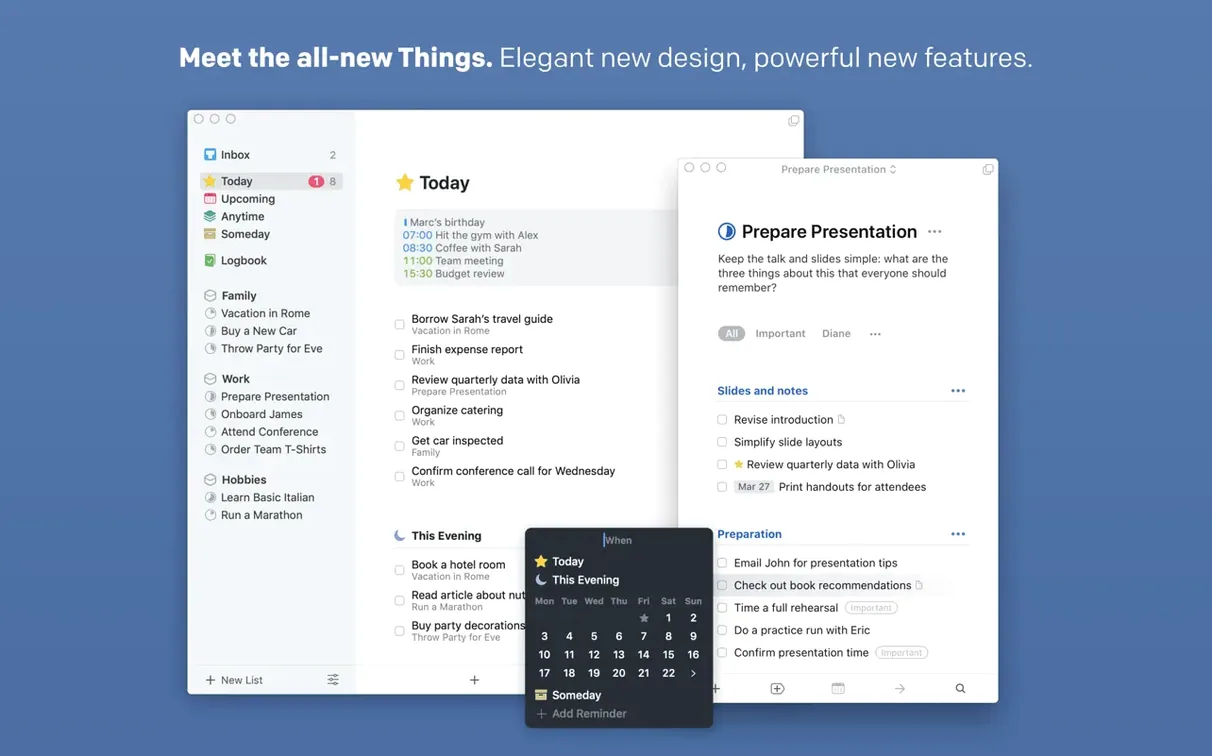
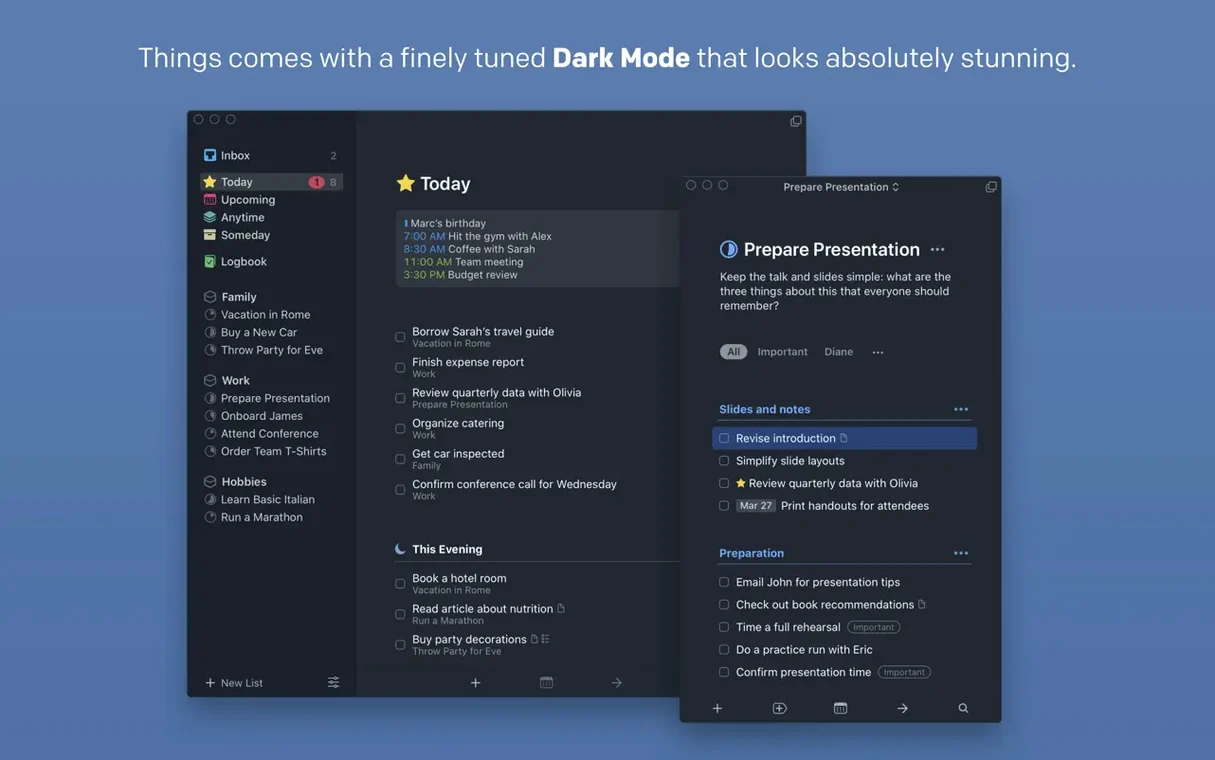
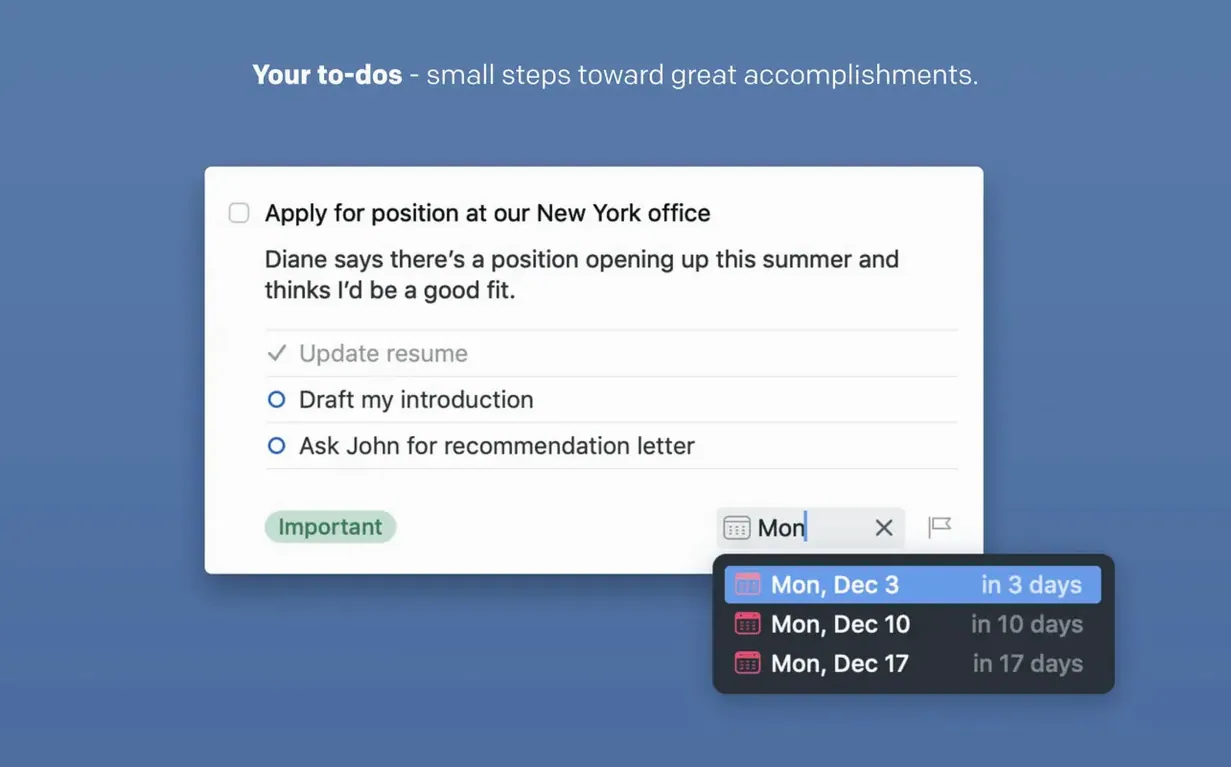
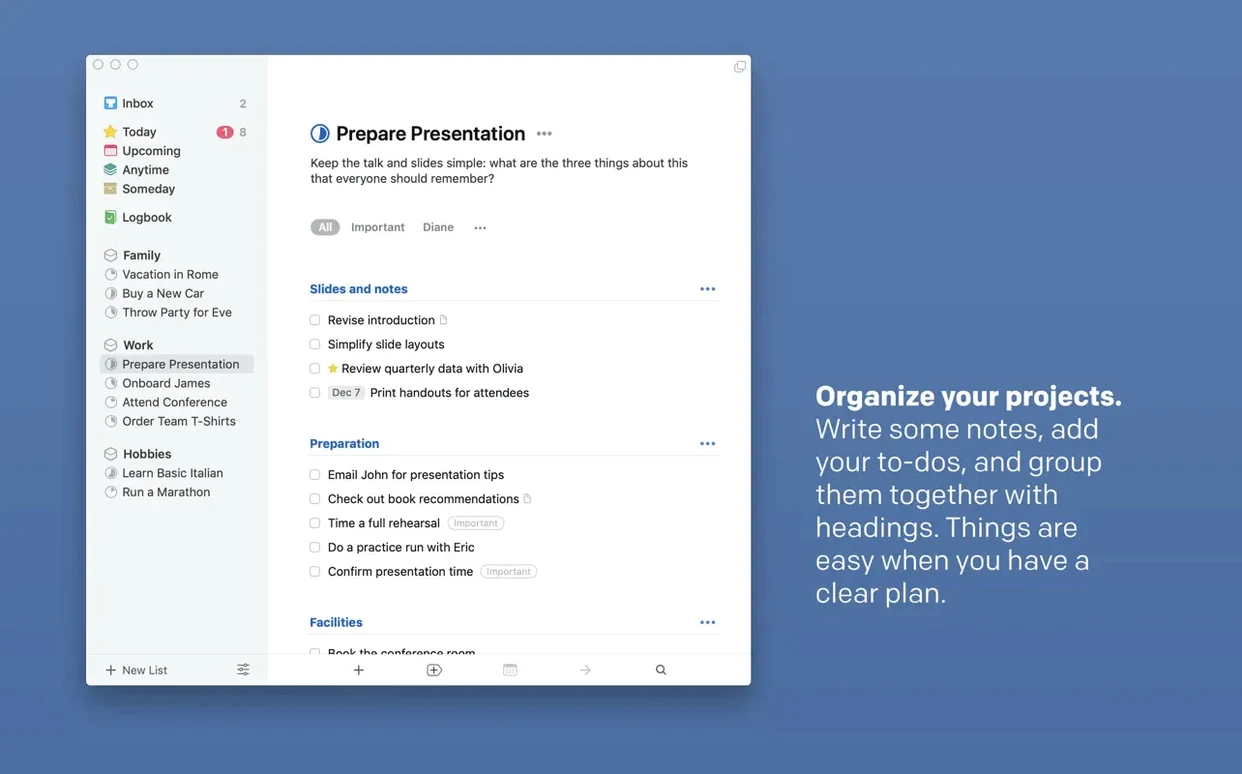
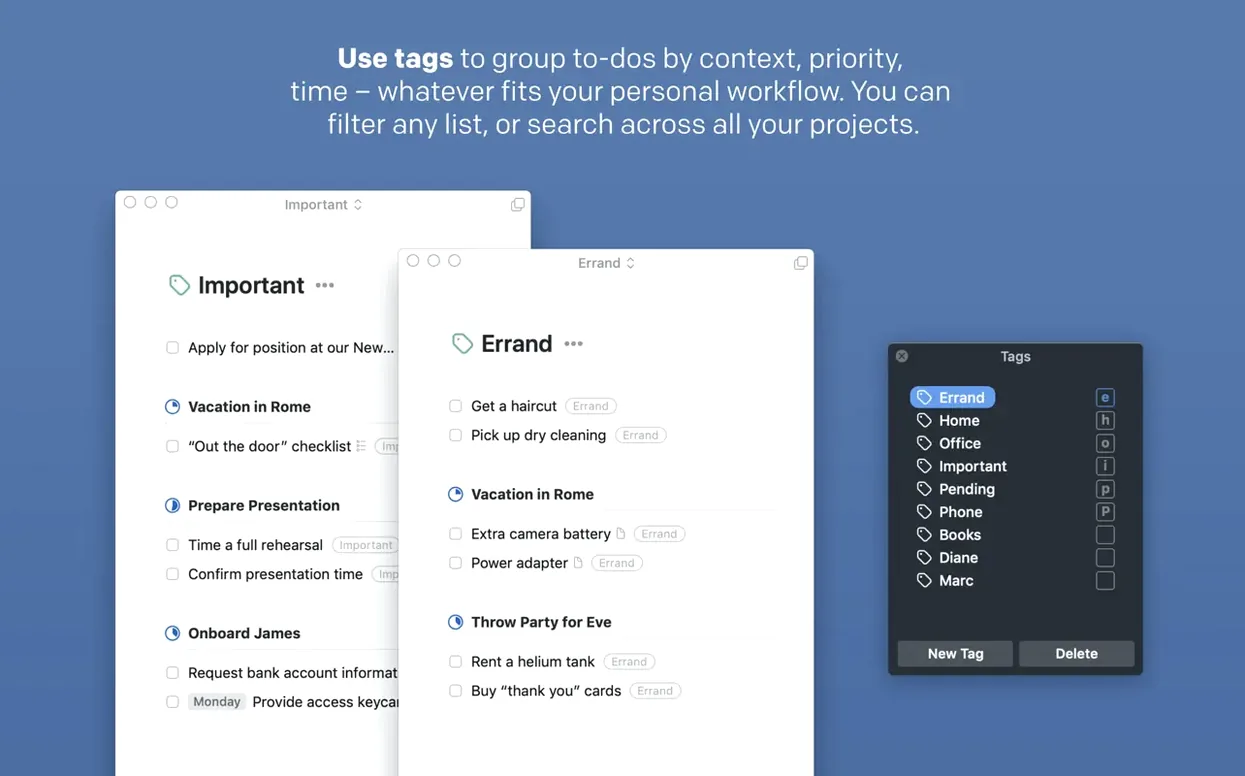
Version 3.24.0 landed on 14 September 2026 with a quietly practical list of additions. One of them, full Spotlight integration, answers a question every new user asks sooner or later: will I actually find my tasks again, or will they vanish into an app-shaped void? The answer, as of this build, is yes, and from anywhere on your Mac, not just inside the app window.
What to expect when you first open Things
- Name the places you keep your thoughts. Things organises work into Areas — broad buckets like “House”, “Freelance” or “Side project”. You set these up once, then every new task belongs somewhere. It stops the flat-list panic.
- Drop everything into the Inbox. Hit the Quick Entry shortcut (it works from any app, which is the sort of detail that changes your day) and type. Don’t sort, don’t tag — just get it out of your head and into the Inbox.
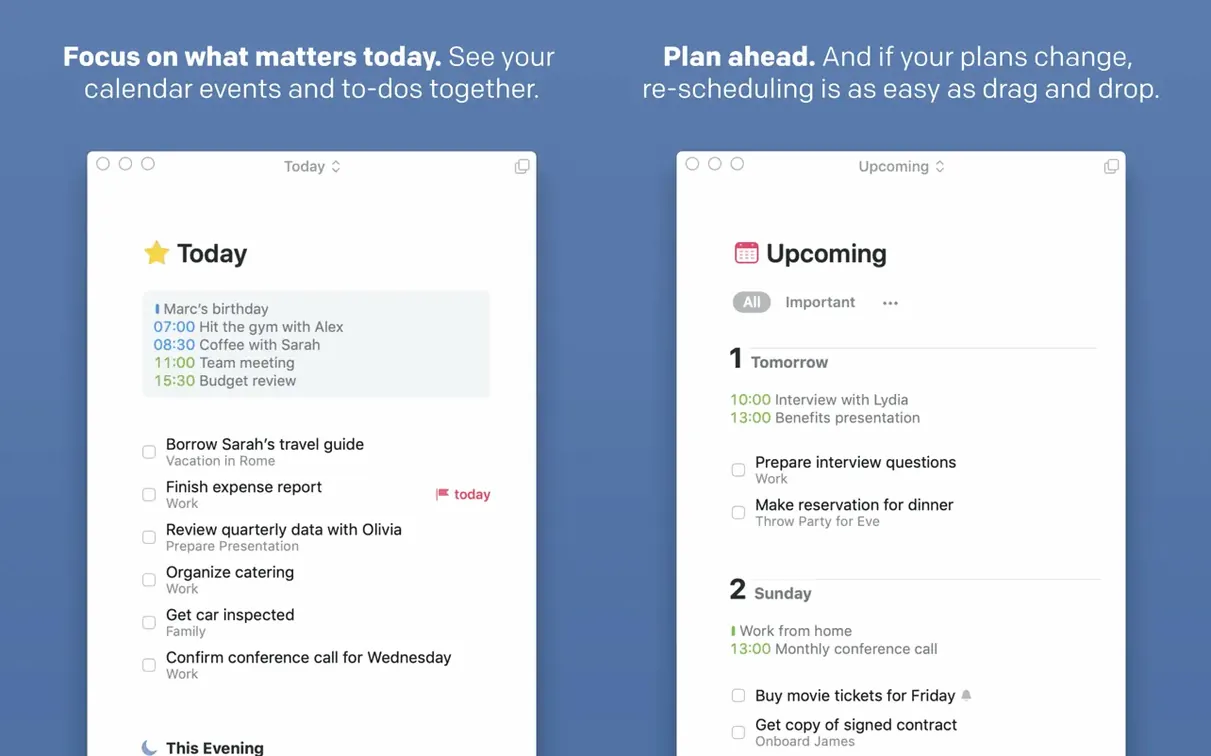
- Move a few things to Today. The Today view is not an overflowing catch-all; it holds only what you genuinely intend to finish. If a task repeats — “water the peace lily every Tuesday” — set it once and let the recurrence engine do the remembering.
- Peek at Upcoming. This is where dated tasks live before their day arrives, lined up like a calm queue rather than a shouty notification list.
- Sync without thinking. Things Cloud keeps your Mac, iPhone and iPad in step. Handoff lets you start on one device and pick up on another without saving or sending anything.
Notification Centre widgets and the new extra-tall widget mean you can glance at your day from the desktop without opening the app at all — useful when the discipline to stay focused is running on empty.
How Things compares with other Mac task managers
Put Things next to OmniFocus and the difference hits you within minutes. OmniFocus is the planning engine of a small space agency — custom perspectives, deeply nested folders, review cycles, and a learning curve that rewards patience. Things takes the opposite bet: it gives you roughly eighty percent of that organisational power but wraps it in an interface you can explain to someone over coffee. If OmniFocus is a spreadsheet you learn to love, Things is a notebook that happens to be clever.
Todoist runs everywhere — Windows, Android, web — and that cross-platform reach is genuinely useful if you live outside Apple’s garden. Things stays firmly on Mac, iPhone, iPad and Vision. What you lose in platform flexibility you gain in native feel. Dragging a task into the Today list in Things carries the weightless snap of AppKit done right; Todoist’s web-based interface, however polished, can’t quite match that physicality. Natural language entry is stronger in Todoist — type “call dentist next Thursday 2pm” and it parses beautifully — but Things counters with the Quick Entry shortcut, which feels less like typing a command and more like catching a thought before it drifts away.
Then there’s Apple Reminders. It’s free, it’s built in, and with each macOS release it borrows another idea from apps like Things. For shared grocery lists or simple checklists it’s perfectly adequate. Things pulls ahead the moment a task grows complexity: a project that needs headings, a deadline separate from a due date, subtasks that aren’t just an indented afterthought, tags you can filter with a single click. The gap is really about headroom — Reminders tops out just when Things gets comfortable.
Freelancers organise client projects in Areas
Freelancers who invoice by the project tend to settle into Things quickly. An Area called “Clients” breaks into projects named after people or companies, each holding the usual mix of follow-ups, deliverables and admin. The deadline field, which stays visually separate from the due date, lets you mark when something must be done without cluttering your Today view prematurely — a small distinction that stops a lot of low-grade anxiety.
Academics and researchers find the same pattern useful for papers and teaching preparation. A project per course or per chapter, headings for sections, notes fields that hold raw thoughts alongside the action items. Because Things doesn’t try to be a note-taking app, those notes stay lean — a couple of bullet points, a reference, not an essay that swallows the task.
People who run a household alongside a day job often say the magic is in the repeating tasks and the Today list acting as a gentle boundary. “Change the air filter every three months” sits quietly in Upcoming until the morning it appears in Today, and then it disappears again when ticked — no noise, no overdue shaming, just a quiet rhythm.
Cold launch under two seconds, idles around 90–120 MB
Things launches in roughly one bounce of the dock icon on an Apple Silicon Mac, and even on an older Intel machine running Catalina the cold start is under two seconds. Once it’s open, memory use idles around 90–120 MB with a moderate database of a few hundred tasks — modest enough that you forget it’s running. CPU time spikes briefly during a Things Cloud sync, usually a few seconds after waking the Mac, and then settles back to near zero. The sync itself is unobtrusive; changes made on an iPhone appear on the Mac within a breath, and the app handles merge conflicts silently by keeping both versions rather than choosing one for you.
Stability has been a strong point across the 3.x releases. Crashes are rare in daily use, and when they do occur the autosave means you lose at most a few keystrokes. The Spotlight integration added in version 3.24.0 doesn’t seem to affect background load — the indexing happens through macOS’s own infrastructure, so Things itself isn’t burning cycles in the background. If you use the new extra-tall widget, expect Notification Centre to refresh it on its own schedule; it’s not a live counter, but it’s never been more than a few seconds out of date in testing.
Troubleshooting the common rough edges
Sync stops working after an OS update. This crops up most often after a major macOS upgrade. The fix is usually to sign out of Things Cloud in the app’s preferences, quit Things, then sign back in. The app rebuilds the sync token and picks up where it left off. If that doesn’t do it, check that your Mac’s date and time are set automatically — a clock drift of even a few minutes can confuse the sync handshake.
Quick Entry shortcut clashes with another app. The default shortcut is Control-Space, which also happens to be Spotlight’s shortcut on a fresh Mac install. Head to Things > Settings > Quick Entry and reassign it to something like Control-Option-Space. Muscle memory takes a day to adjust, then it’s fine.
Tags don’t appear in the sidebar. Things only shows tags in the sidebar once you’ve created at least one — the pane hides itself when empty. If you’ve made tags and they’ve vanished, check the divider at the bottom of the sidebar: it can collapse the tag section entirely. A small drag upwards reveals it again.
Widget shows old data. The extra-tall widget introduced in the 3.24.0 build refreshes on the system’s widget timeline, not in real time. If it’s stuck, opening the app once usually nudges it. You can also remove and re-add the widget, which forces a fresh snapshot.
The app feels sluggish with a very large database. Users who import thousands of tasks from other systems occasionally notice a slight lag when scrolling the Anytime or Someday lists. The workaround is to archive completed projects — select them in the sidebar and choose File > Archive. Archived items leave the active database but remain searchable, so nothing is lost and the app stays snappy.
Things 3.24.1 arrives with a fresh batch of under-the-hood fixes and stability tweaks for the Mac.
- macOS 10.15 (Catalina) or later
- Works natively on both Apple Silicon and Intel 64-bit Macs
Questions I keep hearing
Does the Mac version handle repeating tasks properly?
Yes — you can set daily, weekly, monthly or custom-interval repeats, and the app surfaces them at the right time without cluttering your Today view until they're due.
Questions from the class 0
Sign in or join the class to ask a question.
Nobody has asked anything yet. If you have used it on a real job, say what the file did.
Also on the Office shelf
The whole Office shelf Text Workflow
Transforms messy text with chains of reusable steps you can save and share.
Text Workflow
Transforms messy text with chains of reusable steps you can save and share.
 Typora
Writes in Markdown and sees a clean, formatted document appear around your words as you type.
Typora
Writes in Markdown and sees a clean, formatted document appear around your words as you type.
 Vellum
Turns your manuscript into polished ebook and print editions without wrestling styles.
Vellum
Turns your manuscript into polished ebook and print editions without wrestling styles.
 SpeakMe
Reads text aloud on any recent Mac.
SpeakMe
Reads text aloud on any recent Mac.
 VueScan Pro
Brings its own drivers to keep your old scanner working long after manufacturer support ends.
VueScan Pro
Brings its own drivers to keep your old scanner working long after manufacturer support ends.
 Wolfram Mathematica
Complements your spreadsheet and text editor with thousands of built-in maths and AI functions.
Wolfram Mathematica
Complements your spreadsheet and text editor with thousands of built-in maths and AI functions.
 SimpleMind Pro
Maps your ideas outwards from a central node instead of writing them in a vertical list.
SimpleMind Pro
Maps your ideas outwards from a central node instead of writing them in a vertical list.
 SideNotes
Keeps a tidy panel of quick notes that slides out from the edge of your screen.
SideNotes
Keeps a tidy panel of quick notes that slides out from the edge of your screen.