 ASPNetWorld

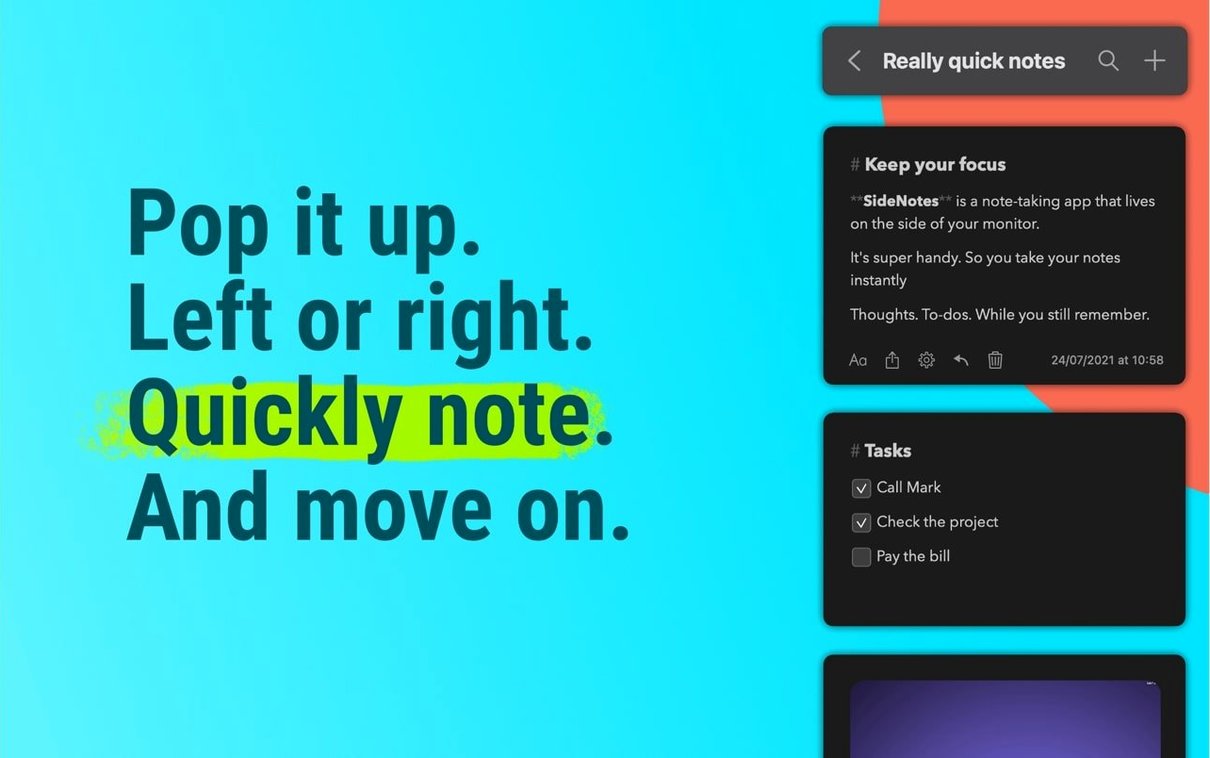
Version 1.6.6 landed in late September 2026, and while it’s a maintenance release on paper, it’s a good excuse to open the side panel and see how the app has settled into daily use. If you’ve just installed SideNotes, a handful of habits will make the panel feel less like a drawer and more like a second memory.
Five things to do on day one
- Pick your side. Head to the preferences and tell the panel to live on the left or the right of your screen. Left suits a browser-heavy workflow; right often works better alongside a Finder column view.
- Learn the shortcut for showing and hiding the panel. It’s the one muscle-memory move that stops the app feeling like clutter. Tap the shortcut once to check a note, once more to carry on working.
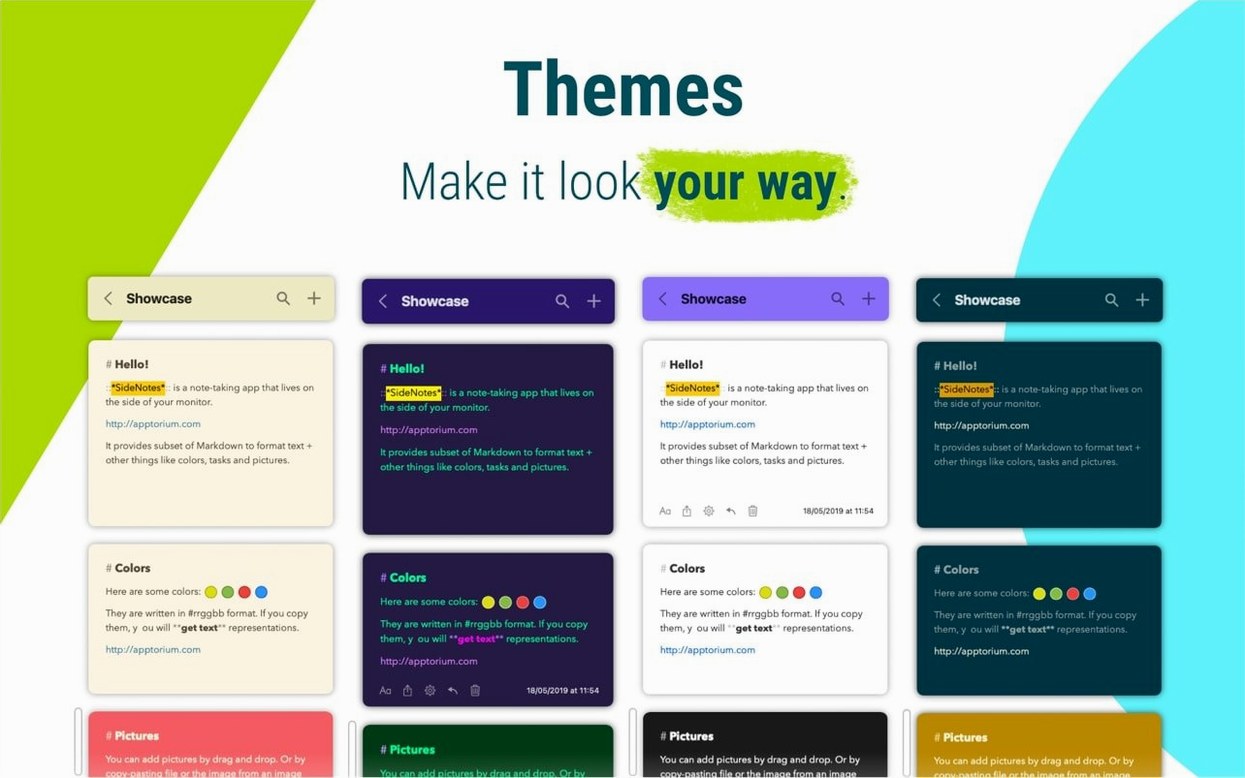
- Give a note a colour. You can assign a tint to any note — red for urgent, green for ideas, nothing for the half-written thoughts you’ll probably delete later.
- Write a quick Markdown note. Headings, bold text and simple lists all render in place. It’s the fastest way to give a scribble some structure without reaching for a full word processor.
- Drop in a code snippet. Switch to monospace text, and the note immediately feels right for shell commands, short scripts or bits of config you keep misplacing.
Where the notes live
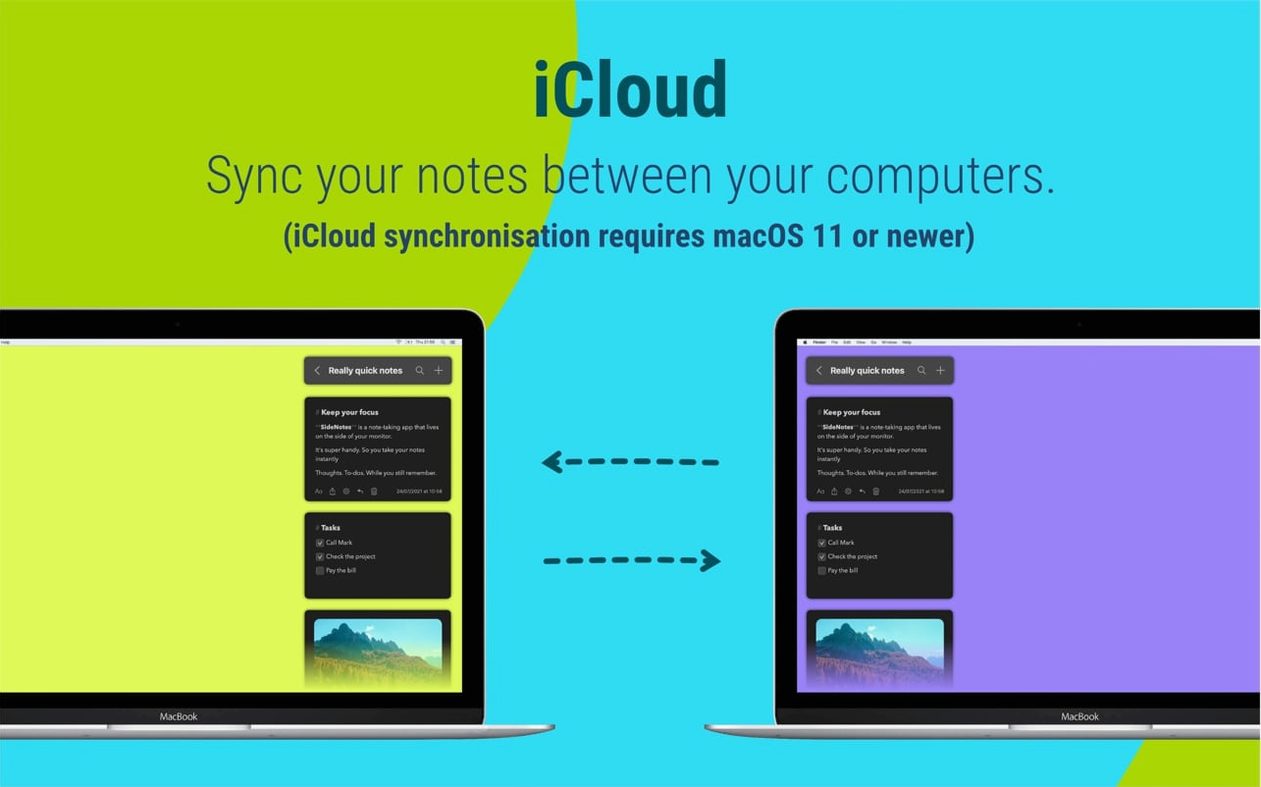
SideNotes ties into iCloud, so every note appears on your other Macs and on the companion SideNotes Mobile app for iPhone and iPad without you needing to think about it. That also means a reminder you jot down while reading a document can be surfaced through Apple’s Reminders app — useful if you’d rather see a task in a notification than buried in a panel. The app runs on both Apple silicon and Intel Macs and asks for macOS 13 or later, so most machines from the last few years are covered.
Mistakes that quietly sink a good setup
The most common early slip is treating SideNotes like a filing cabinet instead of a scratchpad. People create a dozen colour-coded folders on day one, then spend more energy curating the structure than writing the notes themselves. Let the folders earn their existence — start with one or two broad buckets and split them only when scrolling becomes a chore.
Another habit worth catching early: ignoring the monospace toggle for code. Pasting a shell command into a regular note keeps the text, sure, but the proportional font turns backticks into flyspecks and line breaks into guessing games. A quick flick to monospace turns the same block into something you can actually read back at speed.
And then there’s the panel position tug-of-war. If you dock the panel on the right but your dock already lives there, the two will jostle for attention every time you expand a note. Left side is often the quieter neighbour, especially on a single-display setup where screen real estate is already tight — but plenty of users only discover the preference pane after a week of mild frustration.
Will it fight my existing notes app
“Will it fight my existing notes app?” Not if you let them do different jobs. SideNotes isn’t trying to replace Apple Notes or a Notion workspace — it’s the slim panel that catches a thought while a meeting is still ringing in your ears. The share button can push anything into Messages, Reminders, Notes or Dropshare, so the heavier apps get the curated version once you’ve had a moment to think.
“What happens when I install it on two Macs?” iCloud sync means your side panel on the iMac and the MacBook draw from the same well. The panel state itself — open, closed, which folder was last visible — doesn’t always transfer, but the notes do. It’s worth pinning the keyboard shortcut to the same key combination on both machines so muscle memory doesn’t have to learn two dances.
“Does it work offline?” Yes, and without a warning dialog that nags you about it. Notes written with no connection sync when the network returns, which matters if you’re the sort of person who gets ideas on a train with patchy signal. The monospace and Markdown formatting both survive the offline round-trip intact.
SideNotes 1.6.6, dated 2026-09-21, is a maintenance release that keeps the app running smoothly on current macOS versions. No new features this time — just the kind of quiet polish that stops a daily tool from getting in your way.
- General stability improvements and under-the-hood fixes.
- macOS 13 or newer
- Apple Silicon or Intel Mac
Questions I keep hearing
Can I format notes with Markdown?
Yes, SideNotes supports Markdown so you can add headings, lists and emphasis that render directly in the note.
Does SideNotes sync with my iPhone?
It syncs through iCloud, and the companion SideNotes Mobile app brings your notes to iPhone and iPad.
Can I move the panel to the left side of the screen?
Absolutely — the panel can appear on either the left or right side, and you can hide or show it with a keyboard shortcut.
Questions from the class 0
Sign in or join the class to ask a question.
Nobody has asked anything yet. If you have used it on a real job, say what the file did.
Also on the Office shelf
The whole Office shelf SimpleMind Pro
Maps your ideas outwards from a central node instead of writing them in a vertical list.
SimpleMind Pro
Maps your ideas outwards from a central node instead of writing them in a vertical list.
 Scrivener
Gathers your notes, research and scattered text sections into a single long-form writing project.
Scrivener
Gathers your notes, research and scattered text sections into a single long-form writing project.
 SpeakMe
Reads text aloud on any recent Mac.
SpeakMe
Reads text aloud on any recent Mac.
 QuickBooks Mac Plus
Tracks small business income, expenses and payroll.
QuickBooks Mac Plus
Tracks small business income, expenses and payroll.
 Text Workflow
Transforms messy text with chains of reusable steps you can save and share.
Text Workflow
Transforms messy text with chains of reusable steps you can save and share.
 Things
Captures to-dos the moment they occur and organises them into a calm daily list.
Things
Captures to-dos the moment they occur and organises them into a calm daily list.
 PDFelement Pro
Turns a flat scanned contract into a searchable, fillable and signable PDF.
PDFelement Pro
Turns a flat scanned contract into a searchable, fillable and signable PDF.
 PDF Reader Pro
Reorders and merges scattered documents into one tidy PDF without altering the originals.
PDF Reader Pro
Reorders and merges scattered documents into one tidy PDF without altering the originals.