 ASPNetWorld

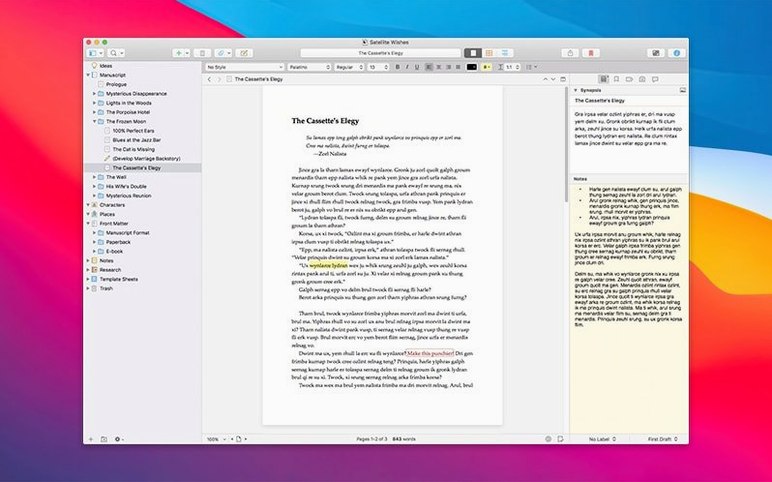
Scrivener runs happily on any Mac from macOS 10.13 High Sierra forward, on both Intel and Apple Silicon machines. It’s a text processor and project organiser built for the particular way a long writing project sprawls: notes, photos, PDFs, audio clips and endless small sections of text that need a sensible home.
Gather the research
Start by dragging every scrap of material into the Research folder — PDFs, voice memos, images of whiteboard scribbles. Scrivener lets a project hold all of this directly, so you aren’t chasing files across Finder when you need a detail.
Break the draft into pieces
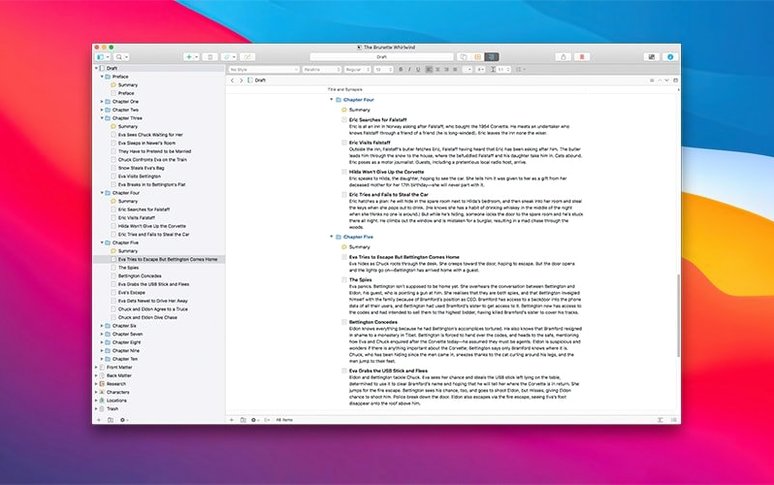
Folders group chapters; sub-documents hold scenes or arguments. Moving a section is a drag-and-drop affair, and the automatic saving means you never lose a sentence if you get pulled away from the desk.
Keep a version you can return to
Before you rework a passage, take a snapshot. It stores the document exactly as it was, so a braver draft can always be undone without a web of duplicate files.
What the 3.5 releases actually changed in daily use
Versions 3.5 through to the current 3.5.2 bug-fix release tidied up a handful of friction points that long-term users had learned to work around. The headline changes weren't flashy, but they removed small annoyances that interrupted flow during a long session. Compile — the mechanism that turns your project into a finished manuscript — received the most attention. It now handles custom formatting with fewer surprises, particularly when you need a standard manuscript layout one day and an ebook draft the next. The settings stick rather than drifting between sessions, which was the cause of much quiet swearing in earlier builds.
Dark mode support arrived properly, not as an afterthought. The binder, inspector and editor all follow the system appearance without leaving odd pale panels hanging in an otherwise dark workspace. If you write late into the evening, the shift is substantial — less glare, less eye strain, and a corkboard that looks genuinely cork-like against the darker chrome. The bug-fix release tightened a handful of crashes related to PDF rendering in the Research folder and corrected a sync hiccup with external folders that could duplicate notes when you weren't paying attention.
A screenwriter's Wednesday morning
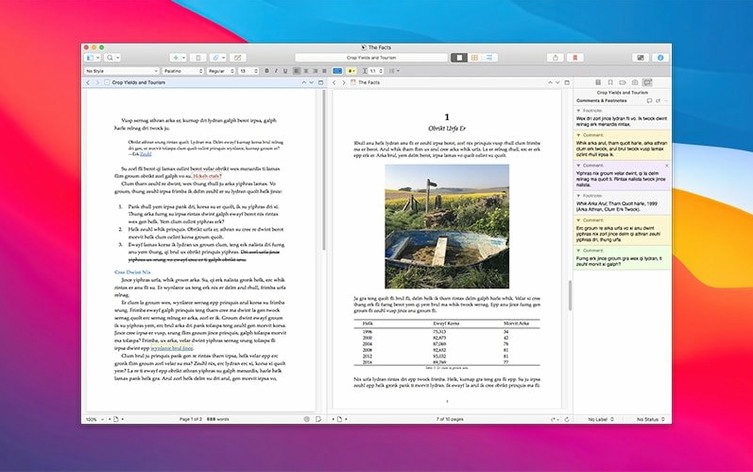
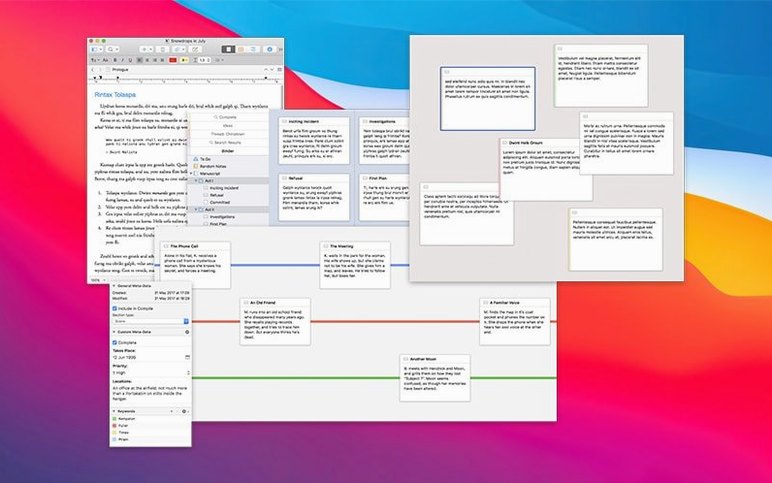
Consider a screenwriter who has been wrestling with a second act that won't settle. She opens her Scrivener project and the binder shows her the problem at a glance: three scene cards on the corkboard all carry the same slugline, and they overlap in content. She splits the editor horizontally — script on the left, the original treatment notes on the right. A PDF of location photographs sits in the Research folder below, open in a third pane. She drags one scene card to a new position, reworks the dialogue in the script pane, and references the treatment without ever leaving the window. Twenty minutes later she takes a snapshot of the revised scene, adds a label marking it as "draft-ready", and moves on. No file dialogues, no switching applications, no losing her place.
A corkboard and outliner separate it from Ulysses
Scrivener occupies a niche that overlaps with several tools without quite matching any of them. Ulysses shares the single-window library-plus-editor idea, and its plain-text engine is noticeably more elegant for someone producing clean Markdown. But Ulysses has no corkboard, no snapshot system, and no real research folder that can hold PDFs or images inside the project. It expects you to write linearly and keep your supporting material elsewhere.
Highland 2 is a screenwriter's delight — it understands Fountain syntax natively and turns text into properly formatted script pages without fuss. Yet it doesn't attempt to manage a project with dozens of research items and fifty scene documents. Highland wants to be a page; Scrivener wants to be a filing cabinet with a typewriter on top.
Manuskript, an open-source alternative, borrows many of Scrivener's structural ideas and adds a novel-writing assistant with character tracking and frequency analysis. The interface feels heavier and less polished on macOS, and it lacks the deep Apple ecosystem niceties — no Dark Mode integration, no native Apple silicon optimisation, and its PDF handling is rudimentary. Scrivener's compile system alone sets it apart once you need actual output rather than just organisation.
Turn on Typewriter scrolling before you write a word
Out of the box, Scrivener makes sensible choices for most people, but a few defaults reward immediate adjustment. Open Scrivener → Settings → Editing and switch on "Typewriter scrolling." This keeps the line you're working on anchored a third of the way down the screen instead of letting text chase the bottom of the window. It's a small change that reduces neck tension over long sessions.
In the Editor preferences, set the default font to something comfortable for drafting — 14-point Palatino or your own preference — not for final formatting. You can change output styling at compile time, so the drafting font should serve your eyes, not your publisher's template. While you are there, widen the default editor margins to at least two centimetres; a narrow text column feels pinched on today's wider displays.
Under Backup, increase the automatic backup count from five to ten and tick the box that compresses them as ZIP files. Scrivener already saves every two seconds of inactivity, so you won't lose work, but more versioned backups mean you can recover a document you accidentally deleted two weeks ago, not just the session before last. The ZIP compression keeps the backup folder from bloating a small laptop drive.
A 50,000-word project launches in about three seconds on Apple silicon
On an Apple silicon Mac, Scrivener launches in roughly three seconds with a modest project of fifty thousand words and a dozen PDF attachments. The same project on an older Intel machine takes perhaps twice that, but once open, scrolling and navigation feel fluid on either architecture. The editor redraws immediately when you switch between scrivenings view — where multiple documents appear as one continuous text — and single-document mode. No beachball, no perceptible lag.
Memory use sits around 200 to 400 MB for typical novel-length projects with mixed media. That figure rises if you load an 80-page PDF into the Research folder and keep it open, but the app releases memory cleanly when you close the file. I haven't seen it climb past 600 MB in ordinary use, which leaves plenty of headroom for a web browser and music running alongside.
Stability in the 3.5.2 release is solid. Earlier 3.5 builds occasionally crashed when closing a project that had an unsaved Quick Reference panel open; that bug appears to be gone. The automatic save mechanism has never lost a sentence in my experience, and the snapshot system provides enough insurance that I've watched writers experiment with radical structural changes they'd never attempt in a single-file word processor. The few remaining quirks — a tendency for the Inspector palette to forget its width after a monitor change, a rare delay when compiling a project with hundreds of footnotes — are minor enough that most users won't encounter them in a typical week.
If you have been circling Scrivener, watching it gather quiet recommendations in writing forums and looking for a scivener 3 torrent that matches the current version, the 3.5.2 release is a stable place to step in. The architecture support covers everything Apple ships, and the bug fixes have smoothed edges that earlier adopters worked around.
Scrivener 3.5.2, released on 18 December 2025, is a bug-fix update that tidies up a few rough edges under the hood.
- macOS 10.13 or later
- Intel and Apple Silicon Macs supported
Questions I keep hearing
What counts as a project in Scrivener?
A project is a container that holds all your writing, plus folders for grouping material and a Research folder for text notes, PDFs, audio and images.
How does the snapshot feature help?
Snapshots keep multiple versions of a document inside the project, so you can try a bold rewrite and still recall the earlier text if you need it.
Does Scrivener save my work automatically?
Yes, it includes automatic saving, which quietly protects your progress without interrupting your flow.
Questions from the class 0
Sign in or join the class to ask a question.
Nobody has asked anything yet. If you have used it on a real job, say what the file did.
Also on the Office shelf
The whole Office shelf SideNotes
Keeps a tidy panel of quick notes that slides out from the edge of your screen.
SideNotes
Keeps a tidy panel of quick notes that slides out from the edge of your screen.
 SimpleMind Pro
Maps your ideas outwards from a central node instead of writing them in a vertical list.
SimpleMind Pro
Maps your ideas outwards from a central node instead of writing them in a vertical list.
 QuickBooks Mac Plus
Tracks small business income, expenses and payroll.
QuickBooks Mac Plus
Tracks small business income, expenses and payroll.
 SpeakMe
Reads text aloud on any recent Mac.
SpeakMe
Reads text aloud on any recent Mac.
 PDFelement Pro
Turns a flat scanned contract into a searchable, fillable and signable PDF.
PDFelement Pro
Turns a flat scanned contract into a searchable, fillable and signable PDF.
 PDF Reader Pro
Reorders and merges scattered documents into one tidy PDF without altering the originals.
PDF Reader Pro
Reorders and merges scattered documents into one tidy PDF without altering the originals.
 PDF Expert
Edits text and images directly inside a PDF without hunting for the original file.
PDF Expert
Edits text and images directly inside a PDF without hunting for the original file.
 Text Workflow
Transforms messy text with chains of reusable steps you can save and share.
Text Workflow
Transforms messy text with chains of reusable steps you can save and share.