 ASPNetWorld
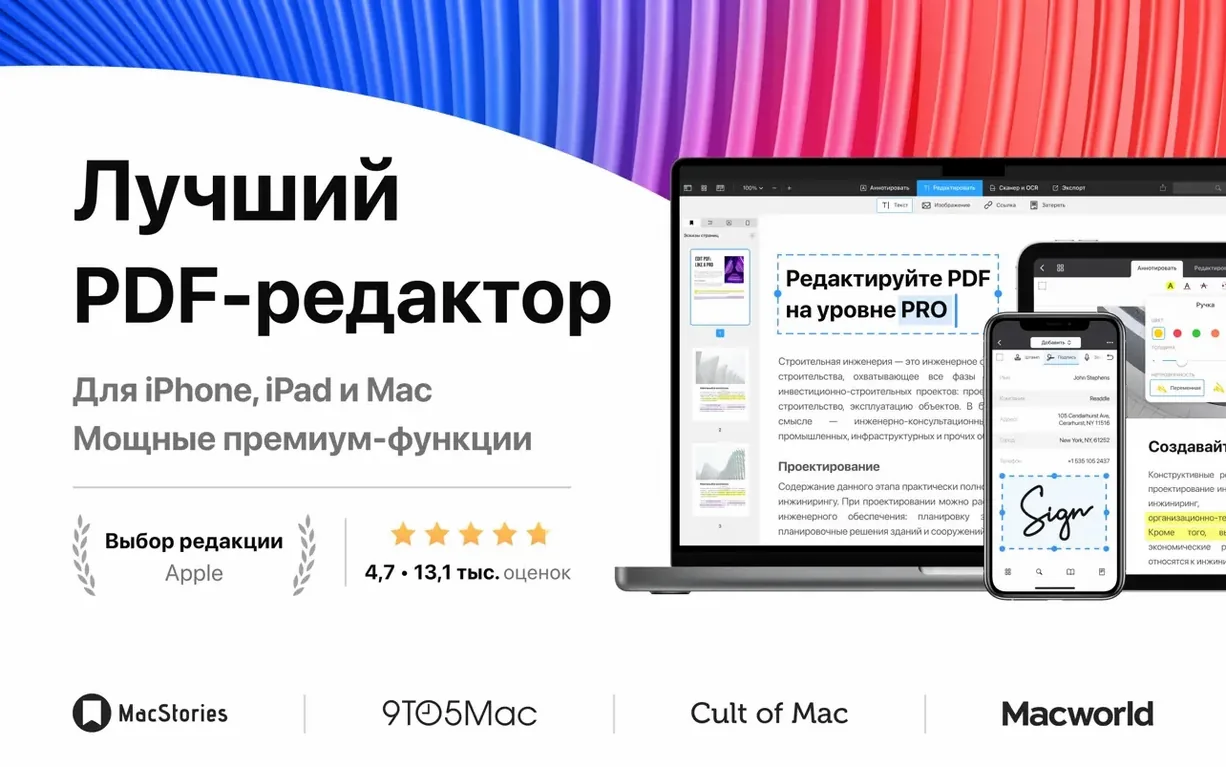
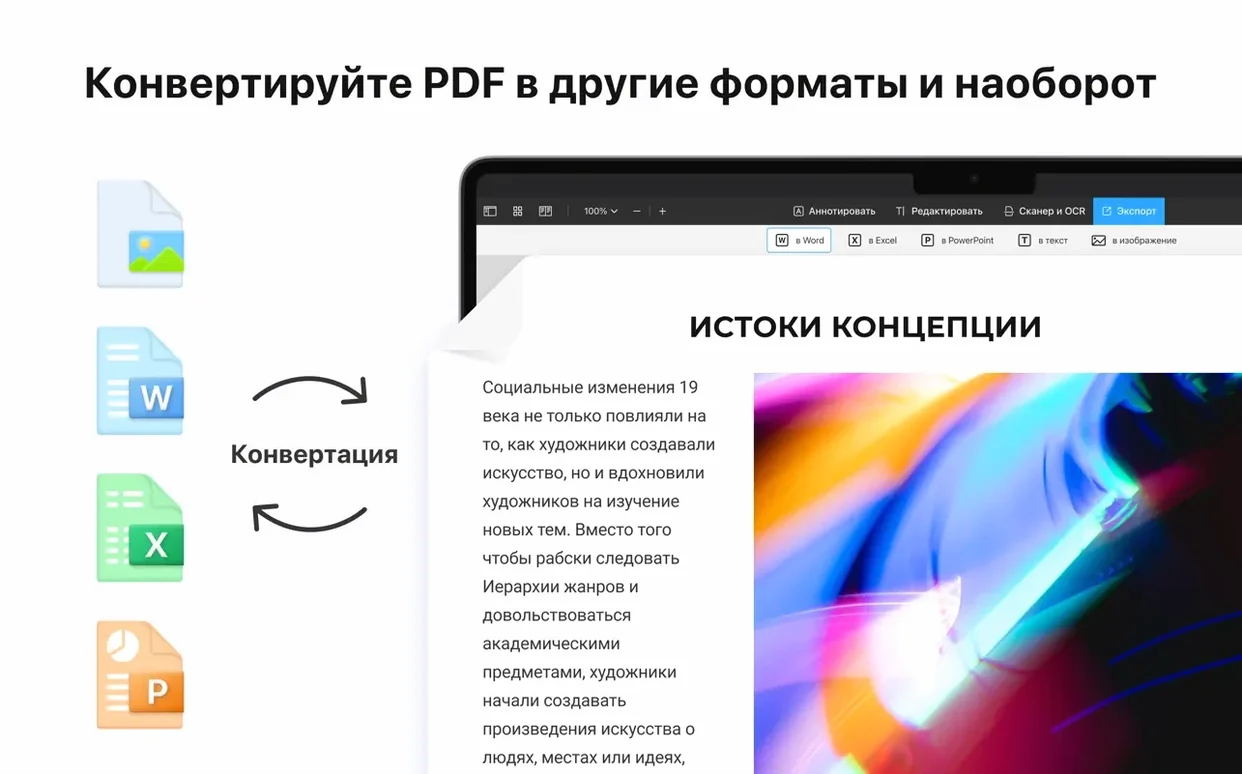
PDF Expert is a PDF editor that sits neatly between a basic reader and a full desktop-publishing suite, giving you proper control over the text and images inside a document. A typical task is updating an old CV, the kind of job that used to mean hunting for the original Word file, assuming you still had it. With this, you open the PDF, click the text you want to change and just type. The surrounding text reflows sensibly, and the fonts already embedded in the document stay put, so you are not left chasing a matching typeface. Once the edits are done, the same file can be annotated with highlights and sticky notes for a reviewer, then locked with a password before you send it anywhere.
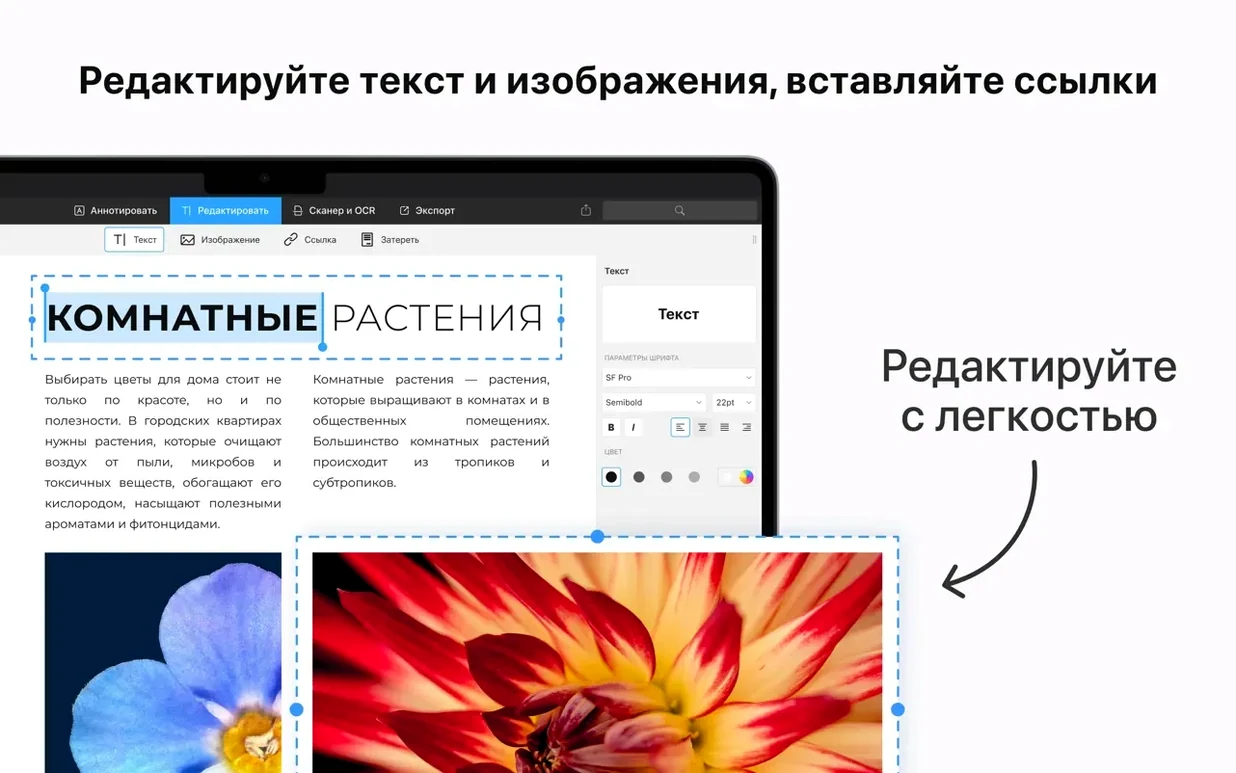
Edit text directly in a PDF without converting the file first
- Editing existing text directly in a PDF, without converting the file first.
- Filling out interactive forms and signing documents with a saved digital signature.
- Merging several PDFs into one — contracts, scans and email attachments all combined.
- Setting an open password on sensitive documents before sharing them.
Editing complex, heavily formatted layouts can still need patience
- Works on macOS 12 and later, so older Macs may be left out.
- Editing complex, heavily formatted layouts can still need patience — it is a PDF editor, not InDesign.
You are probably overlooking the recent files stack
Most people open a PDF, do what they came for and close it without ever noticing the handful of little touches that make the daily grind smoother. A good one to start with is the recent files stack on the start screen — drag any document out of it and drop it onto your desktop or a Finder folder to copy it there instantly. It sounds trivial, but when a colleague messages you asking for last Tuesday's annotated contract, this shaves a solid minute off the hunt.
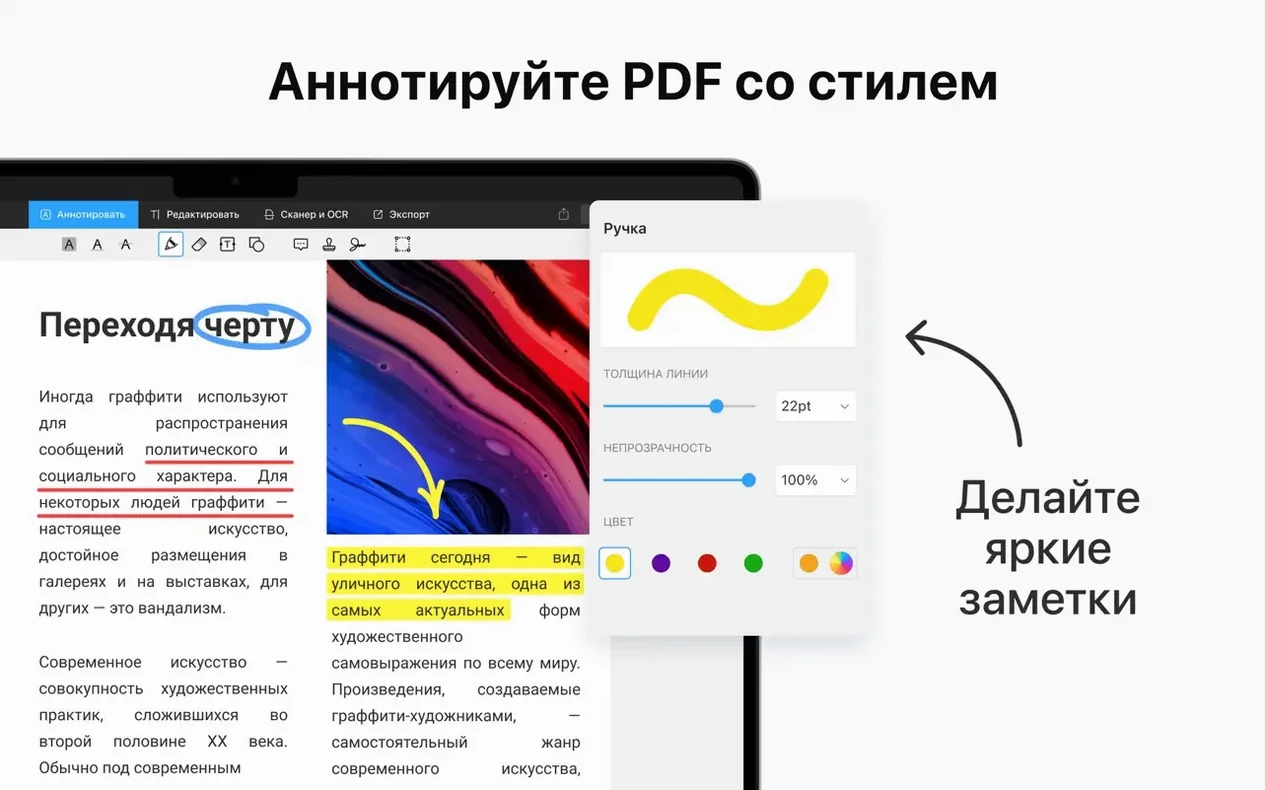
Another hidden gem lives in the annotation toolbar. The highlighter tool has a straight-line mode: hold the Shift key while you drag, and the highlight snaps to a perfectly horizontal band across the text. No wobbly, drunken-looking yellow streaks on formal reports. The same trick works with the underline and strikethrough tools, by the way.
If you deal with scanned documents — the kind that arrive as one enormous image with no selectable text — the OCR button tucked in the toolbar is worth remembering. Tap it, choose your language and PDF Expert runs optical character recognition on the scan. A minute later, you can search, copy and highlight the text as if it were born digital. The app does not shout about this feature; it sits quietly in the toolbar, often overlooked for weeks after installation.
One more: the document tab bar behaves like a web browser. Middle-click a tab to close it, or hold Command and click a link inside a PDF to open it in a new tab. If you are working through a pile of invoices, each with its own supporting documents linked from a summary page, this keeps everything under one window without a desktop full of floating windows.
Replacing a brochure’s German text with English and adding a signed page
Consider a freelance translator who receives a thirty-page marketing brochure as a PDF. The client wants the German text replaced with English, the product screenshots updated and a signed declaration page appended to the back. Five years ago, this job meant extracting the text into a Word file, wrestling with formatting, exporting, then realising the images had shifted. With PDF Expert, the workflow shrinks considerably.
She opens the PDF and clicks directly into the first paragraph. The text box expands to show the full German copy, which she selects and overwrites with her translation. The font — a corporate DIN variant — stays intact because it is embedded in the file. She adjusts a couple of line breaks by dragging the text-box handles, then moves to the next block. On page twelve, a screenshot shows the old software interface in German. She right-clicks the image, chooses Replace Image and selects the updated English version from her desktop. The replacement drops in at the same size and position, no fiddling required.
When the translation is complete, she opens the Signatures panel, draws her declaration signature with the trackpad and stamps it onto the final page. She then merges the client's standard terms-and-conditions PDF — a separate file — by dragging its thumbnail from the page sidebar into the brochure document. Before emailing the finished file, she sets an open password so only the client can view it. The whole job, from download to delivery, stays inside one application.
Switch the default zoom from Automatic to a fixed width
Out of the box, PDF Expert makes sensible choices, but a handful of preferences reward a quick visit. Open Settings (Command-comma) and look at these first:
- Default zoom — the factory setting is "Automatic," which fits the page width. If you work mostly with A4 text documents, switch this to Fit Width for a more consistent reading experience. For landscape spreadsheets or architectural plans, Fit Page often works better.
- Page display — the default single-page view is fine for reading, but if you compare documents side-by-side or check layout spreads, switch to Two Pages and tick the Show cover page checkbox. This pairs pages as they would appear in a printed booklet, with page one standing alone.
- Annotation author name — every comment and sticky note carries an author tag. The default uses your macOS account name, which may be something unprofessional like "Alex's Old MacBook." Change it to your full name under the Annotations tab so collaborators see a proper identity on your feedback.
- Backup behaviour — PDF Expert autosaves changes directly to the original file by default. If you prefer a safety net while editing important documents, enable Keep original file after editing in the General tab. The app will then save edits to a copy, leaving the untouched original where it was.
Workflow: preparing a contract for signing
Imagine you have just received a contract as a Word document. The other party has filled in their sections, but you need to add your details, initial three clauses, sign the final page and return it as a locked PDF. Here is a start-to-finish workflow using only PDF Expert.
Step one: convert the Word file. Rather than opening the DOCX directly, drag it onto the PDF Expert icon in the Dock. The app converts it to PDF on the spot, preserving the layout and fonts. If the document arrives as a Pages or Google Docs file, the same drag-and-drop conversion works, because the app understands those formats natively.
Step two: fill in your details. Open the new PDF and click into any blank fields — name, address, date — and type directly. If the contract includes interactive form fields (the kind with blue highlights), tab between them with the Tab key; PDF Expert recognises standard PDF forms and jumps field to field in the correct order.
Step three: initial the clauses. Open the Signatures panel from the toolbar. If you have not saved a signature yet, click the plus button and sign your name on the trackpad with your finger, or hold a signed piece of paper up to the camera if your Mac has one. Save the signature with a descriptive name — "Initials" works well here. Click each clause that needs initialling, and the saved signature stamps down at a sensible size. Drag it into position if the automatic placement misses the mark.
Step four: add the final signature. Switch to your full signature in the same panel and click the signature block on the last page. The signature drops in as a vector graphic, so it scales cleanly if the recipient zooms in.
Step five: flatten and protect. Before sending, you may want to lock the annotations so nobody can move your signature around. Go to File > Flatten Annotations, which bakes the signatures and filled fields into the page content. Then choose File > Set Password and enter an open password. The recipient will need this password just to view the file, adding a layer of security against accidental forwarding. Attach the PDF to your reply and send it off — no printing, no scanning, no separate apps.
A fifty-page document with mixed text and images opens in about two seconds
In daily work on an Apple Silicon Mac, PDF Expert launches in about two seconds — roughly the time it takes to move your hand from the keyboard to the trackpad. Opening a fifty-page document with mixed text and images feels instantaneous, and page scrolling stays smooth even when the file is heavy with high-resolution photographs. The app uses Apple's PDF rendering engine under the hood, the same one that powers Preview, which means text remains crisp at any zoom level and font rendering matches what you see in every other Mac app.
Memory use is modest by modern standards. A typical session with half a dozen open documents — say, a couple of annotated contracts, a scanned manual and a hundred-page report — sits around 400 to 600 MB of RAM. For comparison, that is less than a dozen Safari tabs on a news-heavy morning. The app stays responsive during edits; typing into a text box on page thirty of a long document does not trigger any perceptible lag, and the undo stack remembers changes deep into a session without slowing things down.
One area where the efficiency shows is file size after editing. If you add a signature or a few highlights, the saved PDF grows by only a few kilobytes — the app writes incremental changes rather than rewriting the entire file. This matters when you are emailing documents back and forth and want to keep attachments lean.
Stability in version 3.11.1 has been uneventful, which is high praise for a PDF editor. Across weeks of regular use — editing text, replacing images, merging files and running OCR on scanned pages — crashes are rare. The only wobble I have seen is when replacing an image with one of a wildly different aspect ratio; the app occasionally places it slightly off-centre, but a quick drag corrects it. For a tool that handles the PDF format's notorious complexity, that is a solid showing.
Battery impact on a MacBook is similarly understated. An hour of reading and light annotating sips around six to eight percent of battery, roughly on par with Apple's own Preview app. Heavy OCR work on a long scanned document will spin up the fans briefly and draw more power, but the processing finishes quickly and the machine settles back to idle. If you work unplugged on a train or in a café, PDF Expert is not the app that will have you hunting for a power socket.
- macOS 12 (Monterey) or later
- Runs natively on Apple Silicon and Intel 64-bit Macs
Questions from the class 0
Sign in or join the class to ask a question.
Nobody has asked anything yet. If you have used it on a real job, say what the file did.
Also on the Office shelf
The whole Office shelf PDF Reader Pro
Reorders and merges scattered documents into one tidy PDF without altering the originals.
PDF Reader Pro
Reorders and merges scattered documents into one tidy PDF without altering the originals.
 PDFelement Pro
Turns a flat scanned contract into a searchable, fillable and signable PDF.
PDFelement Pro
Turns a flat scanned contract into a searchable, fillable and signable PDF.
 OmniReader Pro
Opens EPUB, CHM, and Kindle books on your Mac for a comfortable, ad-free reading session.
OmniReader Pro
Opens EPUB, CHM, and Kindle books on your Mac for a comfortable, ad-free reading session.
 OmniPlan Pro
Plots company-wide project schedules, tracks resources, and tests timelines with Monte Carlo simulation.
OmniPlan Pro
Plots company-wide project schedules, tracks resources, and tests timelines with Monte Carlo simulation.
 Numbers Creator Studio
Builds spreadsheets, charts, and pivot tables with Apple’s clean, collaborative workbook environment.
Numbers Creator Studio
Builds spreadsheets, charts, and pivot tables with Apple’s clean, collaborative workbook environment.
 Notebooks
Holds all your writing, notes, and task lists inside a single personal organiser that also handles PDFs.
Notebooks
Holds all your writing, notes, and task lists inside a single personal organiser that also handles PDFs.
 Nitro PDF Pro
Lets you edit text, swap images, and sign documents right inside a PDF without converting it first.
Nitro PDF Pro
Lets you edit text, swap images, and sign documents right inside a PDF without converting it first.
 QuickBooks Mac Plus
Tracks small business income, expenses and payroll.
QuickBooks Mac Plus
Tracks small business income, expenses and payroll.