 ASPNetWorld

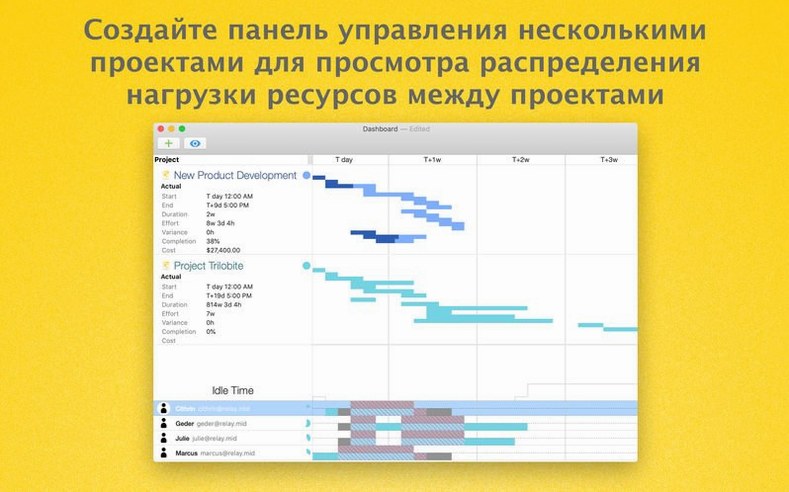
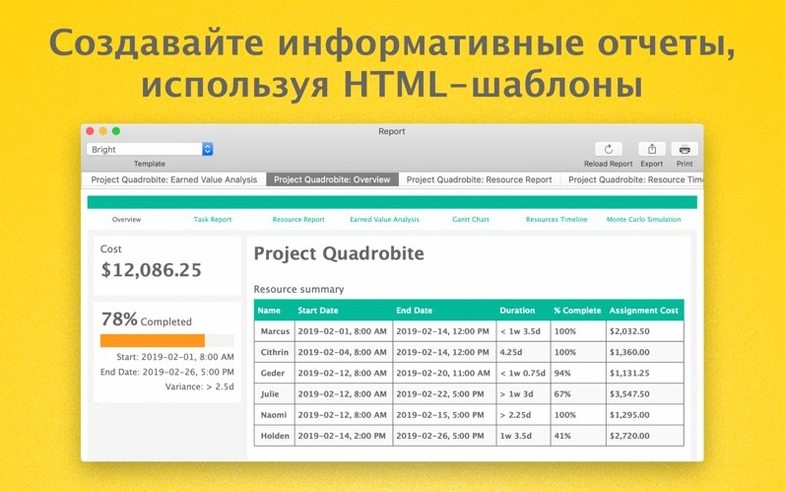
Monte Carlo simulation is the feature that makes seasoned project managers sit up a little straighter. Instead of giving you a single, fragile completion date, it runs thousands of what-if scenarios and shows you the spread of possible outcomes — so you know how confident you can actually be about hitting that deadline. Here it lives inside an app that runs natively on your Mac.
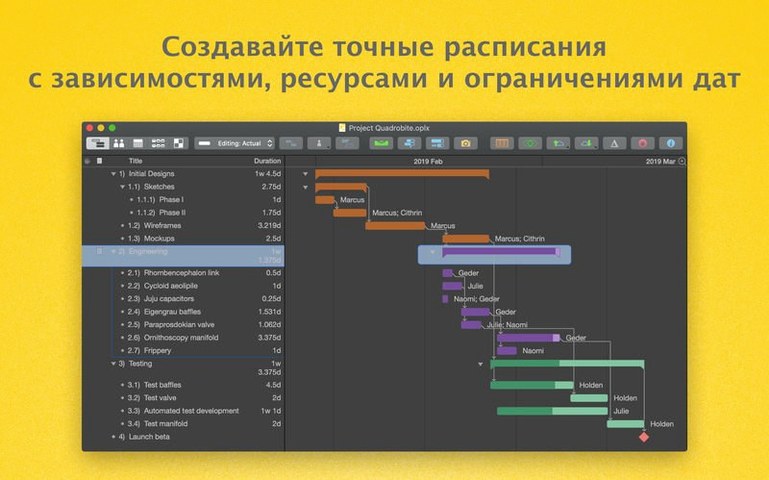
At heart, OmniPlan is a project planner that refuses to treat resources as an afterthought. You map out tasks and dependencies on a Gantt chart, then overlay the reality of who is available and when. Days of absence sit on the calendar right alongside working hours, so the timeline doesn't quietly assume everyone works flat out forever. It imports and exports Microsoft Project documents without fuss, which matters when your collaborators live in a different ecosystem — and the Pro version adds AppleScript support for automating repetitive setup work.
The network diagram view is where dependencies become blindingly obvious. A task that looks harmless in a list suddenly shows its true nature when you see arrows snaking across the screen, linking it to half a dozen other jobs that can't start until it finishes. Export options cover the bases: PDF for stakeholders who want a static report, CSV for number-crunchers, OmniGraffle for richer diagramming, and ICS if you need to feed milestones into a calendar app.
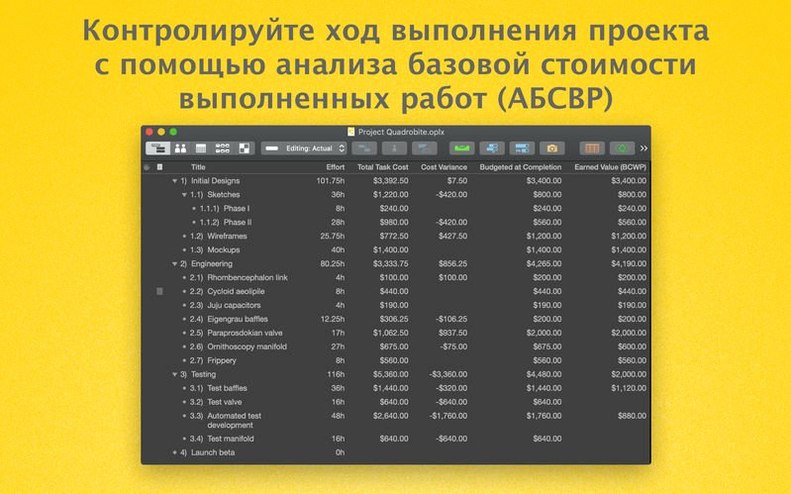
This is a tool for people who have outgrown a spreadsheet but don't want the weight of a full-blown enterprise platform. The earned value analysis in the Pro edition tells you whether you're getting your money's worth from the hours spent — a dry phrase, perhaps, but one that can save a project from drifting quietly off course.
Give yourself a quiet first afternoon with the app after installing it. Open a small, real project rather than a toy example — something with five or six tasks and a couple of dependencies — and work through it from blank canvas to a baseline. The reason is that OmniPlan reveals its logic through use, not through menus. By the time you have dragged dependencies between bars on the Gantt chart and watched the schedule recalculate, the mental model of task, resource and calendar clicks into place in a way that reading the handbook never quite achieves.
A second task worth doing early is setting up the working calendar to match reality, not the factory defaults. A minor mismatch in the first week compounds across months of scheduling. Go to the calendar inspector and block out public holidays, team-wide leave days and your own recurring meetings. If you manage a part-time contractor, create a specific calendar for them with reduced hours; assign it via the resource inspector and watch how the task durations shift. It feels like a small administrative chore, but it prevents the schedule from promising things that were never physically possible.
Hidden conveniences you might walk straight past
Holding the Option key while dragging a task bar snaps it to the nearest round time unit — quarter-hour, half-hour, whatever your timeline scale dictates. It is a tiny thing, but once you know it, you stop fiddling with the inspector for simple nudges. The space bar opens a quick-look panel on any selected task, giving you notes, resource assignments and dependency info without leaving the Gantt view at all. And the filter bar above the task outline, the one that looks almost too simple to bother with, accepts natural language: type overdue or next week and watch the list contract around only the items that match. It spares you from building saved filter sets for everyday checks.
Another quiet pleasure is the way the app handles rescheduling. If you move a task later and it pushes dependent work beyond a milestone, OmniPlan offers to resolve the violation by levelling the chain for you — you can accept or reject the proposal task by task. It is collaborative in spirit, even when you are working alone. You never feel the software is making decisions behind your back.
Turn on the estimation engine that learns from your task sizes
The effort estimation model defaults to manual entry, but the Pro version includes an automatic estimation engine that learns from the sizes you assign. Switch it on in the project inspector under Effort and feed it a few tasks with known effort values. Over the first week, as you add more data, its guesses tighten noticeably. It works best when you use consistent units — story points, ideal hours, whatever your team already thinks in — rather than mixing metaphors.
Also worth a visit is the Display preferences pane. The default Gantt bar colours are functional but indistinct; assigning a colour set that maps to resource groups or task types makes the chart readable at a glance during meetings. In the same pane, reduce the default row height by one notch if you find yourself scrolling more than scanning. Small adjustments here pay off every time you open a project.
If you ever export to PDF for stakeholders, set up a custom header and footer template once and save it as part of your default project template. Including the project name, export date and page numbering takes thirty seconds now and prevents the mild embarrassment of handing around undated printouts later.
How OmniPlan fits alongside other apps
The export to OmniGraffle is more useful than it sounds. Project plans live in Gantt charts and outlines; when you need to present a dependency network in a slide deck or a report, the network diagram view inside OmniPlan is good for reasoning, but OmniGraffle gives you the styling control to make it client-ready. Export, open, tweak the line weights and colour palette, and you have a diagram that stands on its own.
On the macOS side, the app talks to Calendar via ICS export, but the smarter workflow goes the other direction: block personal time in your Mac's Calendar app, then use the availability inspector inside OmniPlan to read those blocks as non-working time. It keeps the project schedule honest about when you genuinely cannot be working, without duplicating data entry. Combined with Omni Sync Server, which handles publishing and subscribing for shared projects, you can push an updated plan to a colleague and have their changes appear in your file with tracked differences you can accept or reject individually — a peacekeeping feature when multiple people have opinions about the timeline.
And for the spreadsheets that never quite go away, the CSV export handles the data transfer cleanly. Export a task list with costs and effort, open it in Numbers or Excel for ad-hoc analysis, and import nothing back. Keep the master plan in OmniPlan where it belongs, and let the spreadsheet be a temporary scratchpad.
Version 4.11 is a quiet maintenance update that keeps OmniPlan running smoothly on recent macOS releases. The most noticeable change is snappier performance when editing a task that carries a long list of assigned resources — a small fix that saves a real amount of friction during busy scheduling sessions.
- macOS 12 or newer
- Apple Silicon and Intel Macs are both supported
Questions I keep hearing
What does the Monte Carlo simulation in OmniPlan Pro actually show you?
It runs many simulated versions of your project to produce a probability curve of completion dates, helping you judge how reliable your current schedule really is.
Questions from the class 0
Sign in or join the class to ask a question.
Nobody has asked anything yet. If you have used it on a real job, say what the file did.
Also on the Office shelf
The whole Office shelf OmniReader Pro
Opens EPUB, CHM, and Kindle books on your Mac for a comfortable, ad-free reading session.
OmniReader Pro
Opens EPUB, CHM, and Kindle books on your Mac for a comfortable, ad-free reading session.
 Numbers Creator Studio
Builds spreadsheets, charts, and pivot tables with Apple’s clean, collaborative workbook environment.
Numbers Creator Studio
Builds spreadsheets, charts, and pivot tables with Apple’s clean, collaborative workbook environment.
 Notebooks
Holds all your writing, notes, and task lists inside a single personal organiser that also handles PDFs.
Notebooks
Holds all your writing, notes, and task lists inside a single personal organiser that also handles PDFs.
 Nitro PDF Pro
Lets you edit text, swap images, and sign documents right inside a PDF without converting it first.
Nitro PDF Pro
Lets you edit text, swap images, and sign documents right inside a PDF without converting it first.
 PDF Expert
Edits text and images directly inside a PDF without hunting for the original file.
PDF Expert
Edits text and images directly inside a PDF without hunting for the original file.
 PDF Reader Pro
Reorders and merges scattered documents into one tidy PDF without altering the originals.
PDF Reader Pro
Reorders and merges scattered documents into one tidy PDF without altering the originals.
 PDFelement Pro
Turns a flat scanned contract into a searchable, fillable and signable PDF.
PDFelement Pro
Turns a flat scanned contract into a searchable, fillable and signable PDF.
 Money Pro
Tracks personal finances, budgets, and bills across all your accounts in one place.
Money Pro
Tracks personal finances, budgets, and bills across all your accounts in one place.