 ASPNetWorld
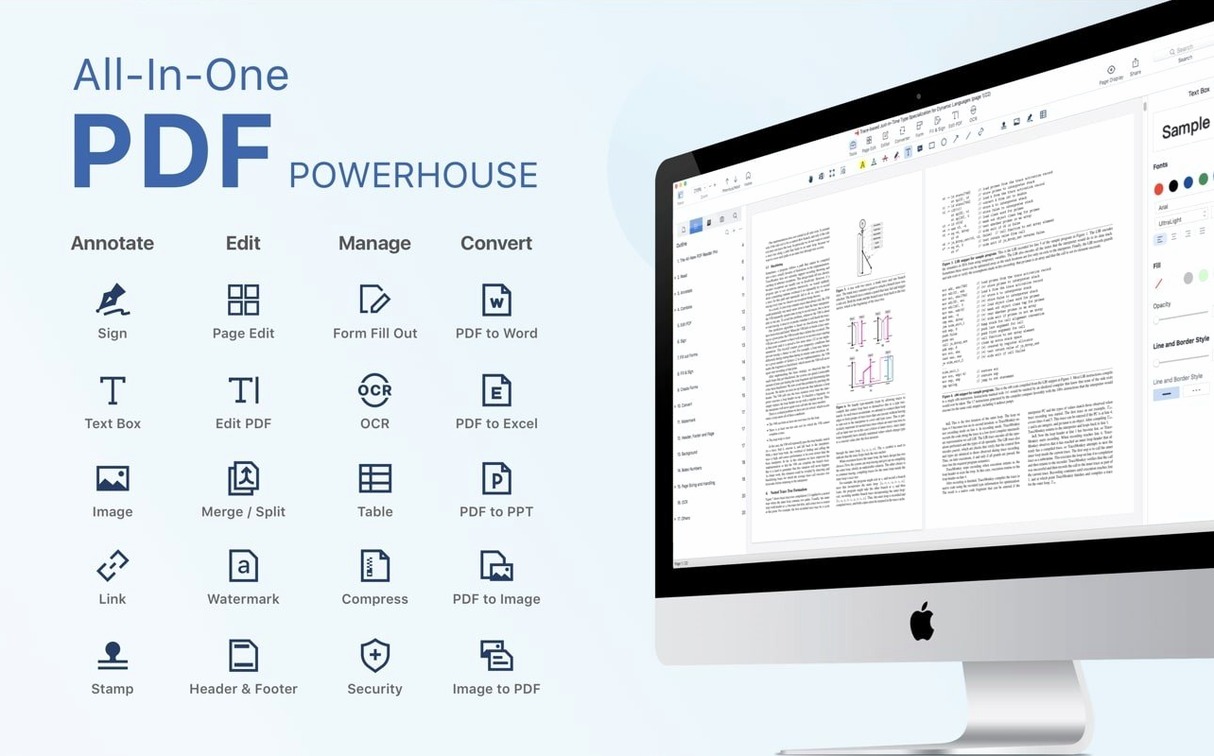
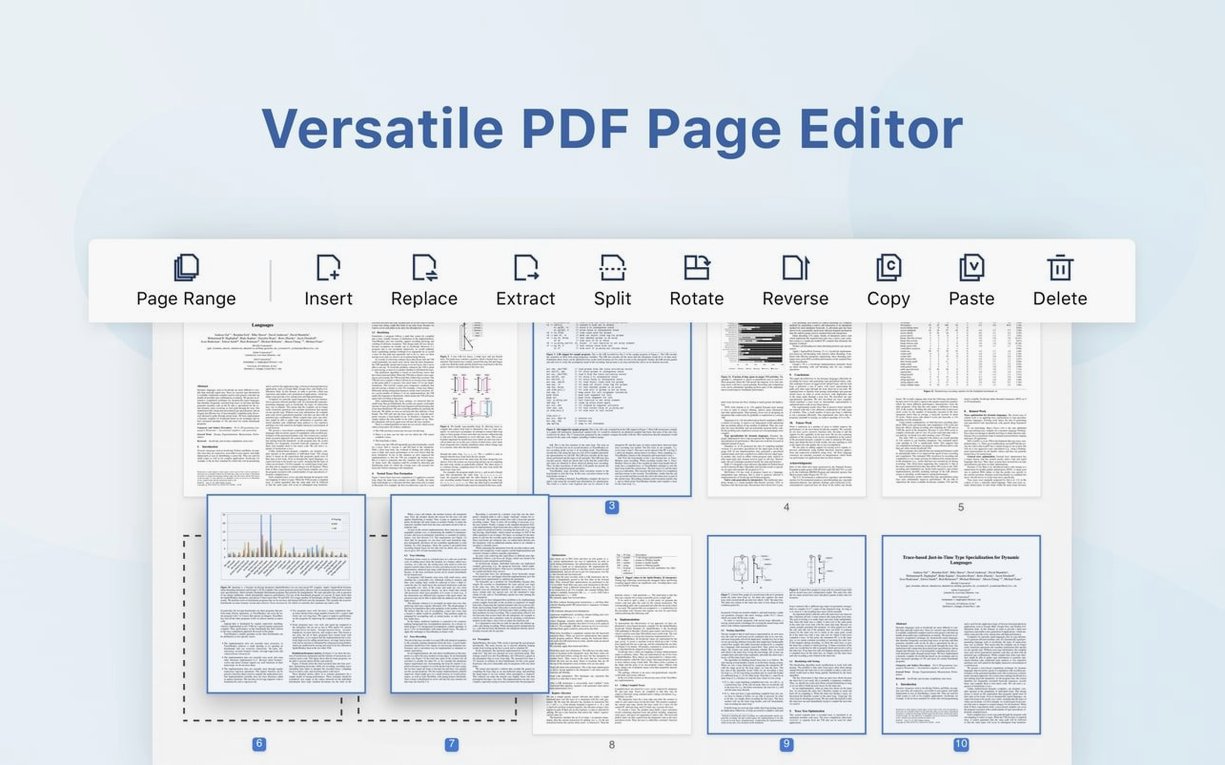
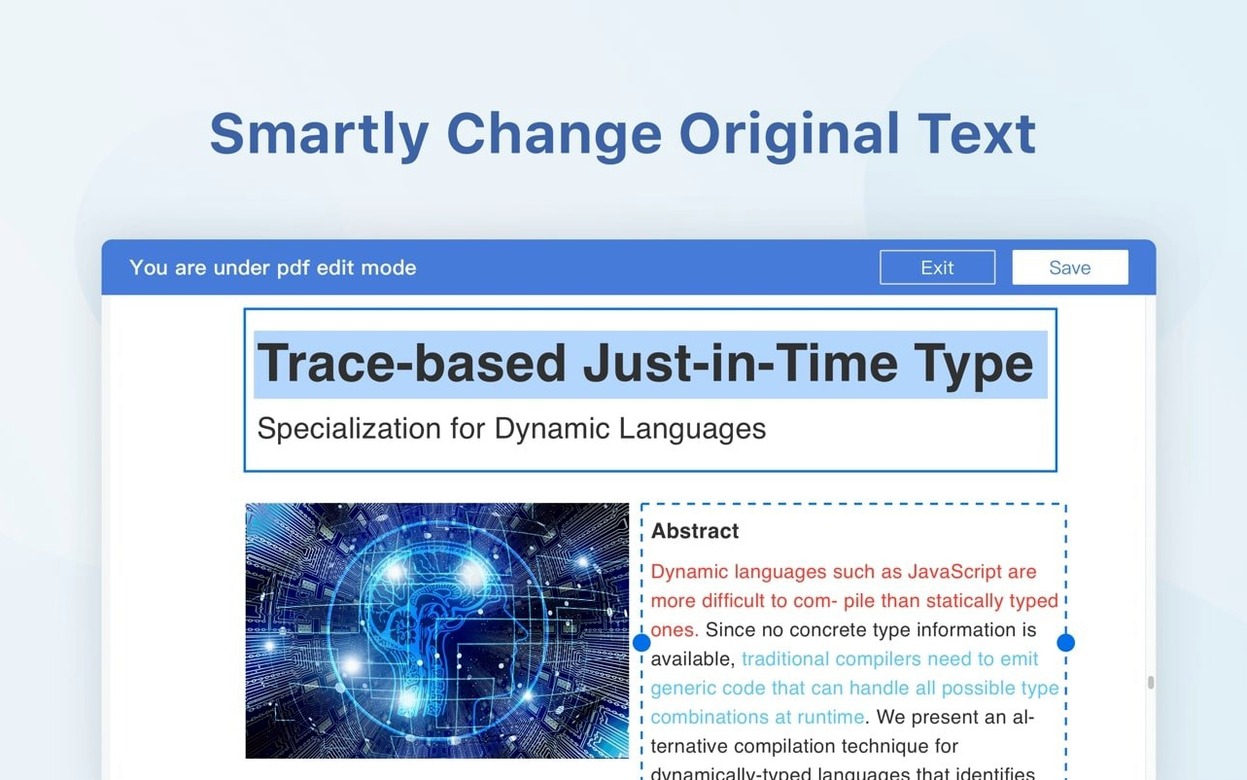
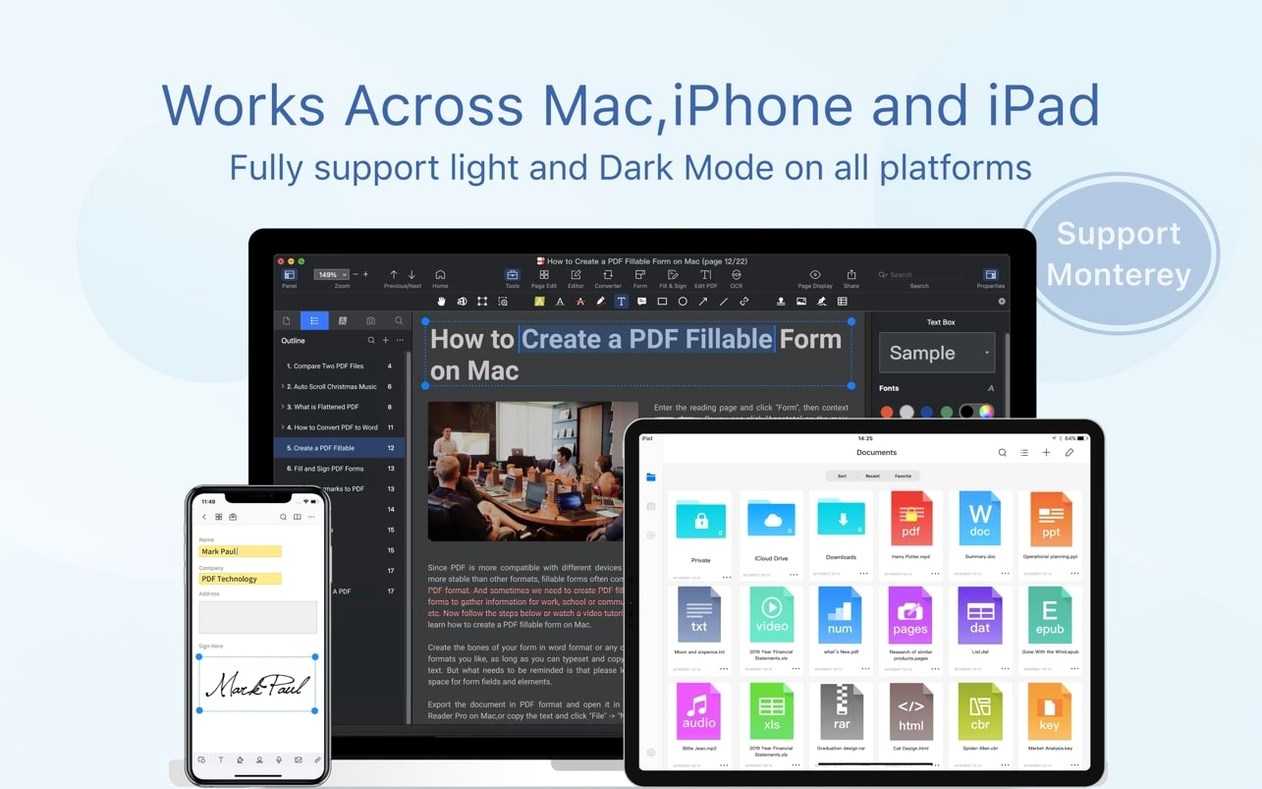
Merge Document sits quietly in the Tools menu, but it's the feature that sorts a week's worth of scattered invoices into one tidy package. You drag, you drop, you reorder thumbnails, and the app stitches them together without touching the original files. That's the kind of utility that makes the difference when you're past the honeymoon phase and actually living with the software.
How does the eSign workflow handle multiple signatories?
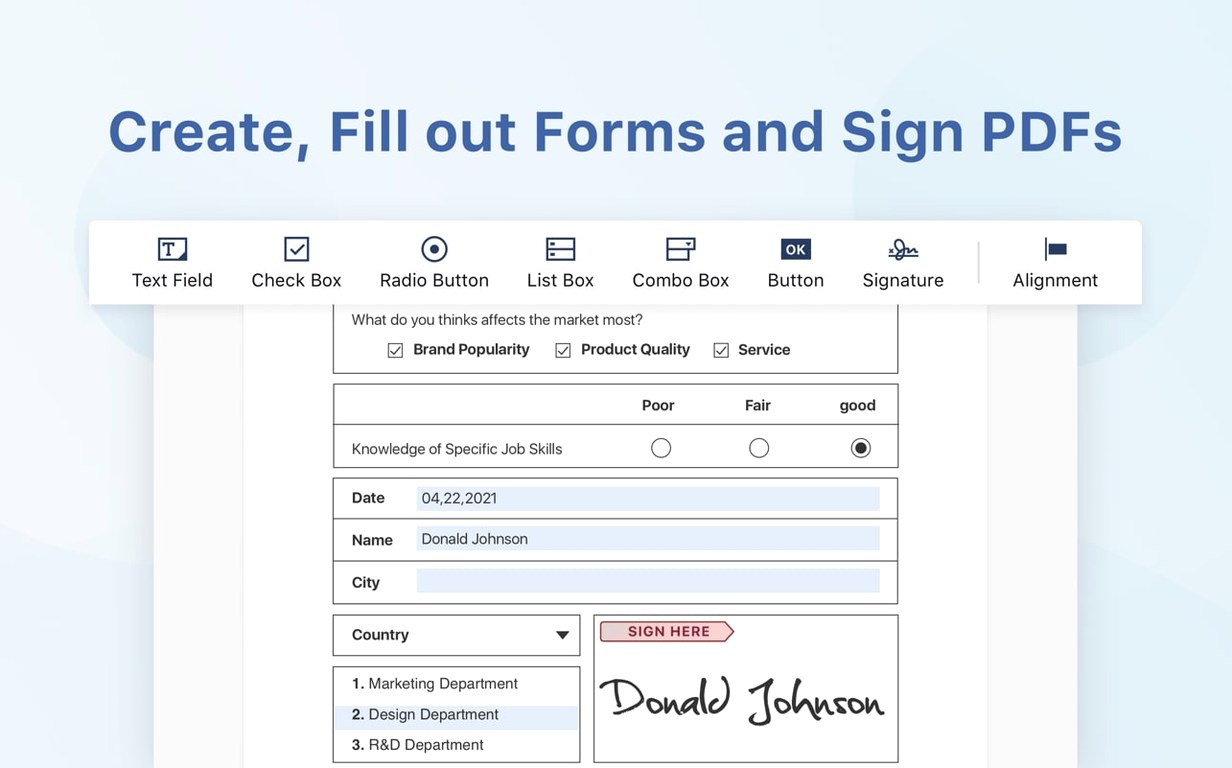
Version 5.3.0 brought proper signature fields and an online signing path, so you're not just pasting a flat image of your scrawl onto a page. You place a dedicated signature field and the document can be signed online, which saves a good deal of printing and scanning.
Can it speak a long report back to me?
It can, and it's more useful than it sounds. The text-to-speech engine reads aloud from any selected text, which means you can listen to a contract while making coffee or proofread a document by ear — your brain catches clunky phrasing that your eyes skim over. For long documents there is also a presentation mode that turns pages into full-screen slides.
What about juggling a dozen reference documents?
Bookmarks are the unsung hero here. Mark the pages you need in each file and jump between them instantly. It's like having a ring binder where you've tagged every relevant section with a coloured tab, except the binder never gets too fat to close.
A researcher's morning with a downloaded archive
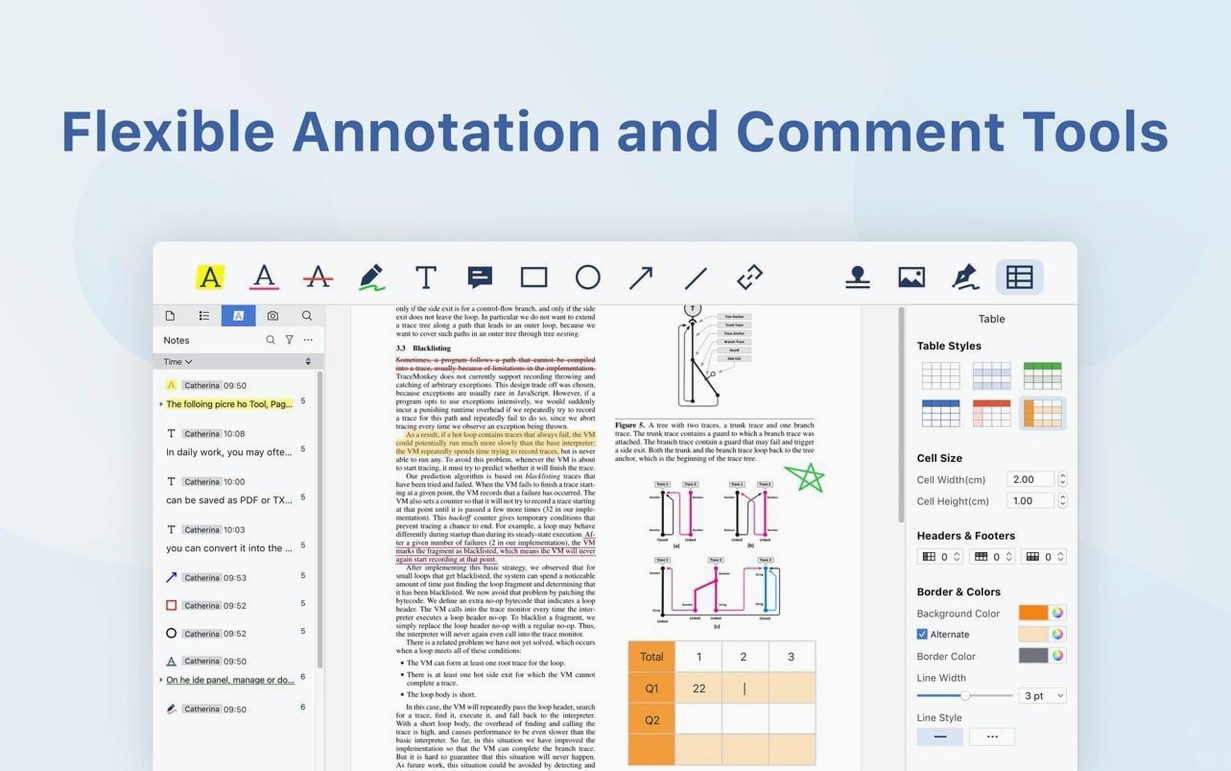
Imagine a postgrad student who has just pulled a compressed folder of old journal scans from a university repository — the kind of mixed‑bag download that arrives as a pdf torrent or a zip full of inconsistently named files, some rotated sideways, some locked, and at least one that refuses to open in a browser. They drag the whole lot onto PDF Reader Pro's dock icon. The app opens each document in its own tab, no fuss about the file that Preview choked on. Within twenty minutes they have straightened the crooked scans, run OCR on the oldest typewritten articles so the text is finally searchable, and combined everything into a single chronological PDF they can annotate with highlights and marginal notes. The search bar in the sidebar finds a half‑remembered phrase across all sixty open tabs, and the student realises they can skip the index cards entirely.
First week: small habits that pay off
After you have dragged the app into Applications and launched it, spend your first few days building muscle memory for the tools that save the most clicks. Here are three that repay the effort quickly.
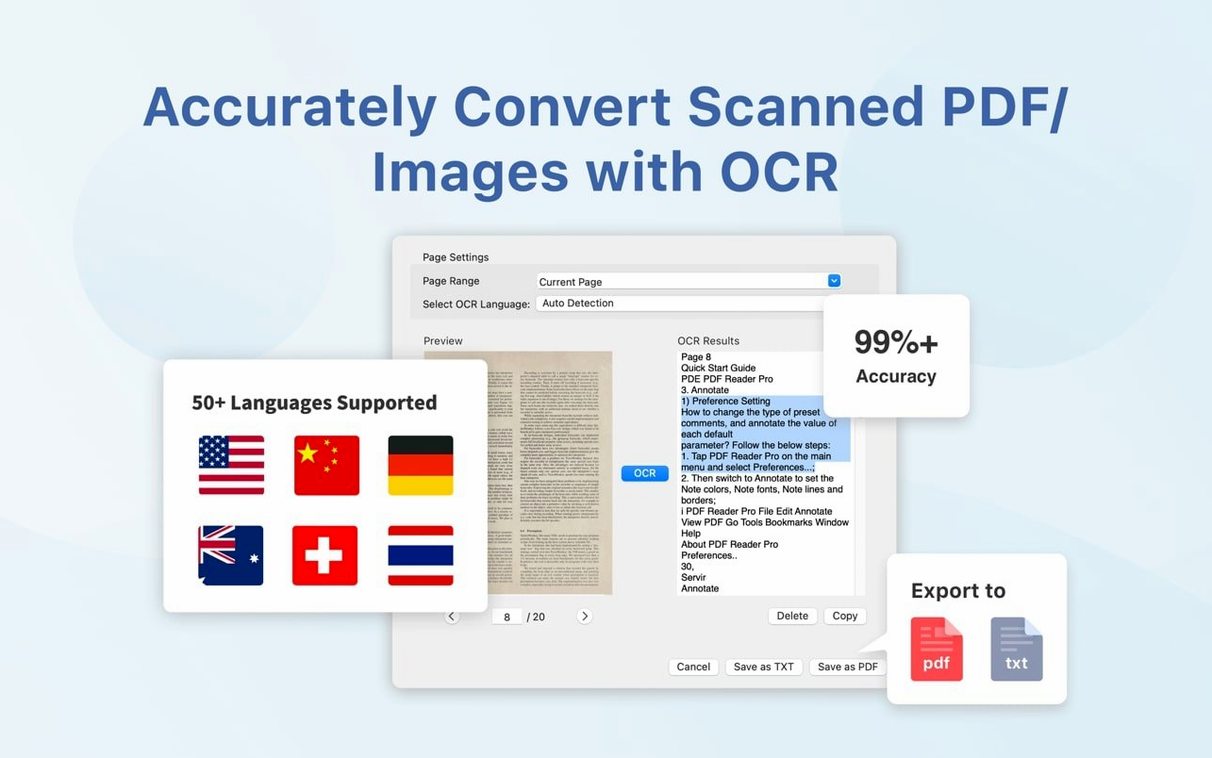
Set your default OCR language early. The text recognition engine supports multiple languages, but it defaults to English. If you regularly work with German or Japanese documents, switch the recognition language in Preferences before you process a batch. It saves you re‑running OCR later when you discover half the characters came out as gibberish.
Customise the toolbar once and commit. Out of the box the toolbar is generous, but you probably do not need the Insert Image button every day. Right‑click the toolbar area, choose Customise, and drag the Split, Merge, and Bookmark icons into the main bar. They are the ones you will reach for when a colleague sends a 200‑page report and asks for just the executive summary and appendix as a separate file.
Use the Dropbox sync pane as a working folder. Link your Dropbox account in the app's file browser and save directly into a synced folder. It means the annotated draft you finish on your Mac at midnight is already on your iPad when you review it over breakfast, without an extra export step.
Turning a scanned contract into an editable Word file: a start‑to‑finish walkthrough
You receive a five‑page scanned contract as a PDF. It is a flat image — no selectable text, no form fields, just a photograph of paper. The other party wants it back as a Word document with your amendments tracked. Here is one clean path through the app.
Open the file. The pages appear as images; try to select text and nothing happens. Go to the Tools menu and choose OCR. Select the document language (the contract is in French, so you pick Français from the list) and set the output to Searchable Text. Let it run — five pages takes perhaps fifteen seconds on an Apple Silicon machine. When the progress bar vanishes, the text is now live. You can highlight clauses and copy them.
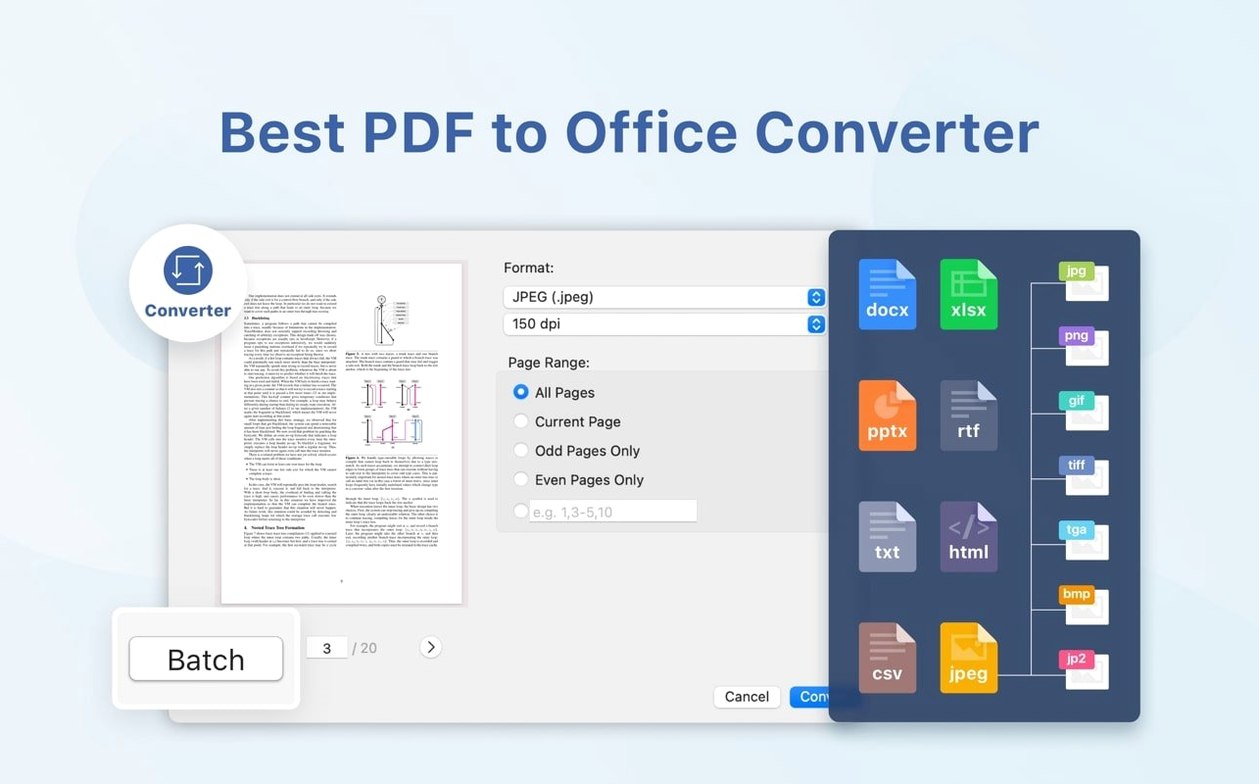
Now head to the Convert tab and pick To Word. The dialogue offers a choice: preserve layout or favour editability. For a contract you want the layout to stay as close to the original as possible, so you check Preserve Page Layout and let it export. The resulting .docx file opens in Pages or Microsoft Word with the text blocks, signatures and date stamps all sitting where they should be. You turn on Track Changes and start negotiating.
Before you send it back, open the original PDF again and use the Compare Documents tool — it lives under the Tools menu — to overlay the signed scan against a clean template. Any stray mark or added comma lights up in blue, which catches a typing error you would otherwise have missed.
Preview handles simple markups, but PDF Reader Pro adds OCR and editing muscle
If you already use Preview, you know it handles basic markup and form filling without complaint, and it launches in a heartbeat because it is part of the operating system. What Preview does not give you is true OCR, document comparison, or batch conversion to Word and Excel. PDF Reader Pro fills exactly that gap: it is a step up in editing depth without stepping into the heavyweight design tools.
Next to something like PDF Expert, the two apps share a lot of ground — annotation, merging, signing — but PDF Reader Pro puts more emphasis on conversion formats and the adaptive reader features like text‑to‑speech and presentation mode. If your day involves turning PDFs into editable spreadsheets or listening to reports while you commute, that tips the balance. PDF Expert feels more like a sleek reading and markup environment; PDF Reader Pro behaves more like a document workshop.
Compared with a classic 7z reader or a simple pdf reader torrent that only opens files, the difference is stark. Those tools display pages; they do not let you split a PDF by bookmark, run a multi‑signature eSign workflow, or export a scanned table to a CSV that opens cleanly in Numbers. Where a pdf pro torrent might promise a bundle of editing features, PDF Reader Pro actually delivers the full set in a single, coherent interface — OCR, conversion, form creation and signing all live under one roof rather than being stitched together from separate utilities.
- macOS 11 or later
- Intel or Apple Silicon Mac
Questions I keep hearing
Does it let you fill and save interactive forms?
Yes, it handles both static and interactive form fields, so you can fill, save, and print without the data vanishing when you reopen the file.
Which languages does the interface support?
It speaks Russian, English, German, Spanish, Italian, Traditional Chinese, Simplified Chinese, Dutch, Polish, French and Japanese.
Questions from the class 0
Sign in or join the class to ask a question.
Nobody has asked anything yet. If you have used it on a real job, say what the file did.
Also on the Office shelf
The whole Office shelf PDF Expert
Edits text and images directly inside a PDF without hunting for the original file.
PDF Expert
Edits text and images directly inside a PDF without hunting for the original file.
 PDFelement Pro
Turns a flat scanned contract into a searchable, fillable and signable PDF.
PDFelement Pro
Turns a flat scanned contract into a searchable, fillable and signable PDF.
 OmniReader Pro
Opens EPUB, CHM, and Kindle books on your Mac for a comfortable, ad-free reading session.
OmniReader Pro
Opens EPUB, CHM, and Kindle books on your Mac for a comfortable, ad-free reading session.
 OmniPlan Pro
Plots company-wide project schedules, tracks resources, and tests timelines with Monte Carlo simulation.
OmniPlan Pro
Plots company-wide project schedules, tracks resources, and tests timelines with Monte Carlo simulation.
 Numbers Creator Studio
Builds spreadsheets, charts, and pivot tables with Apple’s clean, collaborative workbook environment.
Numbers Creator Studio
Builds spreadsheets, charts, and pivot tables with Apple’s clean, collaborative workbook environment.
 Notebooks
Holds all your writing, notes, and task lists inside a single personal organiser that also handles PDFs.
Notebooks
Holds all your writing, notes, and task lists inside a single personal organiser that also handles PDFs.
 QuickBooks Mac Plus
Tracks small business income, expenses and payroll.
QuickBooks Mac Plus
Tracks small business income, expenses and payroll.
 Nitro PDF Pro
Lets you edit text, swap images, and sign documents right inside a PDF without converting it first.
Nitro PDF Pro
Lets you edit text, swap images, and sign documents right inside a PDF without converting it first.