 ASPNetWorld

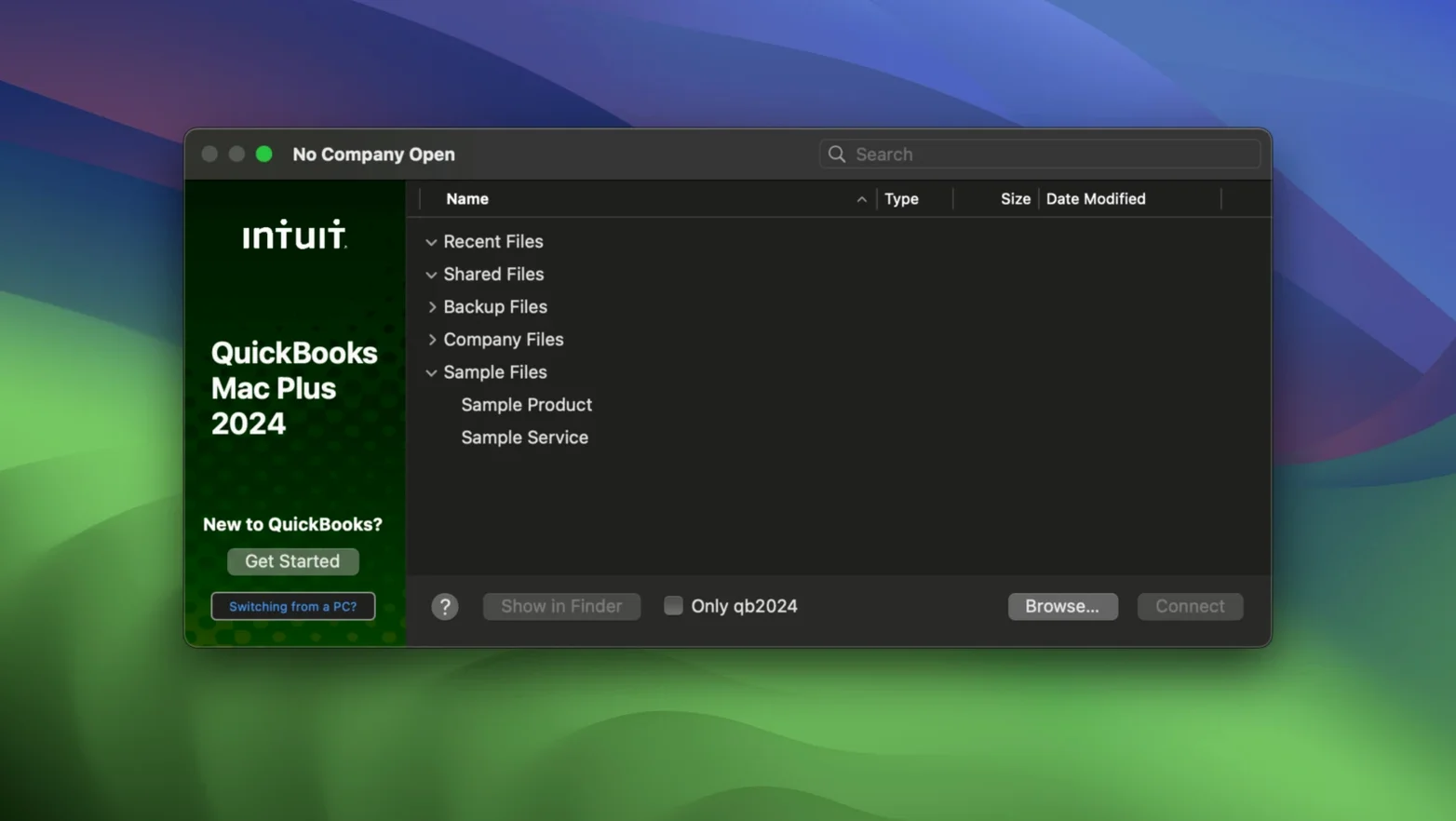
QuickBooks Mac Plus is a desktop accounting application built by Intuit for small businesses that need to track income, expenses and payroll on a Mac. It works with company files, stores uploaded receipts and runs natively on both Apple Silicon and Intel 64-bit Macs.
Local company file and built-in payroll sit on your own drive
- Businesses that want a local company file rather than a browser-based ledger. Everything sits on your own drive.
- Owners who need payroll baked in. You can run payroll directly inside the app without bolting on a separate service.
- Short-term planning. The reporting engine can project income and expenses up to 90 days ahead, which is handy for cashflow snapshots.
- Anyone drowning in paper. The receipt upload feature lets you photograph or scan and then store everything against the relevant transaction.
Requires macOS Monterey or later, and the dashboard skims income and expenses
- The current build requires macOS 12 Monterey or later. Older Macs stuck on Big Sur or Catalina won't run it.
- The dashboard gives an at-a-glance view of income, expenses, paid invoices and recent activity, but it is designed for small-business workflows — it is not a full enterprise resource planner.
- A company file is simply the single document that holds all of one business's books, so keep backups of it somewhere safe.
Opening three separate company files one after another on a Monday morning
Imagine a freelance bookkeeper who looks after three small businesses — a florist, a web designer and a dog groomer. She opens her MacBook Air on a Monday morning and double-clicks three company files one after another. Each file opens its own window, and the dashboard immediately shows her which invoices are still outstanding for each client. The florist has two unpaid invoices from the previous week; the web designer's income graph has dipped because a retainer payment hasn't landed yet. She sends a polite nudge to the florist from within the app, attaches the original invoice as a PDF, and moves on to reconciling the dog groomer's bank feed. The whole sweep takes under fifteen minutes, and she never once opens a web browser or waits for a cloud service to sync. Everything lives on her Mac, backed up to an external drive before she shuts the lid at the end of the day.
Company file refusing to open after a macOS update
Even a mature desktop app has its quirks, and a few patterns crop up repeatedly in user forums and support threads. Knowing them in advance saves a frustrated afternoon.
Company file won't open after a macOS update. Sometimes macOS tightens file-access permissions during a point release. If QuickBooks Mac Plus suddenly can't open a company file that worked fine yesterday, check System Settings > Privacy & Security > Files and Folders and make sure the app still has permission to access your Documents folder or wherever you store the file. A quick reboot after granting permission often clears the block.
Bank feed goes quiet. Connected bank accounts occasionally stop pulling transactions. This usually isn't a QuickBooks issue but a token-expiry problem on the bank's side. Disconnect the account in the Banking section, wait a minute, then reconnect it. The app will re-authorise the feed and backfill any transactions from the gap — normally no more than a few days' worth.
Payroll liability figures look wrong. Payroll runs correctly, but the liability report shows a number that doesn't match your own sums. The culprit is nearly always an employee record with an out-of-date tax withholding selection. Open each employee's profile and verify the withholding tables are current; the app updates tax tables in the background, but it won't override a manual override you set six months ago.
Receipts not attaching. Dragging a photo onto a transaction and getting no thumbnail usually means the file format is unsupported. Stick to JPEG or PNG. HEIC files straight from an iPhone camera roll sometimes fail — convert them first using Finder's built-in Quick Action or open them in Preview and export as JPEG.
Pulling Excel sheets straight into the import tool
QuickBooks Mac Plus doesn't live in a bubble. The data it holds can move between tools in sensible ways, and the Mac itself provides a few useful bridges.
Excel and Xero imports. The import tool accepts tables from Excel and Xero, which means you can bring in a chart of accounts, customer lists or opening balances from a previous system without retyping everything. The mapping step lets you match columns from your spreadsheet to fields inside QuickBooks, so a column labelled "Customer Name" in Excel lands in the right place even if the header isn't word-for-word identical to what the app expects.
Apple's file system as a backup tool. Because everything sits in a company file on your drive, Time Machine and manual Finder copies work as straightforward backup strategies. The new Backup Save As option in version R10 lets you save a dated copy to a specific folder — perhaps a synced folder from a cloud storage app — without disturbing the working file. That means you can have a Dropbox or OneDrive folder holding yesterday's snapshot while the live file sits outside any sync zone, avoiding file-locking conflicts.
Preview, Mail and printing. Every invoice, report and purchase order can be saved as a PDF straight from the print dialogue, and because macOS handles PDF natively, those files open instantly in Preview for markup or attach to an email without conversion. The Share menu in the toolbar hooks into the system share sheet, so sending a summary report to a client via Mail or Messages is two clicks.
Spotlight and saved searches. Company files themselves won't show their contents in Spotlight, but exported reports and saved PDFs do. A bookkeeper who saves monthly profit-and-loss PDFs into a folder can find them later by searching for the client name or a date range in Spotlight, which can be quicker than re-running the report inside the app.
Workflow: reconciling a month of expenses from a shoebox
Picture a sole trader who has spent the month collecting paper receipts in a folder and now needs to get them into the books. Here is one smooth path through QuickBooks Mac Plus.
- Photograph the batch. Use an iPhone to snap each receipt on a plain background. The Photos app syncs them to the Mac via iCloud, or the user connects the phone with a cable and imports directly into a folder on the desktop. Convert any HEIC files to JPEG with a right-click Quick Action in Finder.
- Open the company file. Launch QuickBooks Mac Plus and double-click the relevant company file. The dashboard loads, showing the bank balance and recent activity. The user can immediately see which transactions the bank feed has already captured, so they don't enter duplicates.
- Enter each expense. Click the Expenses section and choose New Transaction. For each receipt, enter the supplier, amount, date and category. The category list is the chart of accounts, so picking "Office Supplies" or "Travel" attaches the expense to the right line on the profit-and-loss report later.
- Attach the receipt image. Drag the JPEG from the Finder directly onto the transaction row. A small thumbnail appears, confirming the attachment. The paper original can now be filed or shredded — the digital record is inside the company file.
- Match against bank feed. Switch to the Banking section. Downloaded transactions from the connected bank account appear in a list. For each expense the user just entered, QuickBooks often suggests a match. Clicking "Match" links the entered expense to the bank line, so it won't appear as an unclassified transaction later.
- Run a month-end report. Open the Reports menu and choose Profit & Loss. Set the date range to the month just processed. The report draws its numbers directly from the transactions entered, including the freshly categorised expenses. Save the report as a PDF to a "Monthly Accounts" folder.
- Create a manual backup. With the month clean, go to File > Backup Save As. Choose the company-specific backup folder set up earlier. The app saves a timestamped copy, giving a restore point that preserves all the receipt attachments and matched transactions.
This routine turns a chaotic pile of paper into a tidy set of books in about the time it takes to drink a cup of coffee. The key is using the bank feed to catch anything the user might have missed, letting the matching engine do the grunt work of tying entered expenses to actual bank lines.
The R10 update improves how you protect your data. A new Backup Save As command lets you create a manual backup at any moment, and the app now remembers company-specific backup locations — so if you run more than one business file, each can have its own dedicated backup folder without you resetting the path every time.
- macOS 12 Monterey or later
- Runs on Apple Silicon and Intel 64-bit Macs
Questions I keep hearing
Does QuickBooks Mac Plus support Apple Silicon?
Yes. The app runs natively on both Apple Silicon and Intel 64-bit Macs, so there is no Rosetta translation overhead.
Can I back up my company file manually?
The R10 update added a Backup Save As option and company-specific backup locations, so you can choose exactly where each manual backup goes.
Questions from the class 0
Sign in or join the class to ask a question.
Nobody has asked anything yet. If you have used it on a real job, say what the file did.
Also on the Office shelf
The whole Office shelf Scrivener
Gathers your notes, research and scattered text sections into a single long-form writing project.
Scrivener
Gathers your notes, research and scattered text sections into a single long-form writing project.
 PDFelement Pro
Turns a flat scanned contract into a searchable, fillable and signable PDF.
PDFelement Pro
Turns a flat scanned contract into a searchable, fillable and signable PDF.
 PDF Reader Pro
Reorders and merges scattered documents into one tidy PDF without altering the originals.
PDF Reader Pro
Reorders and merges scattered documents into one tidy PDF without altering the originals.
 PDF Expert
Edits text and images directly inside a PDF without hunting for the original file.
PDF Expert
Edits text and images directly inside a PDF without hunting for the original file.
 SideNotes
Keeps a tidy panel of quick notes that slides out from the edge of your screen.
SideNotes
Keeps a tidy panel of quick notes that slides out from the edge of your screen.
 SimpleMind Pro
Maps your ideas outwards from a central node instead of writing them in a vertical list.
SimpleMind Pro
Maps your ideas outwards from a central node instead of writing them in a vertical list.
 OmniReader Pro
Opens EPUB, CHM, and Kindle books on your Mac for a comfortable, ad-free reading session.
OmniReader Pro
Opens EPUB, CHM, and Kindle books on your Mac for a comfortable, ad-free reading session.
 OmniPlan Pro
Plots company-wide project schedules, tracks resources, and tests timelines with Monte Carlo simulation.
OmniPlan Pro
Plots company-wide project schedules, tracks resources, and tests timelines with Monte Carlo simulation.