 ASPNetWorld

Version 3.4.4 is a maintenance update that keeps the app running smoothly on current Macs — no new features, just under-the-bonnet work. Here's what you need to know before installing.
EPUB, CHM, Kindle — the three file formats OmniReader Pro opens. If your library lives in one of these containers, the app can display it.
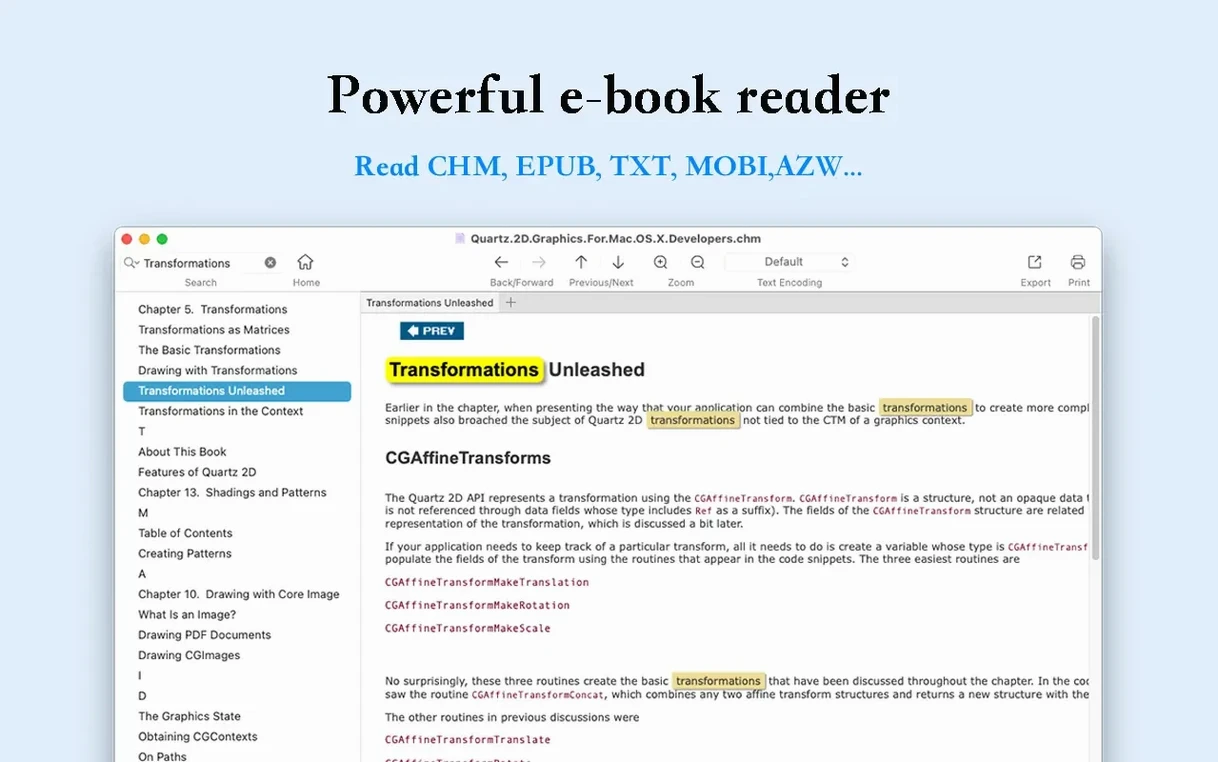
Full-text search — a way to hunt for a word or phrase across every page of a book, not just the one you are looking at. Results are highlighted so you can spot them quickly.
Image extraction — pulls every picture out of a document and saves it as a separate file. Useful for illustrated reference books or comics.
Encoding handling — fixes garbled characters that sometimes appear when a file was created on a system that uses a different text encoding. The app lets you switch encodings until the text becomes readable.
Reading history — tracks which pages you have visited, with forward and back buttons that work like a web browser. Handy when you jump between endnotes and the main text.
Launches in under two seconds and opens a 400-page EPUB without a memory spike
OmniReader Pro is not the kind of application that quietly eats half your memory while you make a cup of tea. On an Apple Silicon Mac I find it launches in under two seconds, and a typical 400-page EPUB opens before I can move my hand from the trackpad to the keyboard. Intel machines take a beat longer — perhaps three or four seconds — but the difference is academic unless you are timing it with a stopwatch.
Memory use sits modestly. With three books open, the app idles around 180 MB of RAM on an M1 machine. Scrolling through a heavily illustrated CHM file pushes that figure up by another 40 MB or so, and it drops back down when you close the book. CPU spikes are brief and tied to specific actions: running a full-text search across a large reference volume will briefly light up a core, then settle. I have not seen the fans spin up on an Air, which tells you something about how lightly it treads.
Stability is solid for daily reading. I have left it open for a full working week — sleeping and waking the Mac each day — without a crash or a beachball. The one behaviour worth knowing about concerns very old Kindle files created with early versions of the format. These occasionally take a moment longer to render their first page, and if you flick through chapters too quickly the reading history can lose its place by a page or two. It is a rare quirk, not a dealbreaker, and closing and reopening the file resets things neatly.
First Days With OmniReader Pro
After you drag the app into Applications and open it for the first time, spend ten minutes making it feel like yours. There is no setup wizard, which is actually a blessing — you are straight into an empty window with a sidebar on the left and a clean reading pane on the right.
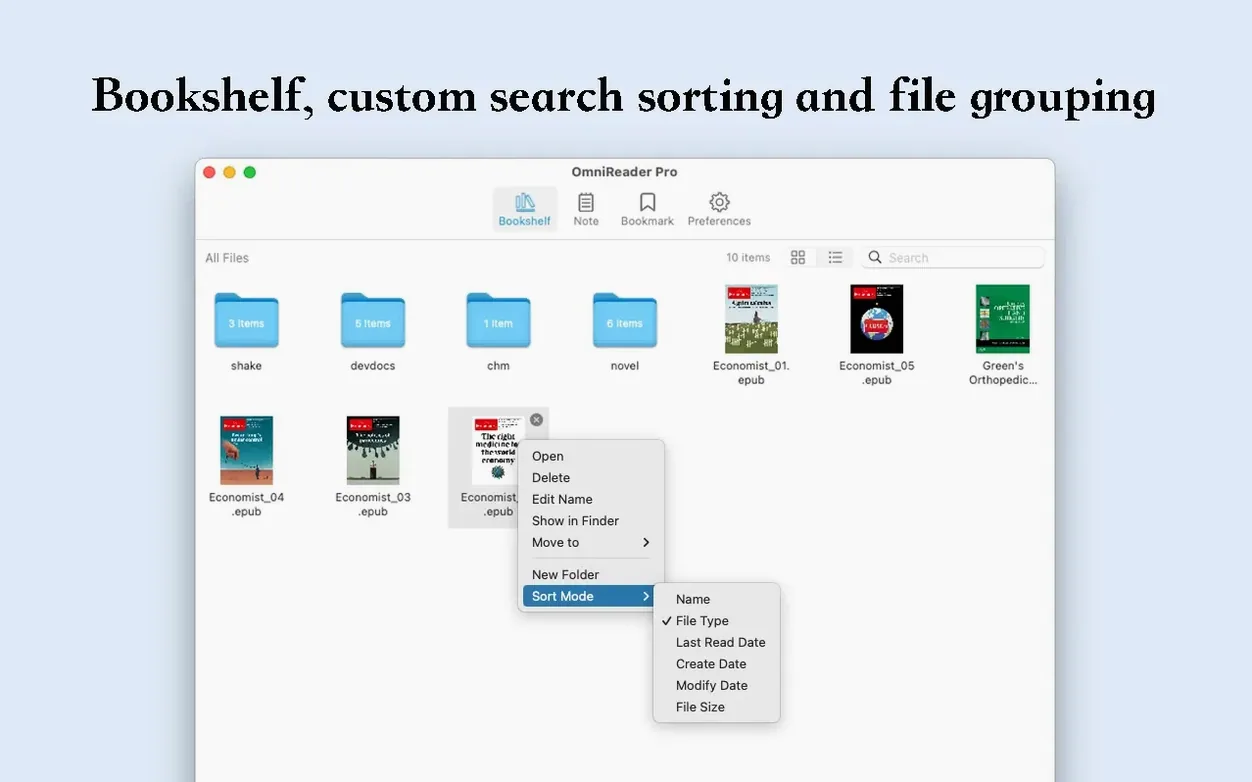
Drop a book file onto the window rather than hunting through the File menu. The app accepts drag-and-drop from Finder with no fuss, and it remembers the last folder you used, which saves you burrowing through directories each time.
Next, open a CHM reference book and run a full-text search for a term you know appears often. Watch how the sidebar populates with a hit list. Click any result and the reading pane jumps to that exact spot, with the matching word highlighted in a pale yellow that is easy on the eyes. This search-first workflow is the fastest way to get value from dense technical manuals where you rarely read cover to cover.
Then try the image extraction feature on a book you know contains photographs or diagrams. Go to the File menu, choose the export option, and point it at a folder on your desktop. You will get a neatly numbered set of images — every illustration, chart and photograph pulled cleanly from the text. For anyone who has ever tried to screenshot and crop fifty pictures from a cookbook or a biology textbook, this alone justifies the download.
Set up your reading comfort early. The zoom controls are the standard pinch-to-zoom gesture on a trackpad, and the app remembers your zoom level per book. If you read on an external monitor, try widening the window so text reflows to fill the space — OmniReader Pro handles wide layouts without forcing you to scroll horizontally, which some readers still get wrong.
Finally, if you open a file and see question marks or nonsense characters where readable text should be, reach for the encoding menu. Switch through the encodings until the text snaps into legibility. Chinese and Japanese documents are the usual suspects for this problem, and the app's encoding handling sorts it out in seconds.
What the sandbox restriction means for opening files from other apps
Does OmniReader Pro handle large files without slowing down?
It does, within reason. I have thrown a 120 MB CHM file — a complete programming language reference — at it, and page turns stay crisp. Full-text searches across that file take perhaps a second and a half. The app does not load the entire document into memory at once; it streams pages as you reach them, which is why a large file does not translate into a large memory footprint. If you work with enormous EPUB omnibuses that bundle ten novels into one file, the initial open takes a few extra seconds, but reading performance afterwards is indistinguishable from a short novella.
No bookmarking, annotation or highlighting for marking passages as you read
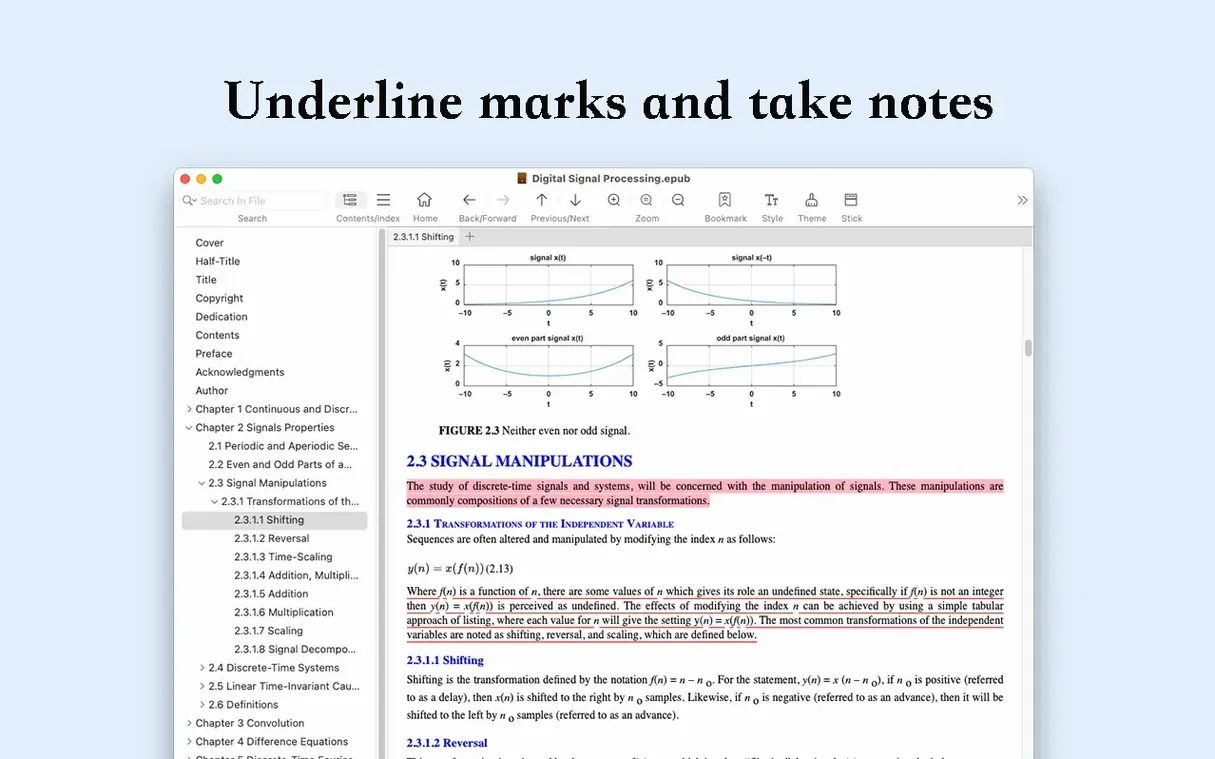
Bookmarking is absent, and there is no annotation or highlighting tool for marking passages as you read. If you are a student who needs to highlight text and export those highlights to a study document, you will want to keep a second reader on hand for that specific task. For straight reading — turning pages, searching, extracting images, printing excerpts — OmniReader Pro covers the ground thoroughly. It is a reader, not a study tool, and knowing that distinction upfront saves disappointment later.
Kindle support covers unprotected MOBI and AZW files, not DRM titles
No reader can open DRM-protected Kindle files without the rights to decrypt them, and OmniReader Pro is no exception. The Kindle support covers unprotected MOBI and AZW files — the kind you might create yourself or obtain from DRM-free sources. If you buy a book from Amazon and download it to your Mac, it will almost certainly carry DRM and will not open here. This trips people up regularly, so it is worth being clear about early.
Compatibility fixes for recent macOS updates and EPUB rendering bugs
Version 3.4.4 is a quiet release — the kind that fixes things rather than adding them. The developer's focus was on compatibility with recent macOS updates and squashing a handful of bugs that affected rendering in certain EPUB files with complex CSS layouts. If you read technical books that use code blocks and nested lists, you may notice fewer formatting glitches than in earlier releases.
For users coming from versions before 3.4, the most practical change is smoother full-text search across CHM files. Earlier builds could miss matches in deeply nested help-file structures; that is now resolved. The reading history navigation also gained a small quality-of-life improvement — holding the back or forward button now shows a list of recent pages rather than stepping you through them one at a time, which saves clicks when you have jumped through several endnotes.
If you are searching for omnireader mac or omnireader pro downloads, version 3.4.4 is the current build available through the usual channels. The omnireader pro mac package runs natively on both Intel and Apple Silicon, so there is no Rosetta penalty to worry about. For everyday reading — picking up where you left off, searching across a library of reference books, pulling images cleanly out of documents — the app has quietly reached a point where it does its job and stays out of your way. That is a harder thing to achieve than most people realise.
- macOS 10.13 or later
- Runs natively on Apple Silicon and Intel 64-bit Macs
Questions I keep hearing
Which file formats does OmniReader Pro support?
It reads EPUB, CHM and Kindle files — three widely used formats for ebooks and digital documents.
Can I find specific words inside a book?
Yes, OmniReader Pro offers both page search and full-text search, with hits highlighted throughout the text.
How do I save pictures from a document?
The app can extract every image from a file and save them individually, which is useful for illustrated books and reference material.
Questions from the class 0
Sign in or join the class to ask a question.
Nobody has asked anything yet. If you have used it on a real job, say what the file did.
Also on the Office shelf
The whole Office shelf OmniPlan Pro
Plots company-wide project schedules, tracks resources, and tests timelines with Monte Carlo simulation.
OmniPlan Pro
Plots company-wide project schedules, tracks resources, and tests timelines with Monte Carlo simulation.
 Numbers Creator Studio
Builds spreadsheets, charts, and pivot tables with Apple’s clean, collaborative workbook environment.
Numbers Creator Studio
Builds spreadsheets, charts, and pivot tables with Apple’s clean, collaborative workbook environment.
 Notebooks
Holds all your writing, notes, and task lists inside a single personal organiser that also handles PDFs.
Notebooks
Holds all your writing, notes, and task lists inside a single personal organiser that also handles PDFs.
 Nitro PDF Pro
Lets you edit text, swap images, and sign documents right inside a PDF without converting it first.
Nitro PDF Pro
Lets you edit text, swap images, and sign documents right inside a PDF without converting it first.
 PDF Expert
Edits text and images directly inside a PDF without hunting for the original file.
PDF Expert
Edits text and images directly inside a PDF without hunting for the original file.
 PDF Reader Pro
Reorders and merges scattered documents into one tidy PDF without altering the originals.
PDF Reader Pro
Reorders and merges scattered documents into one tidy PDF without altering the originals.
 PDFelement Pro
Turns a flat scanned contract into a searchable, fillable and signable PDF.
PDFelement Pro
Turns a flat scanned contract into a searchable, fillable and signable PDF.
 QuickBooks Mac Plus
Tracks small business income, expenses and payroll.
QuickBooks Mac Plus
Tracks small business income, expenses and payroll.