 ASPNetWorld

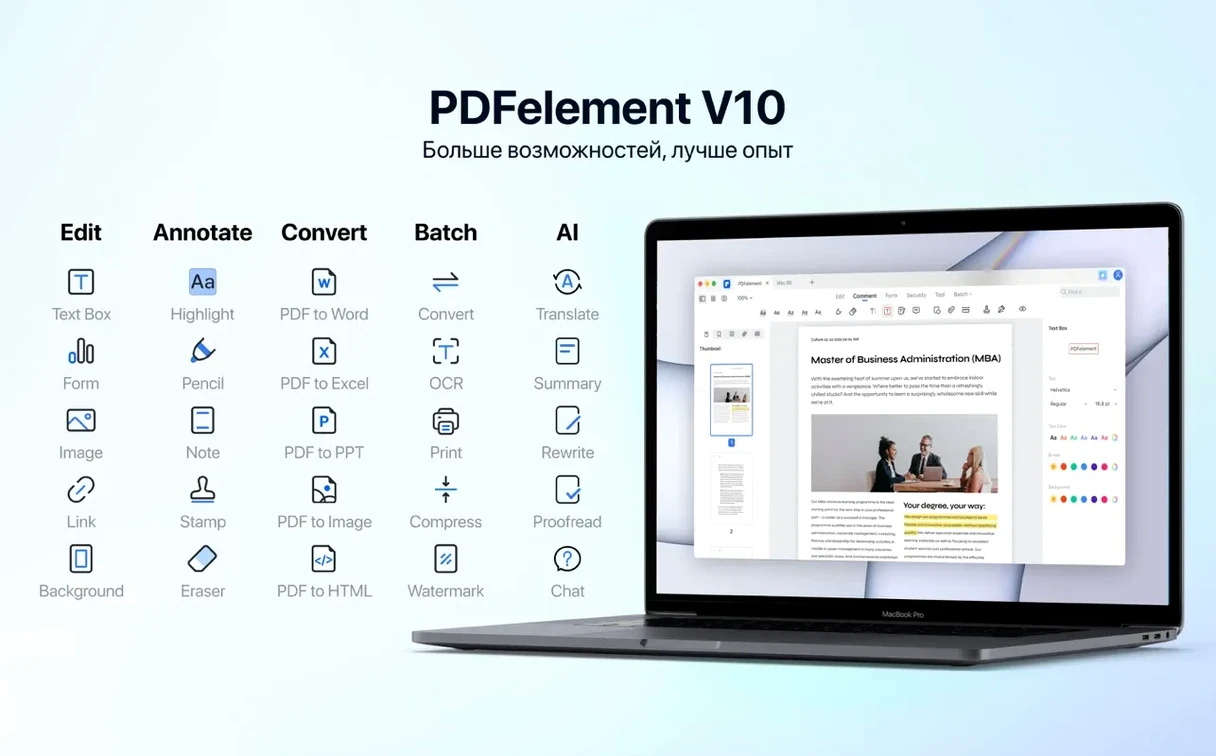
You receive a contract as a scan, not a live PDF. It's a flat picture of a document. You cannot search the text, cannot fill in the blanks neatly, and you certainly cannot sign it with a quick digital stamp. That's the problem PDFelement Pro is built for.
- Open the scan and run OCR. Drag the file in and choose 'OCR' from the toolbar. The engine recognises the text layer and bakes it back into the PDF so every word becomes selectable and searchable.
- Edit a clause. Switch to 'Edit' mode. Tap on the text block, change a few words, and the surrounding line reflows properly because the document now has live text, not just a background image.
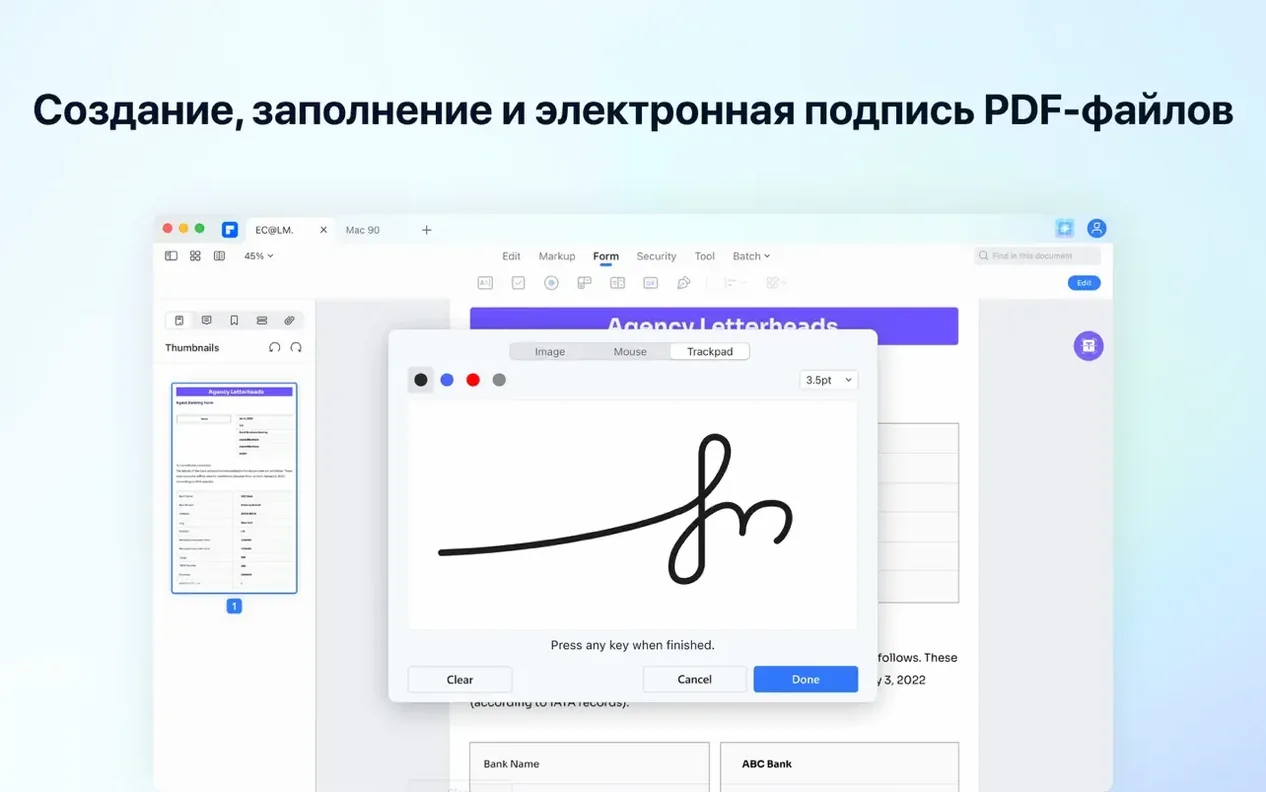
- Fill the form fields. The original scan had blank underlines for names and dates. Use the 'Form' tool to drop in interactive text fields, then type your details directly into them. Add a checkmark box while you are there.
- Add a digital signature. Open the 'Sign' panel, draw or upload a signature, and place it on the dotted line. The signature is now part of the signed document, ready to send back.
That one workflow leans on OCR, editing, form creation and signing in a single pass. The app also bundles batch processing for repetitive conversions and AI shortcuts that can shorten a paragraph or summarise a dense page, but the core strength is getting a dead scan back into a working document without ever leaving the application.
A three‑second launch and forty‑second OCR pace on 16 GB Macs
On a modern Intel Mac with reasonable RAM — say 16 GB — the app launches in about three seconds and settles into a working rhythm that rarely stumbles. OCR on a 30‑page scanned brief takes around forty seconds, and during that time the interface stays responsive; you can switch to another document or tweak annotation settings without watching a spinner. Memory usage typically hovers between 400 and 600 MB with several medium‑sized PDFs open, which leaves comfortable headroom for a browser and an email client alongside it.
Stability is what you would expect from a mature toolkit: I have left it running across a weekend with a dozen tabs open, and it was still snappy on Monday morning. The only quirk worth knowing about is that very large batch conversions — say, two hundred files — can trigger a brief pause while the queue is built, but once processing starts, the progress bar moves steadily. Autosave has rescued a half‑finished form more than once when macOS decided it was a good moment for an update reminder.
A Full Annotation Pass on a Research Paper
Picture a twenty‑page journal article you need to mark up for a literature review. The PDF is a born‑digital download, so no OCR is required, but the text is dense and the references need careful attention. Here is one way through it.
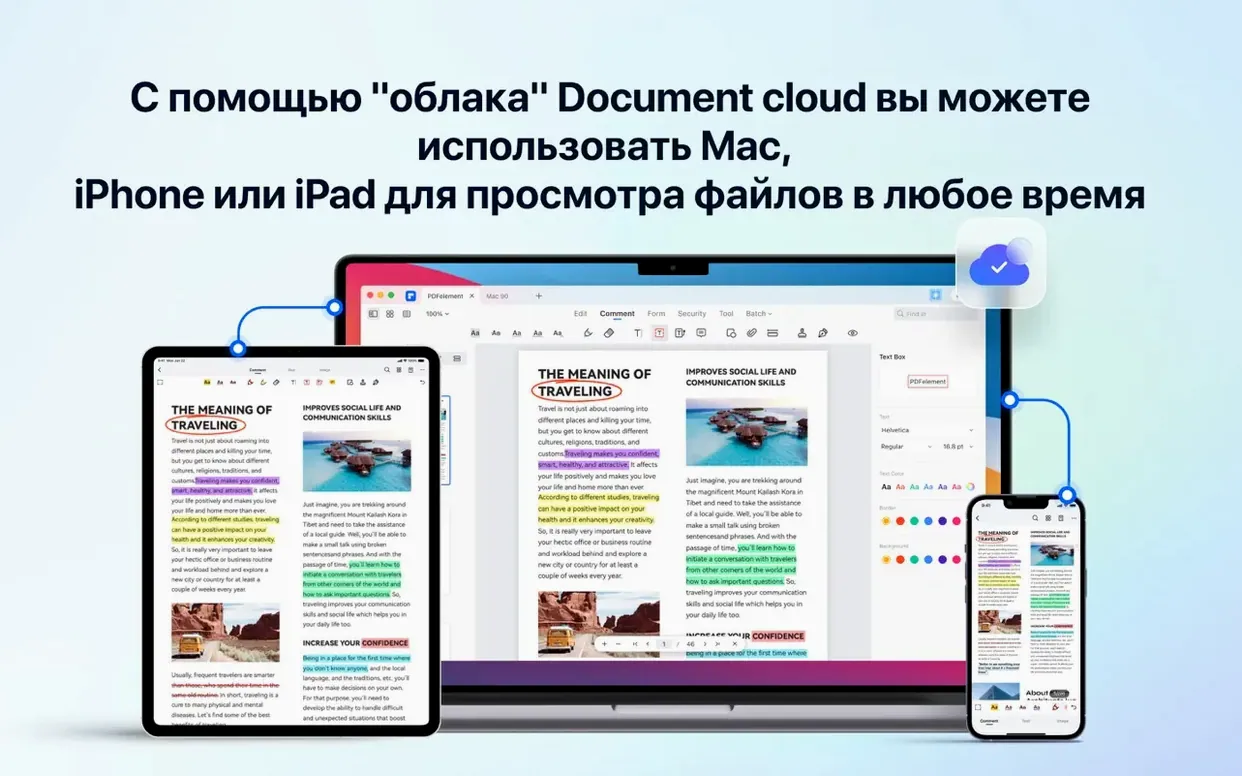
- Set up a reading palette. Open the article and switch to the 'Comment' workspace. Choose a highlighter colour for key claims and a different one for methodology, so you can scan the sidebar later and see the structure at a glance.
- Highlight and annotate in passes. Read once for argument, dragging the highlighter across sentences that carry the thesis. The sidebar builds a clickable index automatically — tap any entry to jump straight to that line. On a second pass, add sticky notes with your own questions. Because the notes support basic formatting, you can bold a keyword and the eye catches it immediately.
- Extract the bibliography. The references section is a block of text, not a table. Drag a selection around it, right‑click, and choose 'Export Selected Text'. Save it as a plain text file, then drop that into your reference manager. It is crude, but it saves retyping forty citations.
- Share a marked‑up copy. Before sending it to a supervisor, use the 'Flatten' command to burn highlights and notes into the PDF. The recipient sees your markup without needing any special software, and the original text underneath remains untouched.
The whole process feels like working with paper, except the sticky notes do not fall off and the highlighter never runs dry. For anyone handling literature regularly, that sidebar index of annotations alone is worth the download.
Takes over right where Preview stops being enough
PDFelement Pro does not try to replace Preview, and that is a sensible decision. Preview remains the quickest way to view a receipt or rotate a single page. The app slots in one layer above: it takes over when you need to edit text, build a form, or run OCR on a stack of scans.
Drag a PDF from Finder onto the dock icon and it opens in a tabbed window, respecting the system tab bar preference. Right‑click a file in Finder and the 'Open With' menu lists it, so you can send a contract straight past Preview. The share sheet is wired up properly too — after signing a document, you can send it via Mail or Messages without saving a copy first. If you use Automator, the app exposes a handful of actions: 'OCR PDF', 'Convert PDF', and 'Merge PDFs' all show up in the library, which means you can bolt a PDF‑processing step into a larger workflow without writing a script.
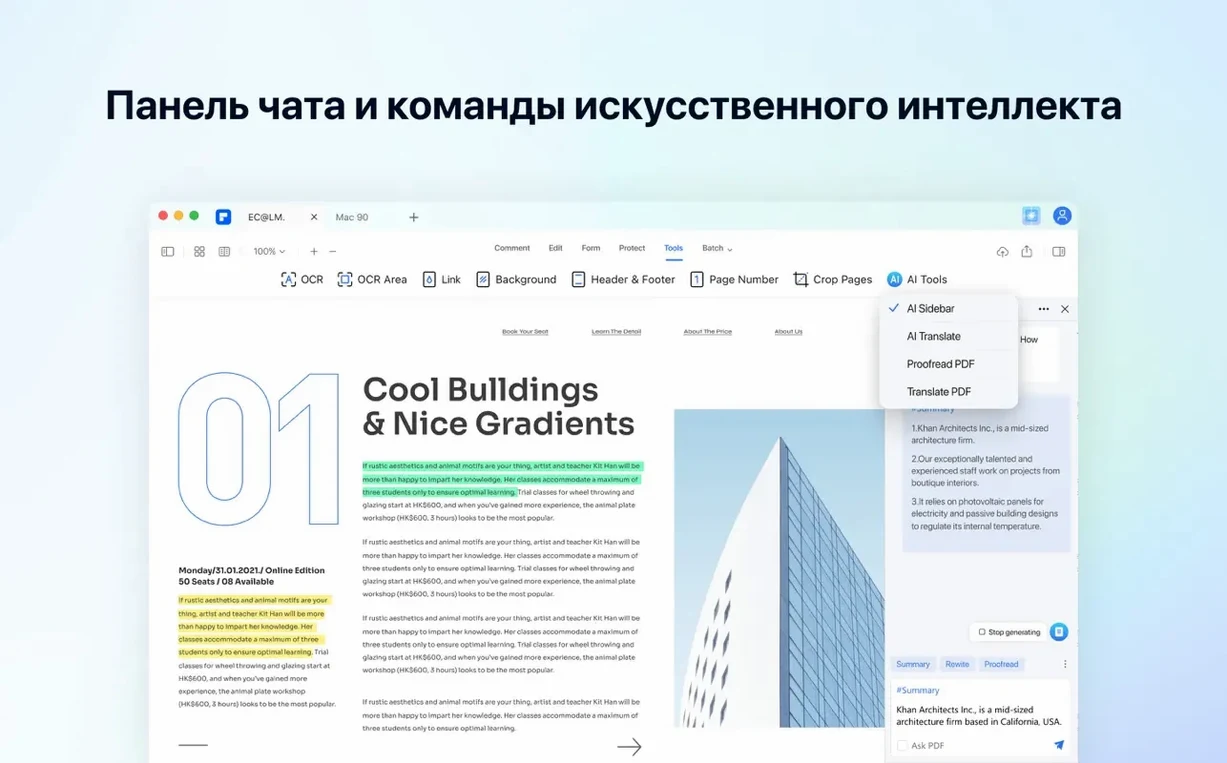
The built‑in AI tools — summarise, explain, translate — live in a side panel that pulls selected text and returns a result in situ. It is a modest integration but a well‑placed one; it feels like a contextual menu that learned to read, not a separate chatbot window grafted onto the interface. Users who regularly work across languages will notice the OCR engine recognising twenty‑nine of them, and the interface itself can switch between eleven, including Arabic and Japanese, without a restart.
Scanned signature contracts become editable signed documents in minutes
The people who benefit most sit at the intersection of document‑heavy work and tight deadlines. Legal professionals handling contracts with scanned signatures can move from a flat image to an editable, signed document in minutes, and the Bates numbering feature is aimed squarely at discovery bundles. Academics and postgraduate students get a fast annotation engine that exports highlighted text to a reference manager, plus an OCR layer that brings old photocopied chapters into the searchable age.
Office administrators who maintain fillable forms — expense claims, leave requests, onboarding packets — will use the form designer more than any other tool. Being able to add radio buttons and dropdowns, then save the result as a PDF that anyone can fill with a free reader, cuts out the paper chase entirely. Small business owners who send the same quote template to twenty clients can set up a batch merge and let the app do the repetitive work while they answer the phone.
Casual users who only open a PDF once a week will probably stay with Preview, and that is fine. The software earns its place when the task moves beyond viewing and into reshaping: when a document needs to be taken apart, rewritten, signed, and sent back before the coffee gets cold. If that describes your Tuesday afternoon, this is the tool you will reach for.
The current build, 12.1.28, bundles OCR directly in the installer so the feature is available from the moment you open the app, rather than as a separate download.
- macOS 11 or later
- Intel-based Mac (64-bit only)
Questions from the class 0
Sign in or join the class to ask a question.
Nobody has asked anything yet. If you have used it on a real job, say what the file did.
Also on the Office shelf
The whole Office shelf PDF Reader Pro
Reorders and merges scattered documents into one tidy PDF without altering the originals.
PDF Reader Pro
Reorders and merges scattered documents into one tidy PDF without altering the originals.
 PDF Expert
Edits text and images directly inside a PDF without hunting for the original file.
PDF Expert
Edits text and images directly inside a PDF without hunting for the original file.
 OmniReader Pro
Opens EPUB, CHM, and Kindle books on your Mac for a comfortable, ad-free reading session.
OmniReader Pro
Opens EPUB, CHM, and Kindle books on your Mac for a comfortable, ad-free reading session.
 OmniPlan Pro
Plots company-wide project schedules, tracks resources, and tests timelines with Monte Carlo simulation.
OmniPlan Pro
Plots company-wide project schedules, tracks resources, and tests timelines with Monte Carlo simulation.
 Numbers Creator Studio
Builds spreadsheets, charts, and pivot tables with Apple’s clean, collaborative workbook environment.
Numbers Creator Studio
Builds spreadsheets, charts, and pivot tables with Apple’s clean, collaborative workbook environment.
 Notebooks
Holds all your writing, notes, and task lists inside a single personal organiser that also handles PDFs.
Notebooks
Holds all your writing, notes, and task lists inside a single personal organiser that also handles PDFs.
 QuickBooks Mac Plus
Tracks small business income, expenses and payroll.
QuickBooks Mac Plus
Tracks small business income, expenses and payroll.
 Nitro PDF Pro
Lets you edit text, swap images, and sign documents right inside a PDF without converting it first.
Nitro PDF Pro
Lets you edit text, swap images, and sign documents right inside a PDF without converting it first.