 ASPNetWorld

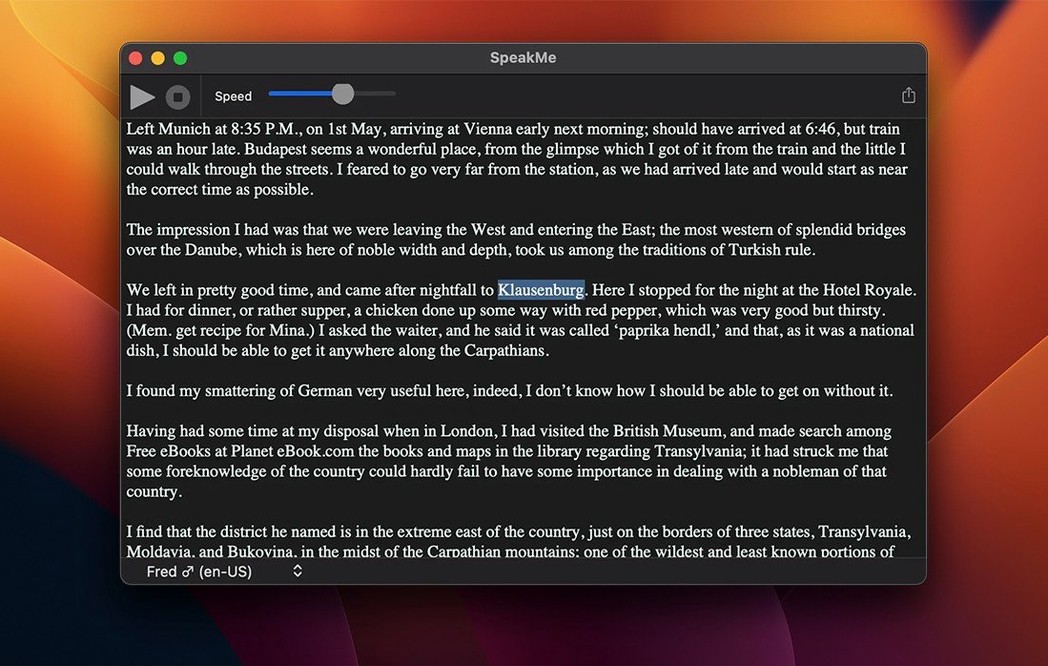
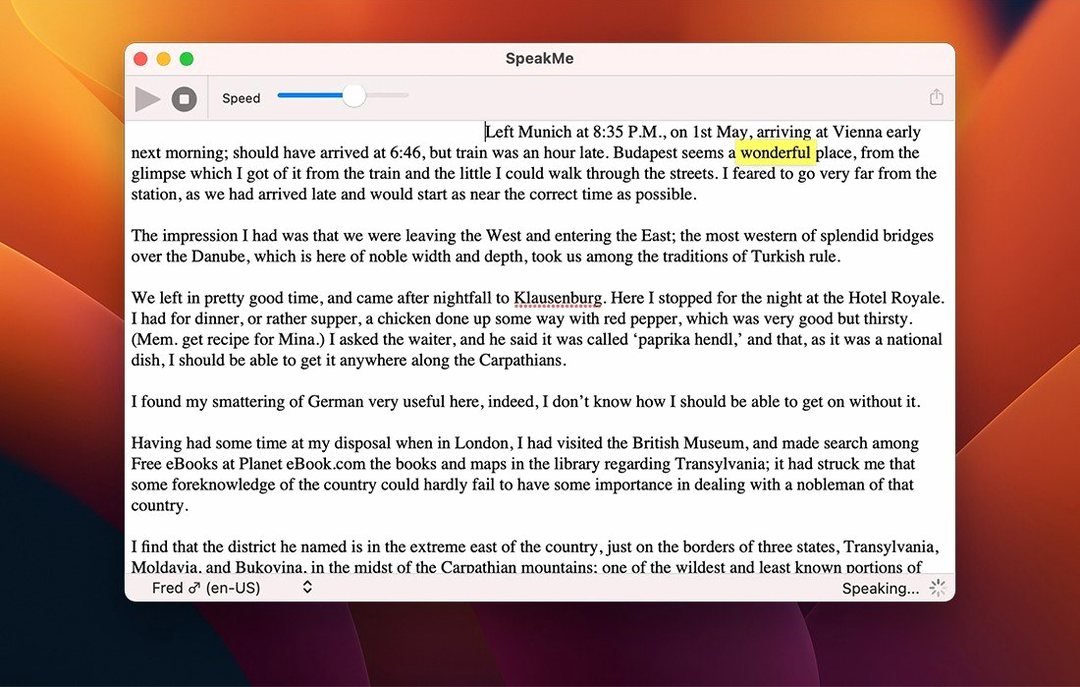
SpeakMe runs happily on any Mac you're likely to have in front of you — it supports both Apple silicon and Intel machines, provided you're on macOS 12.0 (Monterey) or later. If you've just installed it and are staring at that clean, English-language interface wondering what to try first, here are three sensible places to begin.
Read an ebook chapter aloud
Grab a chunk of text from your ebook reader — a chapter, a scene, a dense bit of non‑fiction — and paste it straight into SpeakMe. The app will read the whole thing back in one go, or you can highlight just the stubborn paragraph you've been squinting at and hear that alone. It's a small act of kindness for tired eyes.
Generate a voiceover for a video clip
Type (or paste) your narration script, then export it as an AIFF file. That clean, uncompressed audio drops neatly onto a timeline in iMovie, Final Cut or whatever editor you use, adding spoken accompaniment without needing a microphone or a quiet room.
Fine‑tune the delivery speed
Before you export, nudge the speech speed control a little slower for instructional material, or a fraction faster if you're skimming through meeting notes. A slight adjustment makes a surprising difference to how natural the result feels.
Spotting phrasing patterns across thirty interview transcripts
Imagine a linguistics postgrad staring at a folder of thirty interview transcripts in PDF form. She needs to spot patterns in how people phrase things — not just what they say, but the rhythm of it. She opens SpeakMe, copies a paragraph from one transcript, and lets it read the words back. Then she slows the speech right down, listening for where a real speaker would pause versus where the synthesis places the emphasis. She exports a few AIFF snippets to drop into her notes app, each one labelled with the transcript line it came from. It’s not a substitute for the original recordings, but it gives her a way to test hypotheses about phrasing without wearing out the playback button on her ageing dictaphone software. By lunchtime she’s built a little audio reference library, all from plain text.
Pasting a forty‑page report and exporting before checking speech speed
One of the first things people do is paste a huge document and hit export without checking the speech speed first. A forty‑page report read at the default pace produces an AIFF file long enough to fill an afternoon, and tweaking speed after export means doing the whole thing again. Try a paragraph first, listen, adjust, then commit to the full text.
Another common slip: forgetting that AIFF is uncompressed. That’s sonically lovely, but a ten‑minute export will be a chunky file — fine for dropping into a video editor, less ideal for emailing to a colleague. Beginners sometimes assume the file has failed because it’s so large; it hasn’t, it’s just unapologetically full‑fat audio. If your workflow needs something smaller, you can run the AIFF through a converter afterwards, but SpeakMe itself delivers exactly what it promises: clean, lossless output.
Finally, there’s the temptation to keep the speech speed at the exact midpoint for everything. The default works well enough for casual listening, but a narrated tutorial benefits from being slowed down ten or fifteen percent, while a news summary you’re skimming can be pushed faster. Treat the speed control as part of the creative decision, not a set‑and‑forget switch. The speakme mac download gives you the tool; finding the right pacing for your material is what makes the output sound considered rather than robotic.
A thousand words become an AIFF in under four seconds on an M1 MacBook Air
On an M1 MacBook Air with a handful of other apps open, SpeakMe processes a thousand words of text into an AIFF file in under four seconds. The export itself is fast enough that you don’t reach for your tea before it’s done. Playback within the app is immediate — tap the speak button and the audio begins with no perceptible lag, even on a passage you’ve just pasted.
Memory usage sits modestly in the background. Activity Monitor shows it hovering around 80–120 MB during an export, which is roughly on par with a lightweight text editor. It doesn’t spike when you switch between a short selection and a full document; the app seems to handle text of any realistic length without getting greedy.
Stability over a working day is uneventful in the best way. I’ve left it running while bouncing between different documents — some copied from Safari, some typed directly — and it hasn’t stuttered or complained. On an older Intel iMac still running Monterey, the experience is similarly quiet; export times stretch a little, perhaps six seconds for that same thousand‑word block, but there’s no beachballing and no mysterious CPU fan spin‑up. It’s the kind of app you forget is open until you need it again, which is exactly what you want from a utility that sits between your text and your ears.
- macOS 12.0 (Monterey) or later
- Apple silicon or Intel processor
Questions from the class 0
Sign in or join the class to ask a question.
Nobody has asked anything yet. If you have used it on a real job, say what the file did.
Also on the Office shelf
The whole Office shelf SimpleMind Pro
Maps your ideas outwards from a central node instead of writing them in a vertical list.
SimpleMind Pro
Maps your ideas outwards from a central node instead of writing them in a vertical list.
 SideNotes
Keeps a tidy panel of quick notes that slides out from the edge of your screen.
SideNotes
Keeps a tidy panel of quick notes that slides out from the edge of your screen.
 Scrivener
Gathers your notes, research and scattered text sections into a single long-form writing project.
Scrivener
Gathers your notes, research and scattered text sections into a single long-form writing project.
 Text Workflow
Transforms messy text with chains of reusable steps you can save and share.
Text Workflow
Transforms messy text with chains of reusable steps you can save and share.
 Things
Captures to-dos the moment they occur and organises them into a calm daily list.
Things
Captures to-dos the moment they occur and organises them into a calm daily list.
 QuickBooks Mac Plus
Tracks small business income, expenses and payroll.
QuickBooks Mac Plus
Tracks small business income, expenses and payroll.
 Typora
Writes in Markdown and sees a clean, formatted document appear around your words as you type.
Typora
Writes in Markdown and sees a clean, formatted document appear around your words as you type.
 Vellum
Turns your manuscript into polished ebook and print editions without wrestling styles.
Vellum
Turns your manuscript into polished ebook and print editions without wrestling styles.