 ASPNetWorld
eBookBinder is a Mac application that turns plain text documents into EPUB eBooks, treating each file you add as a single chapter.
what it does
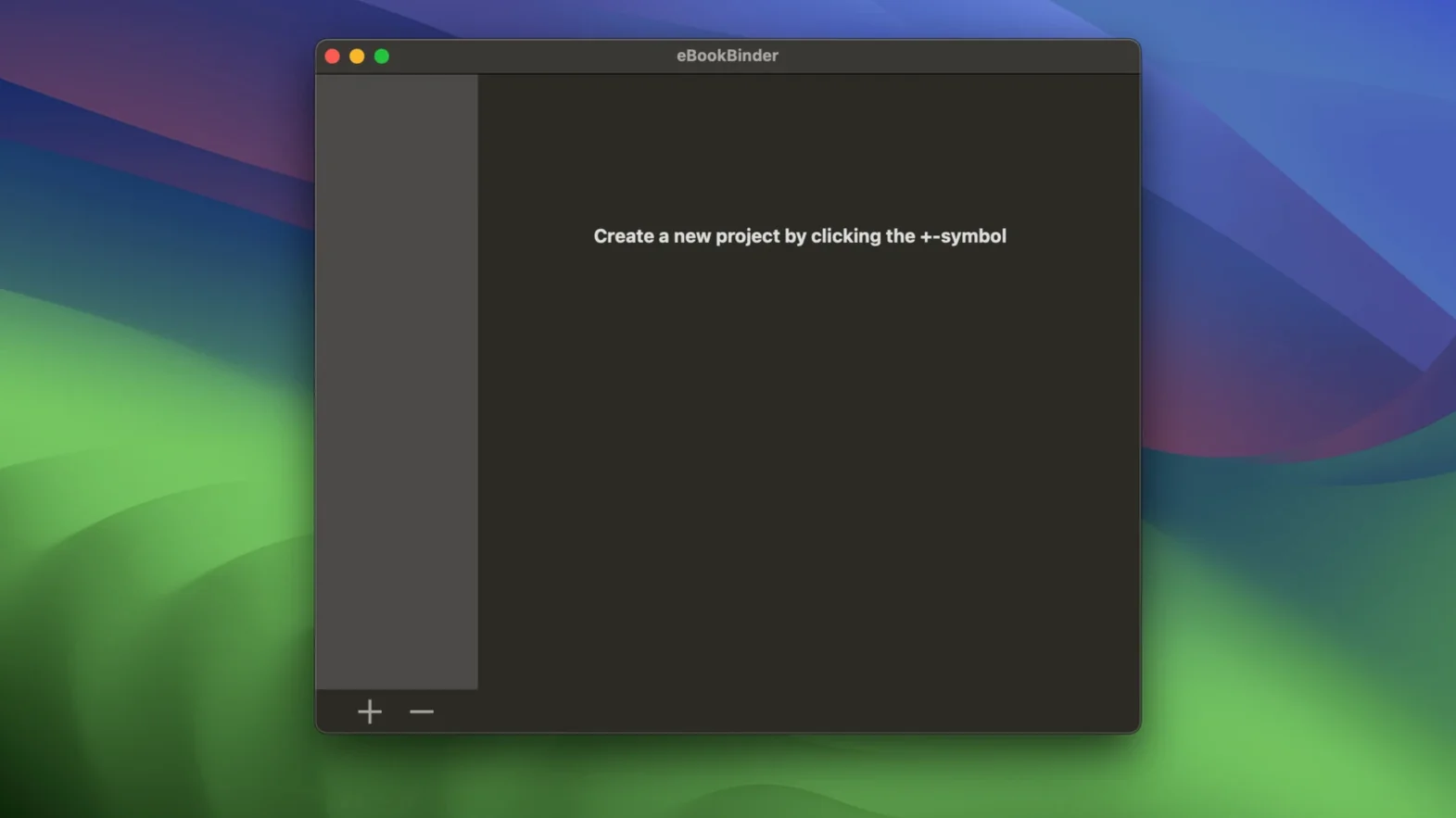
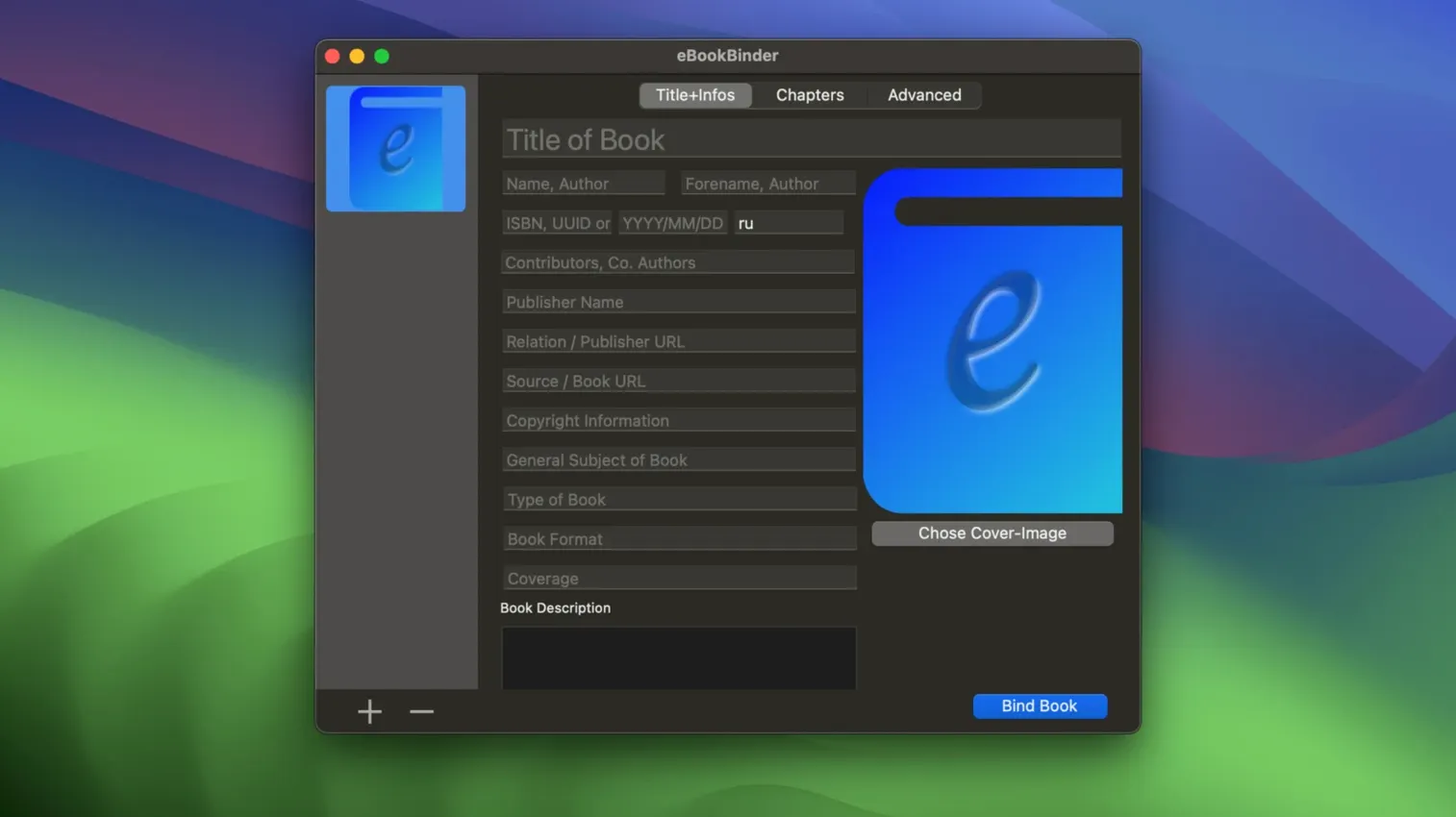
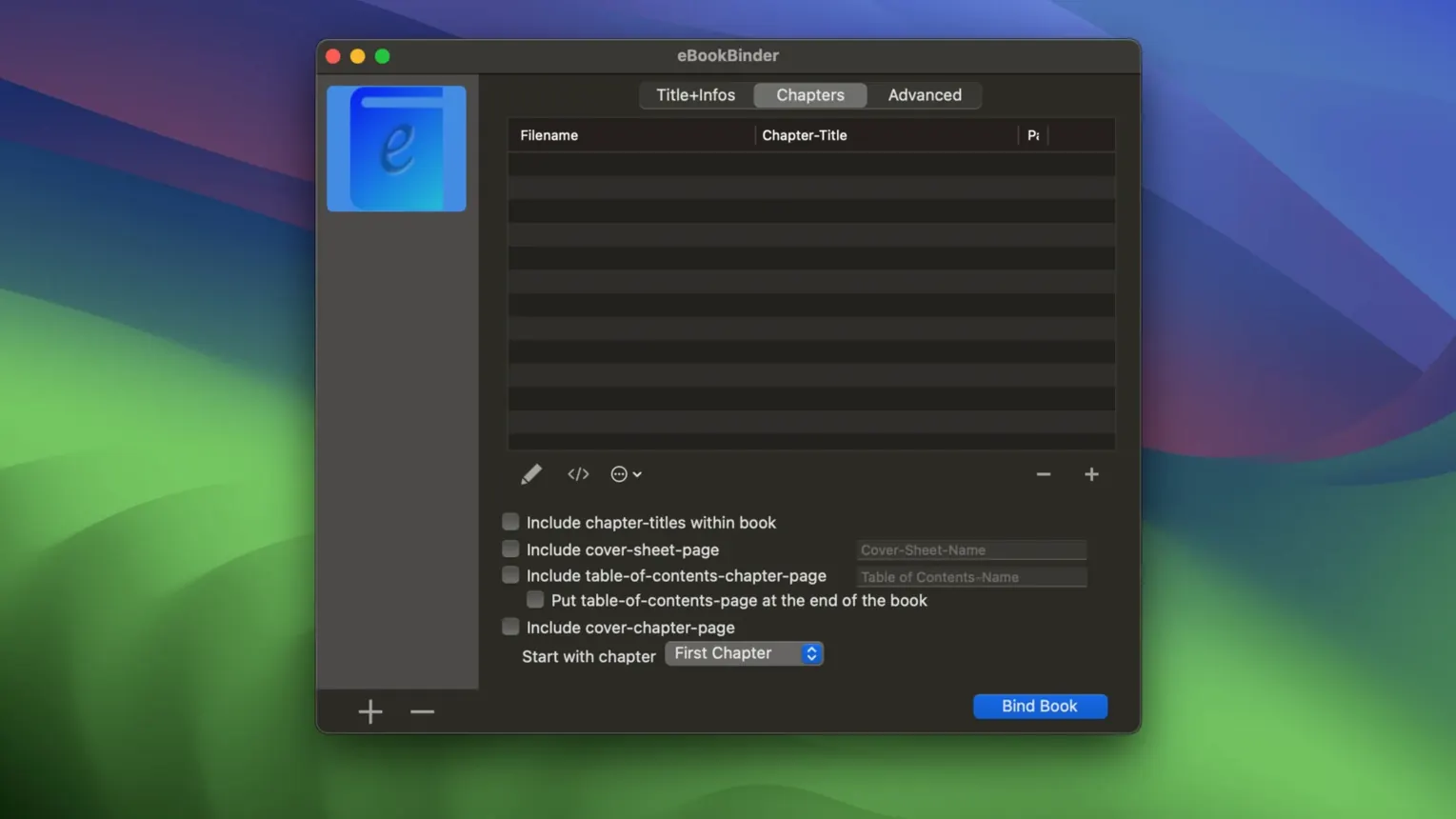
You start a project by dragging in text files. Each becomes a chapter, which you can name and then reorder by simply dragging it up or down the list. The app lets you add a cover image, a book title and author details — but you don't have to fill in every metadata field if you'd rather keep things minimal.
jargon explained
EPUB — the standard eBook format used by most readers, phones and tablets, apart from Kindle’s own format.
Gatekeeper — a macOS security system that blocks apps from unidentified developers. You’ll need to bypass it once during installation.
MMD Terminal Tool — a helper for working with MultiMarkdown files, which eBookBinder can use as a source format.
what people ask
Is it only for English? No, the interface is available in English and German.
Can I leave metadata fields empty? Yes, only the ones you want to fill are required.
Does it work on Apple Silicon? It runs on Intel Macs under OS X 10.10 or later. No native Apple Silicon version is mentioned.
lighter than Sigil or Calibre for macOS
If you’ve looked for Mac eBook creation tools before, you’ve probably come across Sigil and Calibre. Both are capable, but they approach the job differently. Sigil is essentially a WYSIWYG EPUB editor — you see the pages as you build them, which is great if you want fine control over styling, but it can feel like you’re wrestling with a word processor when all you have is a stack of text files. Calibre, on the other hand, is a library management powerhouse that happens to convert documents into eBooks. Its conversion engine is excellent, but the interface is busy, and getting a simple project out the door involves navigating a lot of menus you don’t need.
eBookBinder sits somewhere in between. It doesn’t try to manage your whole library or let you edit individual page layouts. Instead, it takes your documents as they are and binds them into an EPUB with sensible defaults. Where Sigil expects you to learn its internal structure, and Calibre asks you to configure output profiles, eBookBinder lets you drag, name, reorder and click Bind Book. It’s less flexible than Sigil, but it also doesn’t demand that you learn its quirks before you can produce something usable.
A third option is Vellum, which is popular for print-ready formatting and exports to multiple formats. Vellum is polished and produces beautiful output, but it’s a larger, pricier application aimed at professional publishing workflows. eBookBinder is more of a straightforward utility — it doesn’t offer the same level of typographic control, but it also doesn’t take half an hour to learn the basics.
launches in seconds even on a 2015 iMac
In daily use, eBookBinder feels light. It launches quickly even on older Mac hardware — I ran it on a 2015 iMac with OS X 10.11, and it opened in a couple of seconds. The interface stays responsive when you’re dragging chapters around, and the Bind Book operation completes almost instantly for projects under a hundred pages. For larger projects, say a novel with three hundred pages of plain text, I saw a slight pause of maybe two or three seconds before the EPUB was written to disk. That’s perfectly acceptable.
Memory usage is modest. The app hovered around 40 to 50 megabytes of RAM while I worked, and only spiked to about 100 megabytes when compiling a large manuscript. It never felt like it was competing with other applications for system resources. Stability has been good in my experience — I haven’t had it crash during normal use. The one crash I encountered was when I deliberately tried to open a corrupted text file, and even then, the app handled it gracefully by closing the project without affecting the rest of the system.
One thing to note: because it runs as a 64-bit Intel app, it won’t take advantage of Apple Silicon’s efficiency cores. On an M-series Mac running through Rosetta 2, it still works, but you might notice slightly higher power draw than native apps. It’s not a dealbreaker — the app is lightweight enough that it’s barely noticeable.
a real-world scenario
Consider a self-publishing author who writes in Markdown and keeps each chapter as a separate text file. They’ve been using a combination of Markdown editors and command-line tools to assemble EPUBs, but it’s fiddly — they have to remember the right pandoc commands, and the results sometimes break if a chapter file has an unexpected character. With eBookBinder, they can drag their twenty chapter files into the project list, name each one (or keep the filenames as defaults), add a cover image from their desktop, and click Bind Book. The EPUB comes out clean, with a working table of contents built from the chapter names. No command line, no configuration files, no troubleshooting a failed conversion at midnight. It’s the kind of tool that gets out of the way so they can focus on writing.
small conveniences that are easy to miss
A few touches make daily use smoother than you might expect. The chapter list accepts files dragged out of order — you can drop a file between two existing chapters, and it inserts there rather than appending to the end. That’s handy if you realise a scene belongs earlier in the book.
Double-clicking a chapter name lets you rename it inline, right in the list, without opening a separate dialogue box. It’s a small detail, but it saves clicks over the course of a long project.
The cover image field accepts most common image formats — JPEG, PNG, even TIFF — and scales them to fit the EPUB spec automatically. You don’t need to resize your cover beforehand unless your original is a very unusual aspect ratio.
There’s also a quiet feature in the Bind Book dialogue: the app remembers your last output folder and suggests it again next time. If you’re compiling several versions of the same book — say, a draft and a final copy — you can overwrite the old file without navigating away from your project folder each time.
MultiMarkdown — a flavour of Markdown that supports footnotes, tables and cross-references. eBookBinder can compile MultiMarkdown files if you have the MMD Terminal Tool set up, which extends its usefulness for writers who prefer a richer markup language.
Finally, the German localisation is thorough. If your German-speaking colleague or writing partner uses the app, they’ll see everything in their own language, including the help pages and error messages. It’s a thoughtful touch that broadens the app’s appeal beyond the English-speaking market.
- Toolbar and internal adjustments for newer macOS versions.
- Extended help page for setting up the MMD Terminal Tool.
- Fixed a crash that could occur when using the MMD Terminal Tool.
- Updated ApexMarkdown to version 1.1.21.
- Changed MultiMarkdown list handling so an empty first line is no longer required.
- macOS: OS X 10.10 or later
- Architecture: Intel (64-bit app)
Questions I keep hearing
Does eBookBinder work on macOS Sequoia?
The system requirement is OS X 10.10 or later, and version 1.13.2 includes adjustments for newer macOS versions, so it should run on current releases including Sequoia.
Questions from the class 0
Sign in or join the class to ask a question.
Nobody has asked anything yet. If you have used it on a real job, say what the file did.
Also on the Office shelf
The whole Office shelf CHM Reader + CHM Converter
 XMind Pro
Turns messy meeting notes into a clear, branching mind map on your desktop.
 Wolfram Mathematica
Complements your spreadsheet and text editor with thousands of built-in maths and AI functions.
 VueScan Pro
Brings its own drivers to keep your old scanner working long after manufacturer support ends.
 Vellum
Turns your manuscript into polished ebook and print editions without wrestling styles.
 UPDF 2 - AI-Powered PDF Editor
 Typora
Writes in Markdown and sees a clean, formatted document appear around your words as you type.
 Timing