 ASPNetWorld
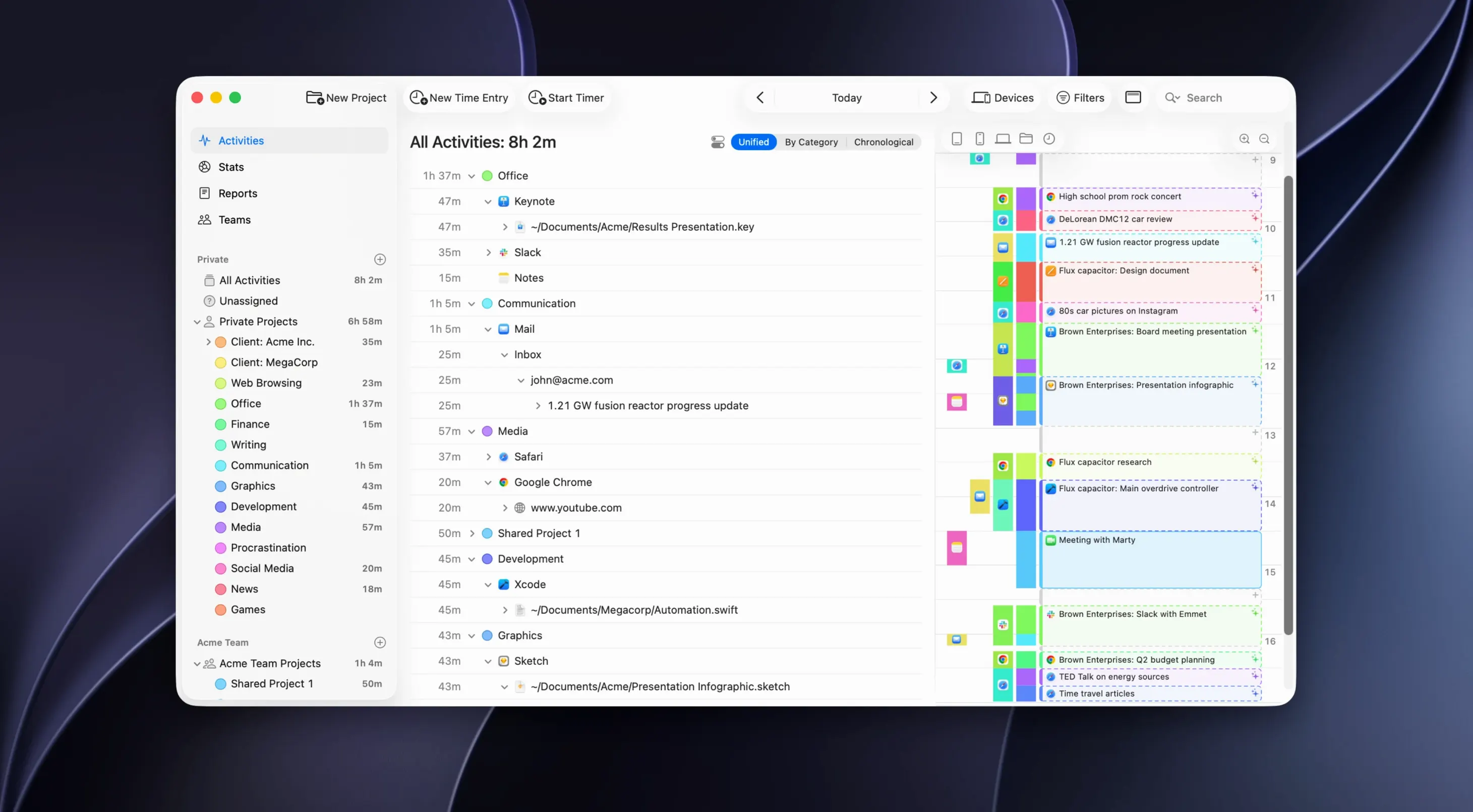
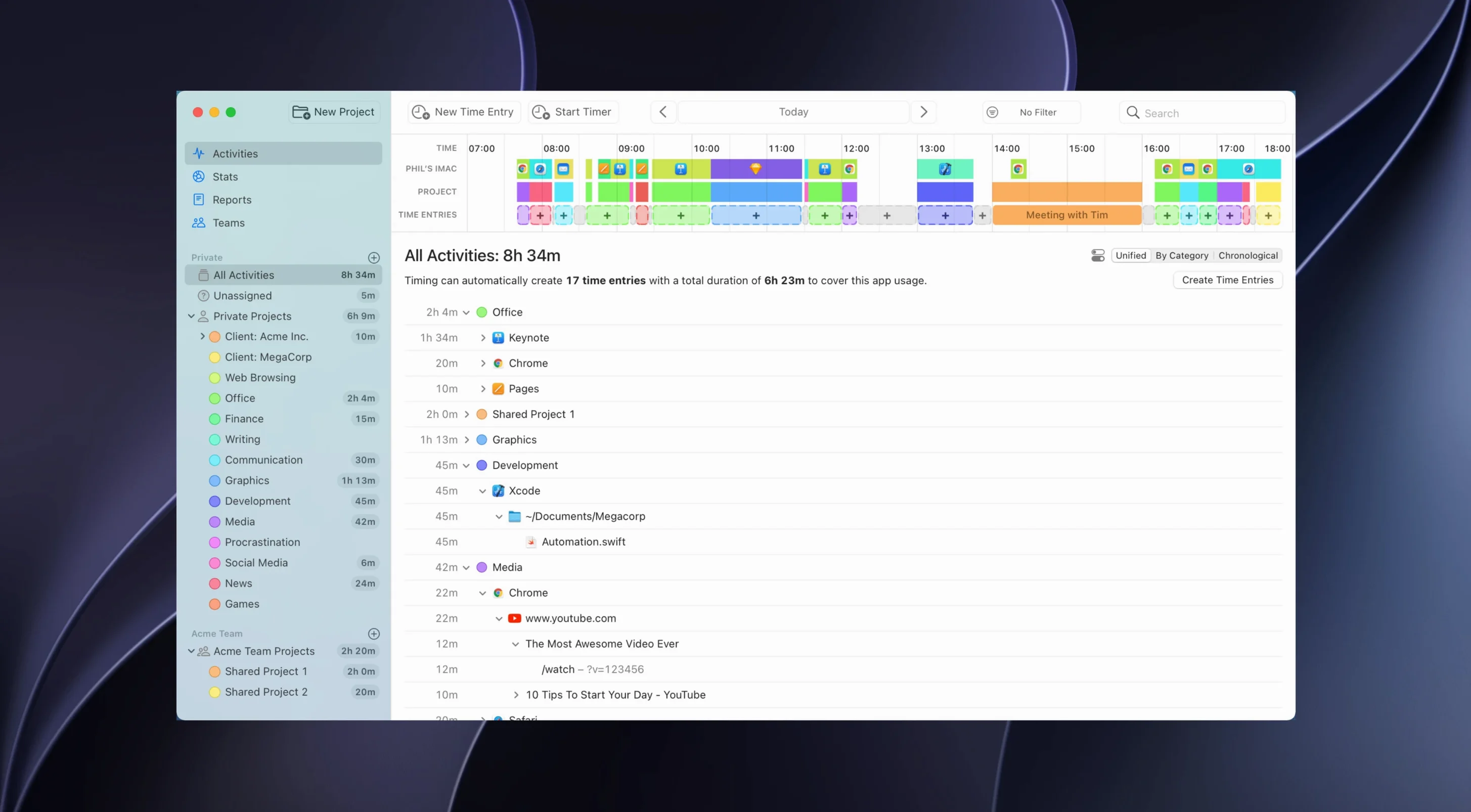
If you've ever used a pomodoro timer to log your day, you know the pain: you forget to start it, forget to stop it, and end up guessing what happened between 10:15 and 11:40. Timing takes the opposite approach — it watches what you do on your Mac and builds a timeline automatically, so the guessing stops. But that raises a few questions right away.
Does it record every single thing I do?
No. Timing deliberately ignores private and incognito browser tabs, so anything you do in a private window stays private. It's also smart enough to group related activities together — editing a document, writing an email about that document, and looking up references all get tied to the same project once you set a rule.
What happens to the data?
Everything stays local on your Mac unless you choose to use the companion web app, which syncs securely between your machine and a browser dashboard. From there you can export tidy reports in PDF, XLSX, CSV or HTML formats, so invoicing a client doesn't mean rebuilding a timesheet from scribbled notes. Calendar integration pulls in your meetings, and Zapier lets you pipe time entries into hundreds of other services if you need to.
Will I have to babysit it?
You set it up once. The app tracks time without any manual timers — you open your Mac, do your work, and Timing builds the record in the background. The latest update even pulls in activities from sub-projects automatically when you select a parent project, so you see the full picture without extra clicks. It's the opposite of a stopwatch: it learns your habits and quietly handles the admin while you focus on the work.
An hour of bug‑fixing tracked without pressing start
Imagine it is Tuesday morning. You sit down with coffee, open Xcode, and start chasing a bug in a SwiftUI layout. Timing has been running since you logged in — you never had to click “start.” An hour drifts by. You switch to Safari to read the Apple Human Interface Guidelines, then jump into Slack to ask a colleague a question. Around 11:30 you take a call in Zoom, and afterwards you fire up the new Microsoft Outlook to send a summary.
At 16:00 you need to fill in yesterday’s timesheet for a client. You open Timing and click on the project you set up called Meridian UI refresh. Because the 2026.4 update now pulls in activities from sub-projects, you see every file opened, every relevant URL visited, and every email thread, all gathered under one roof. You drag the Zoom call from the general timeline and drop it onto the project. You spot a 20‑minute block of YouTube — you were researching Core Animation transitions — and assign that too. Then you select the date range and hit Export as PDF. The whole review takes under four minutes, and you never once glanced at a timer.
Creating too many projects and rules before Timing learns your Tuesday
The most common stumble is over‑organising on day one. People create a dozen projects and twenty‑seven rules before Timing has even learned what a normal Tuesday looks like. That leads to mis‑categorised entries and frustration. Let the app track freely for a few days, then start assigning activities — the pattern is already there, and you are just confirming it.
Another trap is forgetting that the web app syncs with your Mac, but it does not track automatically on your phone. A freelancer I work with once spent a whole afternoon on client calls, glancing at the web app waiting for times to appear. They don’t, unless you start a manual timer in the browser dashboard. The mobile side is for pausing, reviewing and starting ad‑hoc timers, not for passive tracking — that magic stays on the Mac.
Lastly, some users never look at the rule editor’s tilde‑based file paths. When a rule seems to stop matching, it is often because the file moved inside the home folder; re‑doing the path with a ~ at the front makes the rule portable across accounts and machines, and it is worth learning early if you share a Mac or work across user profiles.
How Timing fits with other apps and macOS
Timing sits at the centre of a quiet ecosystem. When you accept a calendar invitation in Apple Calendar or Outlook, the event lands in your timeline as a labelled block — no manual entry needed. For developers, the improved tracking for Claude, Codex and Cursor desktop apps means an afternoon spent prompting an AI pair‑programmer is automatically logged alongside your editor, giving you an honest timing mac download of tool‑switching patterns.
Once the data is in Timing, Zapier opens the door to almost anything. You can route time entries into a Notion database, append them to a Google Sheet for a project manager, or create invoices in FreshBooks when a project total hits a threshold. The web API lets you build custom workflows, so a team lead with a dashboard can pull real‑time summaries without touching anyone’s local database. And because the app respects macOS privacy boundaries — private tabs stay invisible — you can set it and forget it without worrying that the whole office can see your lunchtime shopping.
Version 2026.4, released 2026-06-15, brings several tracking improvements and a helpful change to the project view.
- The project view now includes activities from all sub-projects when you select a parent project — no more drilling down to see the full picture.
- Tracking support has been added or improved for Claude, Codex, Cursor, and the Helium browser, so time spent in these tools is captured automatically.
- The new Microsoft Outlook is now supported, and the rule editor displays file paths with a tilde, making it easier to read at a glance.
- Requires macOS 10.15 or newer
- Runs natively on both Intel and Apple Silicon Macs
- Interface languages: English, German, Spanish, Simplified Chinese, French
Questions I keep hearing
Can Timing generate a summary of my week?
Yes, the app supports AI summaries that condense your timeline into readable descriptions, and you can export formal reports in PDF, XLSX, CSV or HTML.
Does it work with my calendar?
It integrates with your calendar to pull in meetings, so you can see scheduled events alongside the work you actually did during those blocks.
What browsers and tools does it track?
The current version improves tracking for Claude, Codex, Cursor and the Helium browser, alongside standard apps like the new Microsoft Outlook.
Questions from the class 0
Sign in or join the class to ask a question.
Nobody has asked anything yet. If you have used it on a real job, say what the file did.
Also on the Office shelf
The whole Office shelf Things
Captures to-dos the moment they occur and organises them into a calm daily list.
Things
Captures to-dos the moment they occur and organises them into a calm daily list.
 Text Workflow
Transforms messy text with chains of reusable steps you can save and share.
Text Workflow
Transforms messy text with chains of reusable steps you can save and share.
 Text Scanner
 Typora
Writes in Markdown and sees a clean, formatted document appear around your words as you type.
Typora
Writes in Markdown and sees a clean, formatted document appear around your words as you type.
 UPDF 2 - AI-Powered PDF Editor
 Vellum
Turns your manuscript into polished ebook and print editions without wrestling styles.
Vellum
Turns your manuscript into polished ebook and print editions without wrestling styles.
 VueScan Pro
Brings its own drivers to keep your old scanner working long after manufacturer support ends.
VueScan Pro
Brings its own drivers to keep your old scanner working long after manufacturer support ends.
 SpeakMe
Reads text aloud on any recent Mac.
SpeakMe
Reads text aloud on any recent Mac.