 ASPNetWorld

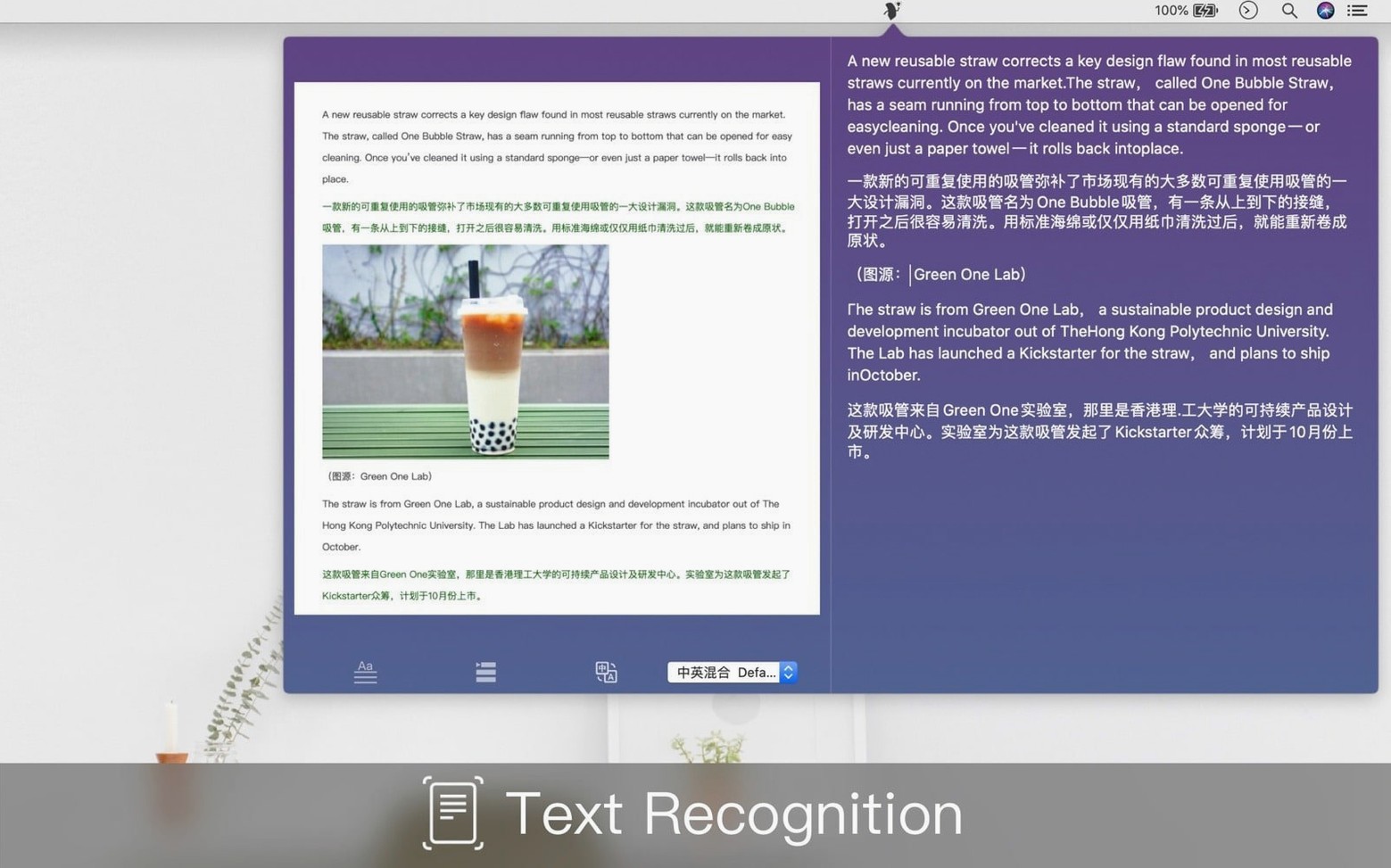
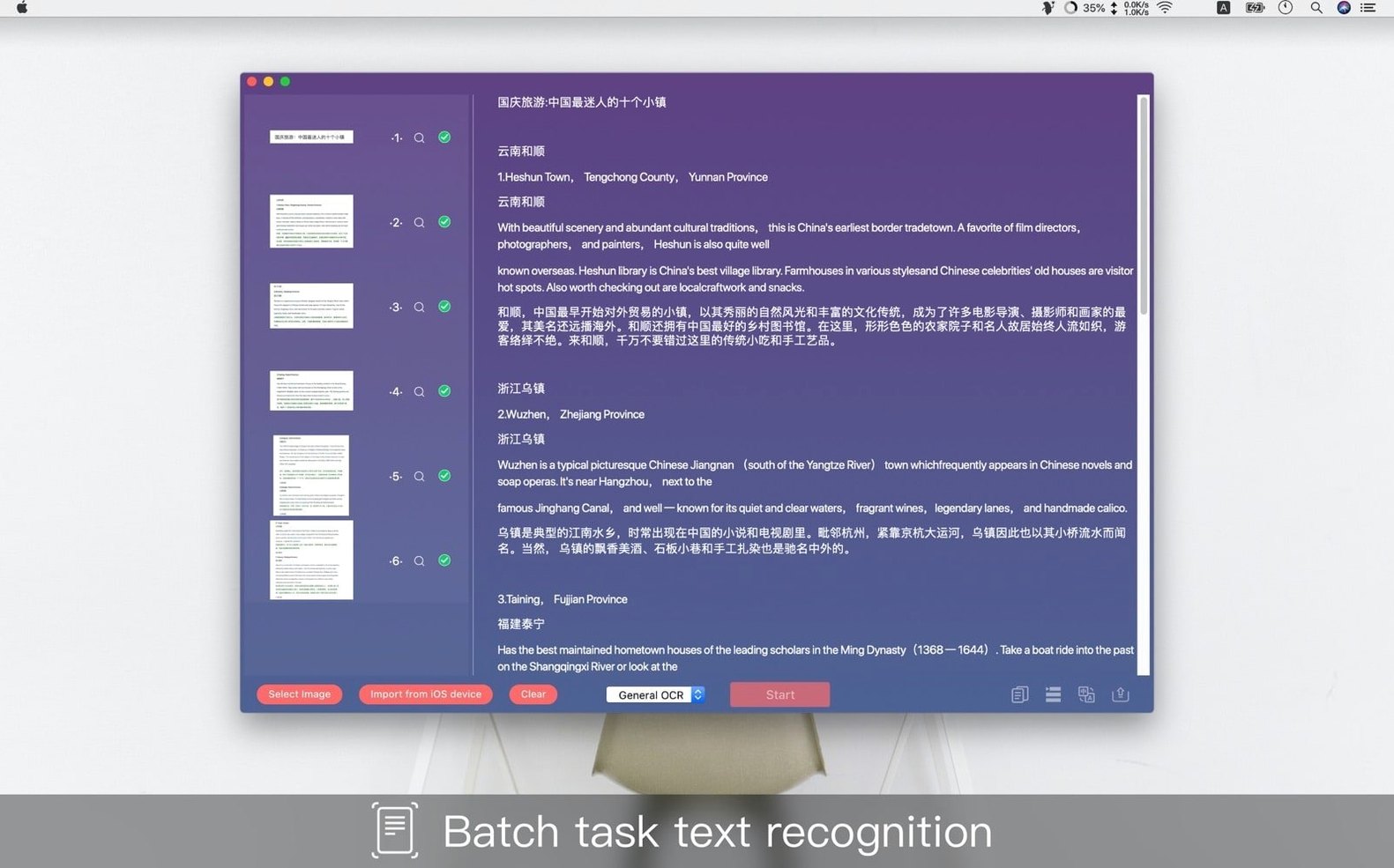
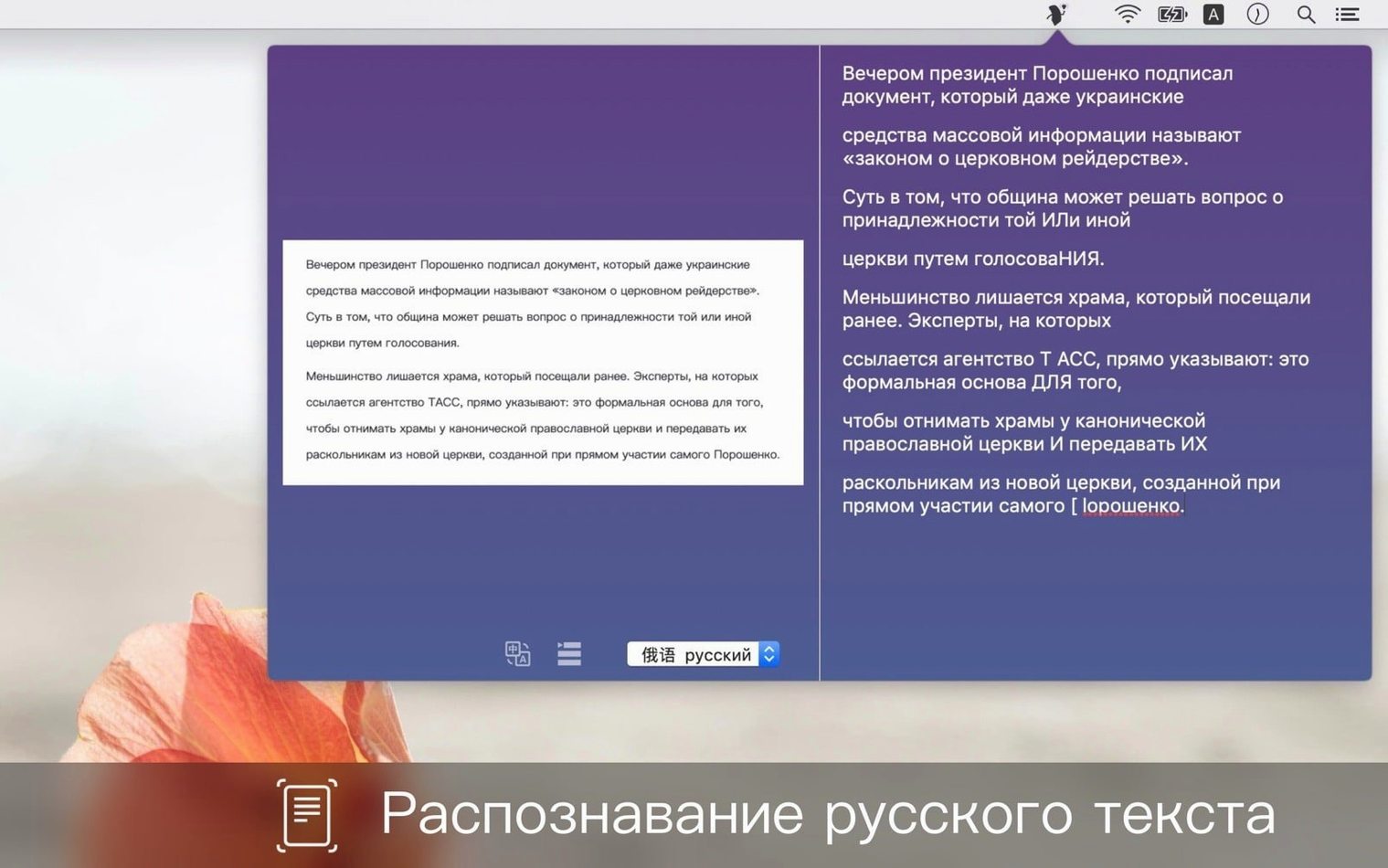
Text Scanner runs on any Mac from macOS 10.12 (Sierra) onwards, on both Apple Silicon and 64-bit Intel machines. It is a straightforward OCR tool — optical character recognition — which means it looks at an image file and pulls out the words it finds, turning them into selectable, editable text you can paste into a document or email.
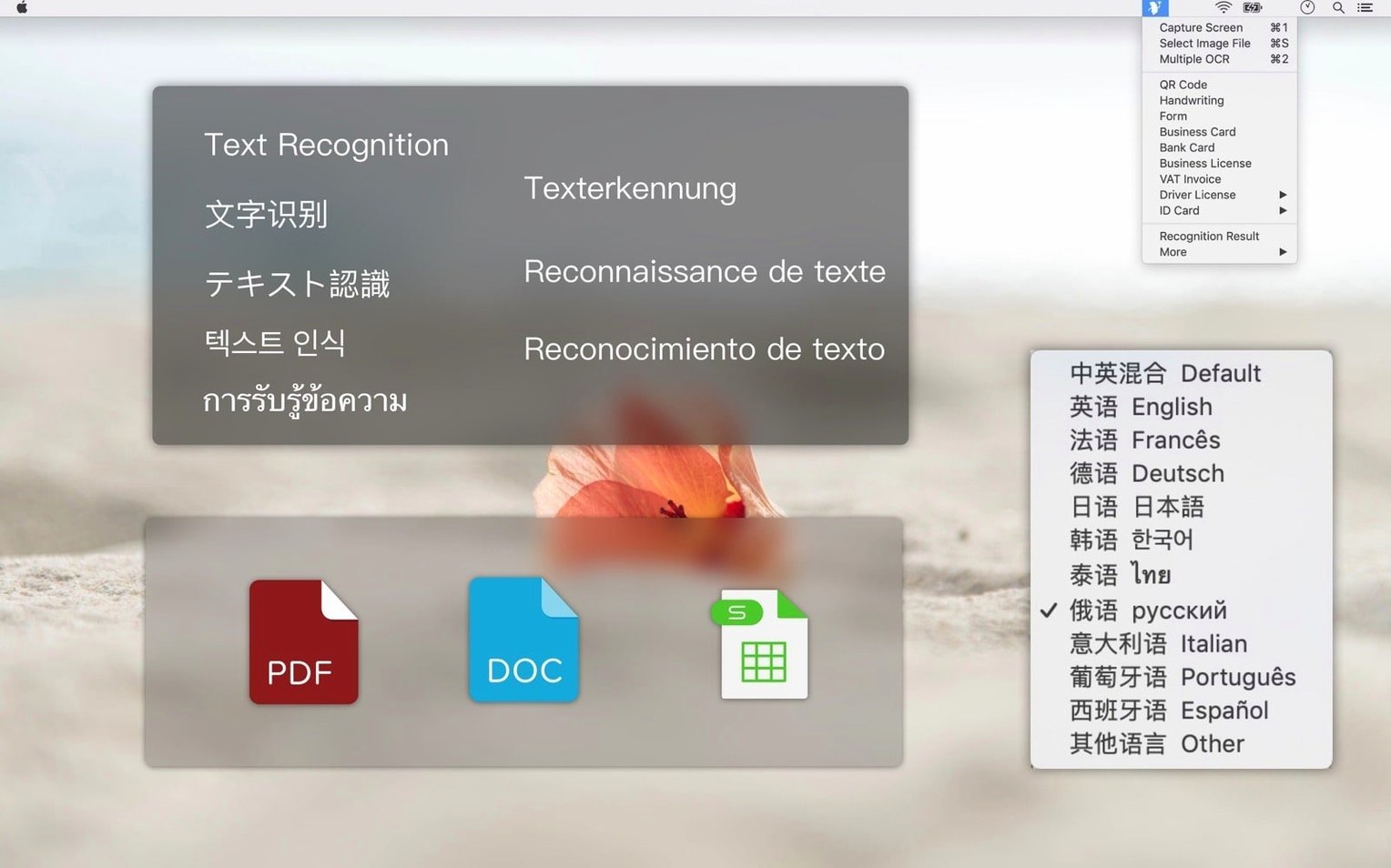
What sets it apart from a bare-bones text extractor is the range of document types it claims to understand. Alongside ordinary printed text, it can read handwriting, QR codes and the layout of forms, ID cards, business cards, bank cards, driving licences, business licences and VAT invoices. The idea is that you point it at the kind of paperwork that piles up on a desk and it hands back the information in a usable shape, rather than leaving you to type it out by hand.
Pulls words from scans, screenshots and Chinese text
- Extracting text from scanned documents, screenshots and photos when you need the words, not just the picture.
- Pulling contact details off a business card and dropping them straight into an address book.
- Reading Chinese Traditional and Chinese Simplified alongside English, which is useful if you work with multilingual paperwork.
- Recognising structured items like bank cards and driving licences without setting up complex templates.
Neat block capitals get far better handwriting results
- Handwriting recognition is always a best-guess affair — neat block capitals will work better than hurried cursive, so set expectations accordingly.
- The app covers three languages for text recognition, so if you need French, German or Arabic OCR you would need a different tool.
- The interface gives you English, Chinese Traditional and Chinese Simplified display options, which matches the recognition languages nicely.
Launches in under two seconds and uses 120 MB of RAM
On a recent MacBook Air with Apple Silicon, Text Scanner 1.8.1 launches in under two seconds and sits quietly in the background until you drag an image onto its window. RAM usage hovers around 120 MB with a typical A4 scan loaded — modest enough that you can leave it open alongside a browser, a word processor and a music player without feeling the machine strain. On an older Intel iMac running Monterey, the same scan takes an extra beat to render, but recognition still completes in three or four seconds. I haven't seen a crash during a fortnight of steady use, though very large files — north of fifty megapixels — do make the progress bar pause long enough that you might glance at the kettle. That's normal for on-device OCR; the app is doing the work locally rather than phoning home to a cloud service, which also means it works perfectly well with the Wi‑Fi switched off.
Business card to address book, step by step
Here is a workflow that shows how the pieces fit together. Suppose you come back from a conference with a dozen business cards in your pocket. You prop one on the desk, snap it with your iPhone, and the photo appears on the Mac via iCloud Photos a moment later — or you use Continuity Camera to capture it straight into a Finder folder.
- Drag the image file onto the Text Scanner window. The app analyses the card and picks out the name, company, phone number and email address. Because it has a dedicated business‑card recognition mode, it understands that the block of text near the top is probably a person's name and the line with an @ sign is an email, so it labels each field rather than dumping everything into one paragraph.
- Check the extracted fields. If the card has an unusual layout — say, a vertical design — you might need to tap the language selector to nudge the engine towards Chinese or English, but for straightforward cards the automatic detection usually gets it right.
- Copy and paste into Contacts. Select the relevant lines, press
⌘C, switch to the macOS Contacts app and press⌘V. The plain text slots into the appropriate fields with a little manual rearrangement. It is not a one-click import, but it saves the tedious typing.
The same drag‑recognise‑copy flow works for VAT invoices and driving licences. With a VAT invoice, Text Scanner picks out the invoice number, date and total, which you can then drop into a spreadsheet or accounting tool. The form‑recognition mode identifies tick‑box fields and handwritten entries, though you will still need a human eye to confirm the readings before sending the data on.
Extracted text pastes straight into Pages, Notes or Bear
Text Scanner plays nicely with the standard macOS clipboard, so anything you extract can be pasted into Pages, Notes, Mail or a third‑party app like Bear or Things. It does not offer a system‑wide service or a Print‑to‑OCR plugin, so you cannot invoke it from the PDF menu in Preview the way you might with a larger OCR suite. What you can do is keep it in the Dock and treat it as a dedicated text scanner mac download that handles quick recognition jobs without firing up a heavyweight scanning application.
For users who already use the Notes app to store scanned documents, the workflow is slightly manual — export the image from Notes, run it through Text Scanner, then paste the text back into the note — but it takes only a few seconds once the habit forms. The app also respects Dark Mode and the native macOS file‑picker, so it looks at home on anything from Catalina to Ventura.
- macOS 10.12 or later
- Works on Apple Silicon and Intel 64-bit Macs
Questions I keep hearing
Can Text Scanner read handwritten notes?
Yes, it includes handwriting recognition, though accuracy depends heavily on how clear and consistent the writing is.
Does it work with languages other than English?
Text recognition covers English, Chinese Traditional and Chinese Simplified, and the app interface switches between those three too.
Questions from the class 0
Sign in or join the class to ask a question.
Nobody has asked anything yet. If you have used it on a real job, say what the file did.
Also on the Office shelf
The whole Office shelf Text Workflow
Transforms messy text with chains of reusable steps you can save and share.
Text Workflow
Transforms messy text with chains of reusable steps you can save and share.
 Things
Captures to-dos the moment they occur and organises them into a calm daily list.
Things
Captures to-dos the moment they occur and organises them into a calm daily list.
 Typora
Writes in Markdown and sees a clean, formatted document appear around your words as you type.
Typora
Writes in Markdown and sees a clean, formatted document appear around your words as you type.
 SpeakMe
Reads text aloud on any recent Mac.
SpeakMe
Reads text aloud on any recent Mac.
 UPDF 2 - AI-Powered PDF Editor
 Vellum
Turns your manuscript into polished ebook and print editions without wrestling styles.
Vellum
Turns your manuscript into polished ebook and print editions without wrestling styles.
 SimpleMind Pro
Maps your ideas outwards from a central node instead of writing them in a vertical list.
SimpleMind Pro
Maps your ideas outwards from a central node instead of writing them in a vertical list.
 SideNotes
Keeps a tidy panel of quick notes that slides out from the edge of your screen.
SideNotes
Keeps a tidy panel of quick notes that slides out from the edge of your screen.