 ASPNetWorld

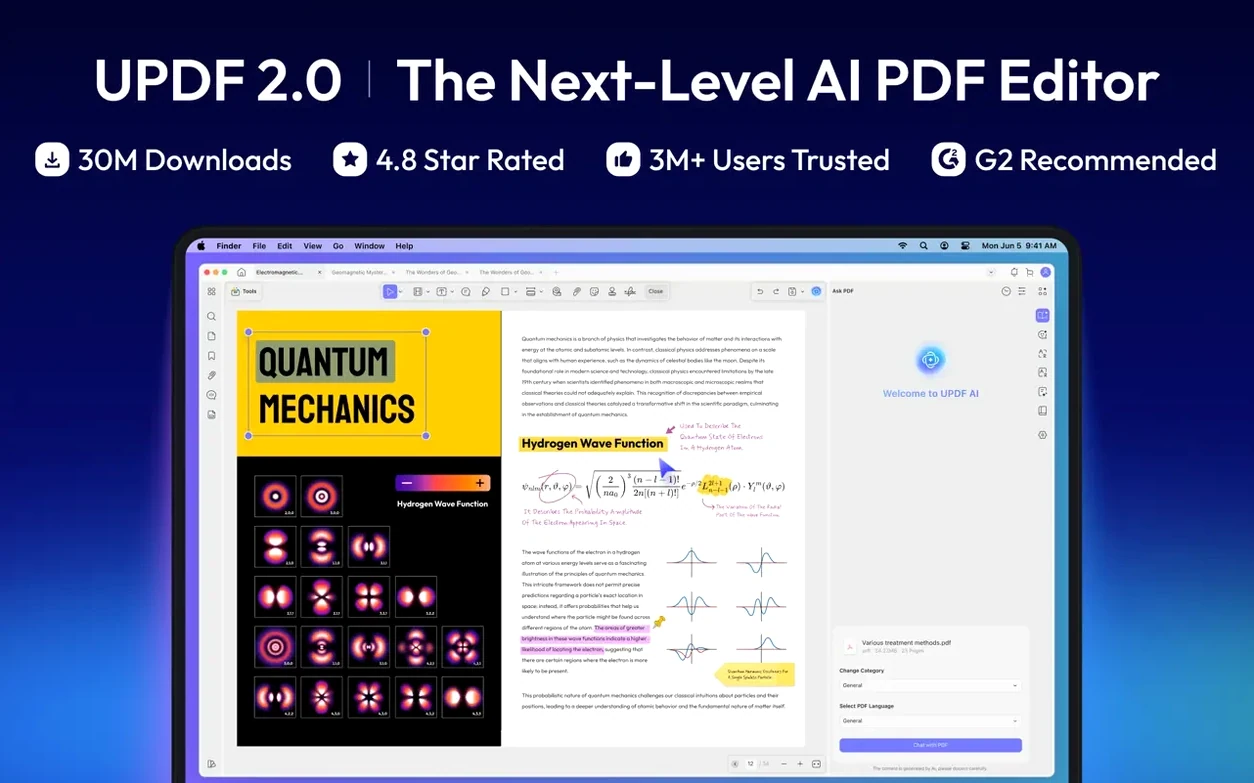
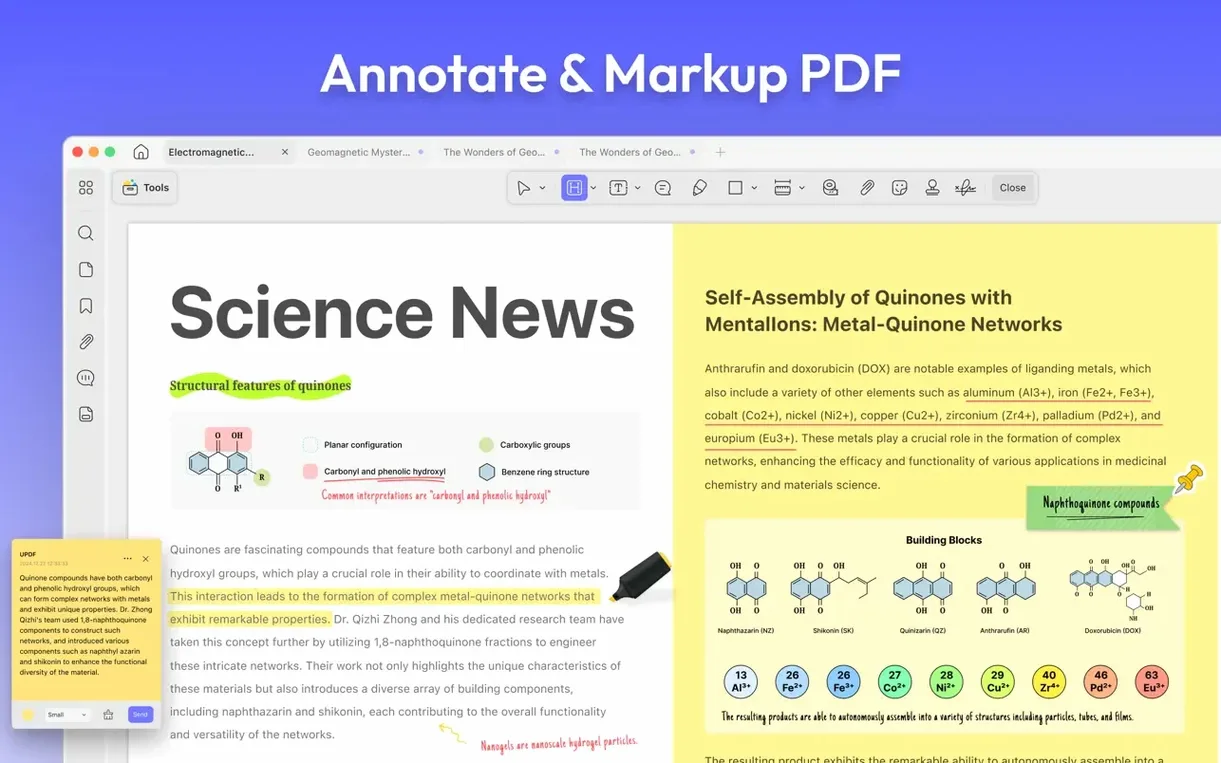
The multi-select delete in the Comment and Form lists is one of those small additions that quietly makes a big difference. Instead of clearing out notes one by one, you can tick a handful and remove them together—handy when you’ve been handed a document full of crossed-out suggestions. It sits alongside the usual annotation toolkit: highlighting, underlining, striking through, wavy underlining, and freehand drawing, so marking up a contract or a student essay feels direct and uncluttered.
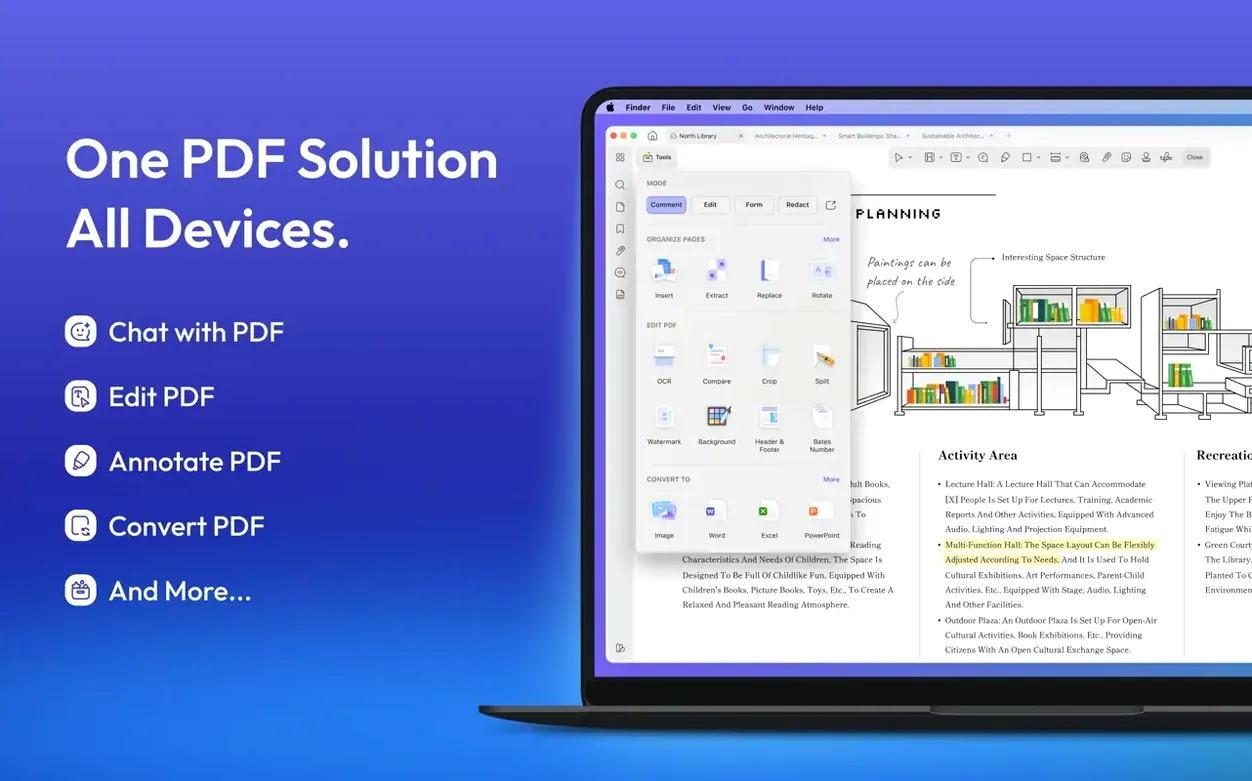
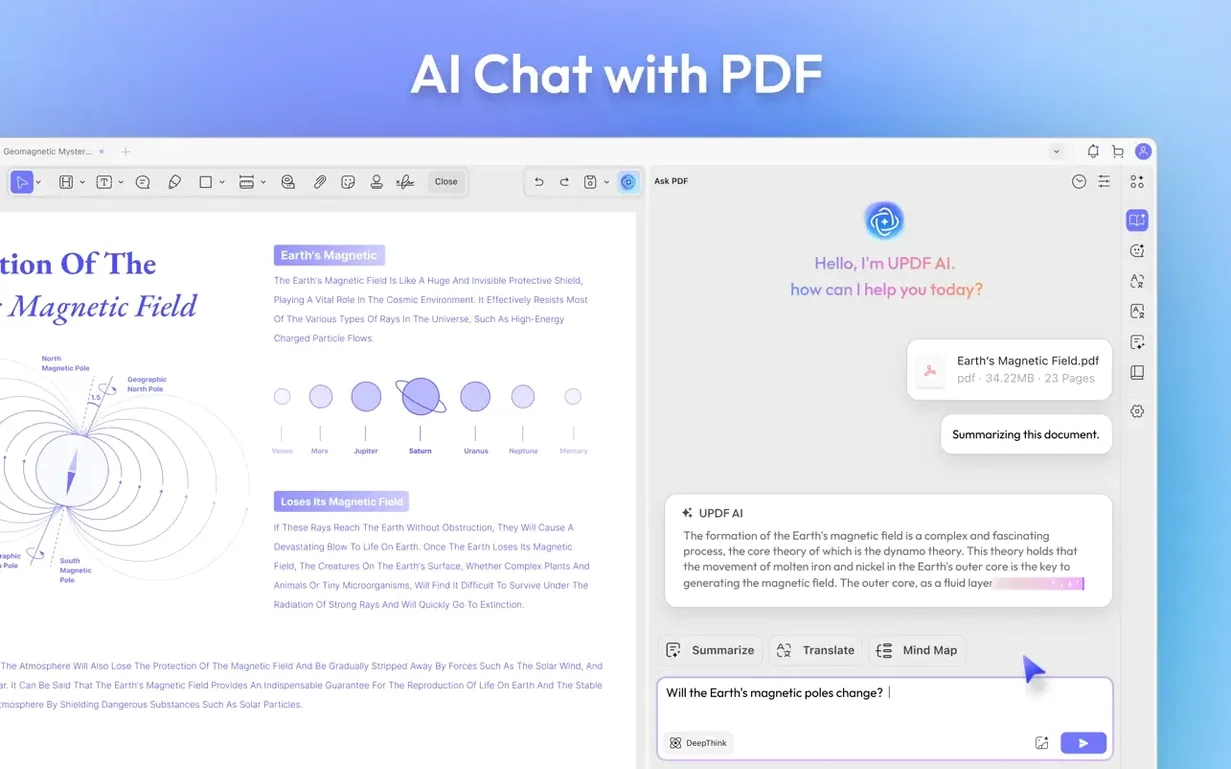
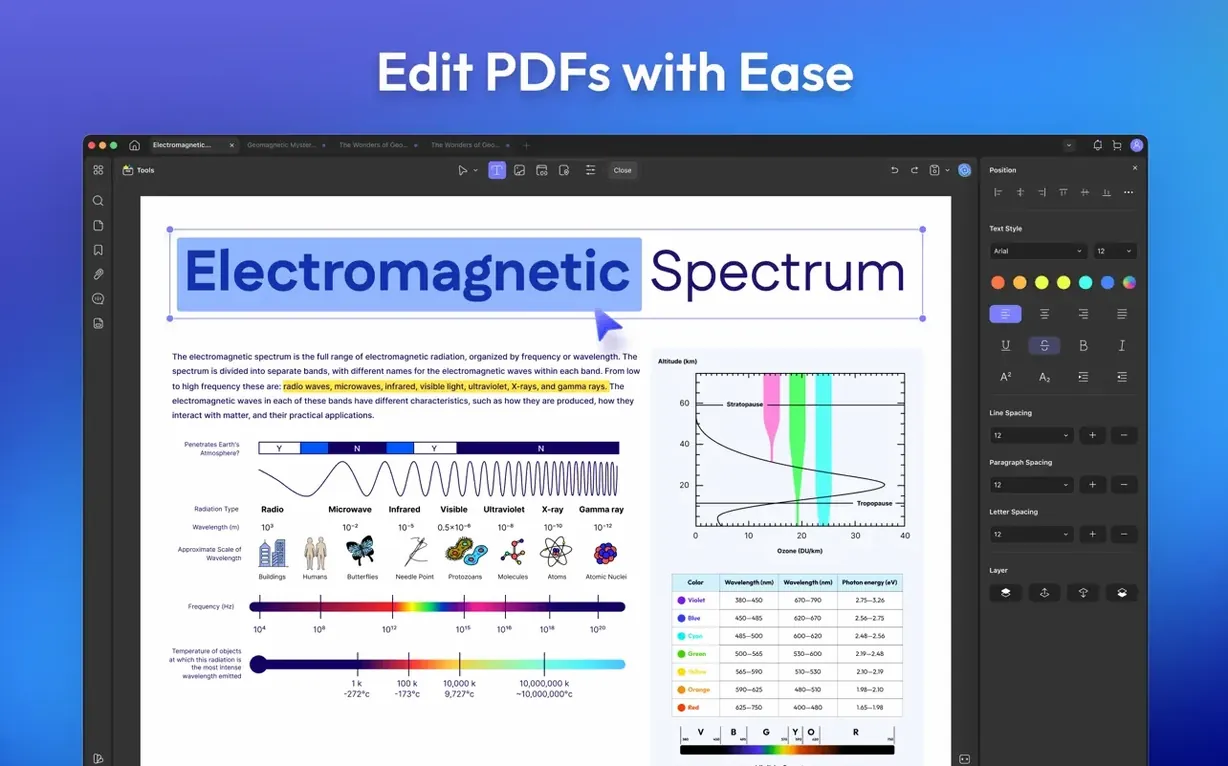
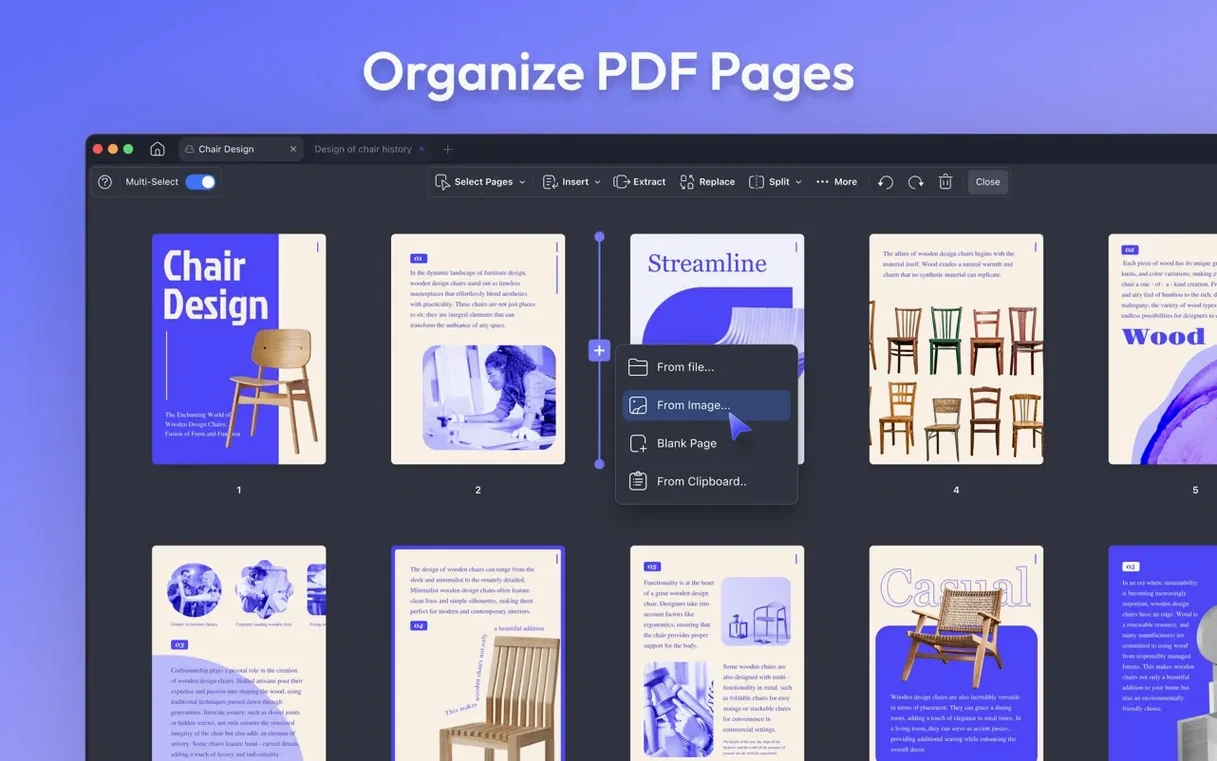
Beyond the markup, the app treats a PDF as something you can reshape. Images inside a page can be resized, cropped, rotated, extracted or swapped out entirely, which is useful when a brochure needs a last-minute logo change. The AI chat feature lines up on the side, ready to summarise a dense report or translate a passage without you leaving the workspace, and the batch processing engine handles the heavy lifting—think converting, merging, OCR, compressing or encrypting a stack of files while you get on with something else.
Security gets a practical nod with password controls that can lock opening, copying, editing and printing independently. The latest build also added toggles for PDF/A document detection and digital signature detection, so you know if a file is destined for long-term archiving or has been signed. It’s the kind of detail that matters in legal and academic settings, where format compliance isn’t optional.
Under the hood, the app runs natively on both Apple Silicon and Intel Macs from macOS 11 onwards, so there’s no Rosetta translation lag. Whether you’re annotating a script, compressing a portfolio for email or asking an AI to pull the key points from a fifty-page whitepaper, the toolset is built to keep you inside one window rather than bouncing between utilities.
A practical workflow: cleaning up a scanned contract
Let’s walk through a task that lands on a lot of desks—a scanned contract that needs tidying, signing, and sending back as a clean PDF. You open the file and the first thing you notice is the white margins are uneven, a common artefact of a quick scan. Head into Remove White Margins mode and you can drag the crop box manually until the text sits snugly inside the frame, no guesswork. The custom rotation for images and text comes into play next: one page has a scanned appendix that was fed into the scanner slightly askew. You select the offending block, hold the rotate handle, and nudge it by a degree and a half until the lines run true. It’s a small adjustment, but it stops the document looking sloppy.
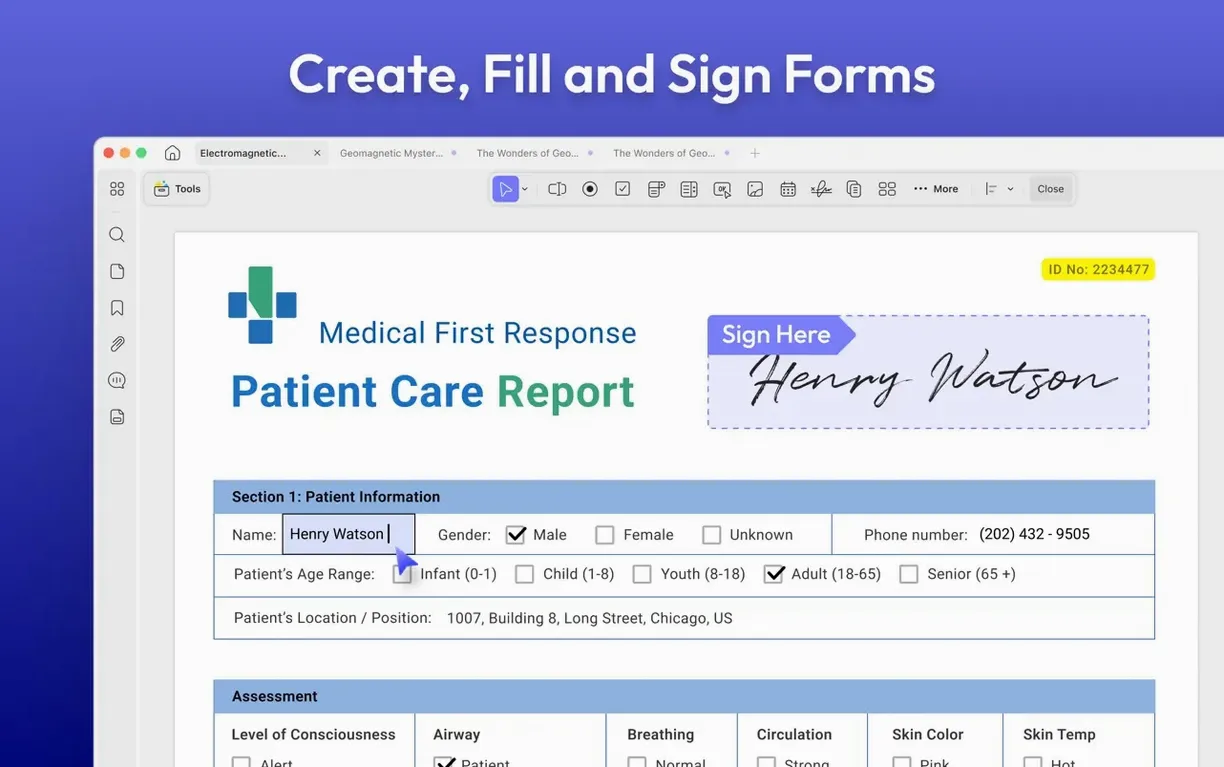
With the pages straight, you open the form-filling tools and drop interactive fields where the other party needs to initial and date. The signature tool lets you scribble with the trackpad or paste a saved signature, so your own section is done in seconds. Before sending, you apply a password that locks editing but still allows printing—enough to keep the document intact without making it awkward for the recipient to produce a hard copy. The whole sequence, from crooked scan to locked, signed PDF, happens without opening another application.
Annotate a paper, convert invoices, and fill a form in one window
Imagine a Tuesday morning. Three things hit your inbox at once: a research paper to annotate, a batch of invoices to convert, and a form that needs filling. Here’s how the session unfolds inside a single window.
You start with the invoices—seven of them, all PDFs. Drag them into the batch processor, set the output to XLSX, and tick the OCR box because two of them are image-based scans. The batch engine chugs through them in the background while you open the research paper. Highlighting key passages in yellow and adding sticky-note comments takes ten minutes. You use the multi-select delete in the Comment list to clear a handful of notes you changed your mind about—no right-clicking one by one.
Then the AI chat panel gets a workout. You select a dense methodology section and ask it to summarise. A paragraph-long précis appears almost instantly, and you drop it into a text box on the first page as a reading aid for a colleague. You also grab a German abstract, ask for a translation, and paste the English version into a callout shape alongside the original. By the time you’re done annotating, the batch conversion has finished and the invoices are sitting as a tidy spreadsheet. The form fills itself in via the interactive fields you created yesterday; you just tweak a date and export.
Throughout the morning, you never left the app. No switching to a converter, no opening a separate OCR tool, no pasting into a web-based translator. That’s the quiet strength of a workspace built to hold everything a PDF can throw at you.
Create a client-ready PDF handout straight from a PowerPoint deck
The app doesn’t seal itself off. You can create a PDF from a Word document or a PowerPoint slide deck directly, which means the marketing team’s presentation can become a client-ready handout without a detour through Print > Save as PDF. Screen capture, window capture, and selection capture feed straight into a new document as well—useful when you need to grab a chart from a web dashboard and annotate it on the fly.
Once a PDF is polished, the conversion tools push it back out into the ecosystem. Exporting to DOCX sends the file into Pages or Word for further editing; converting a table-heavy report to CSV drops clean data into Numbers or Excel. The text-to-speech feature taps into the macOS speech engine, so you can listen to a document while you work on something else, and the slideshow viewing mode turns a PDF into a quick presentation without needing Keynote.
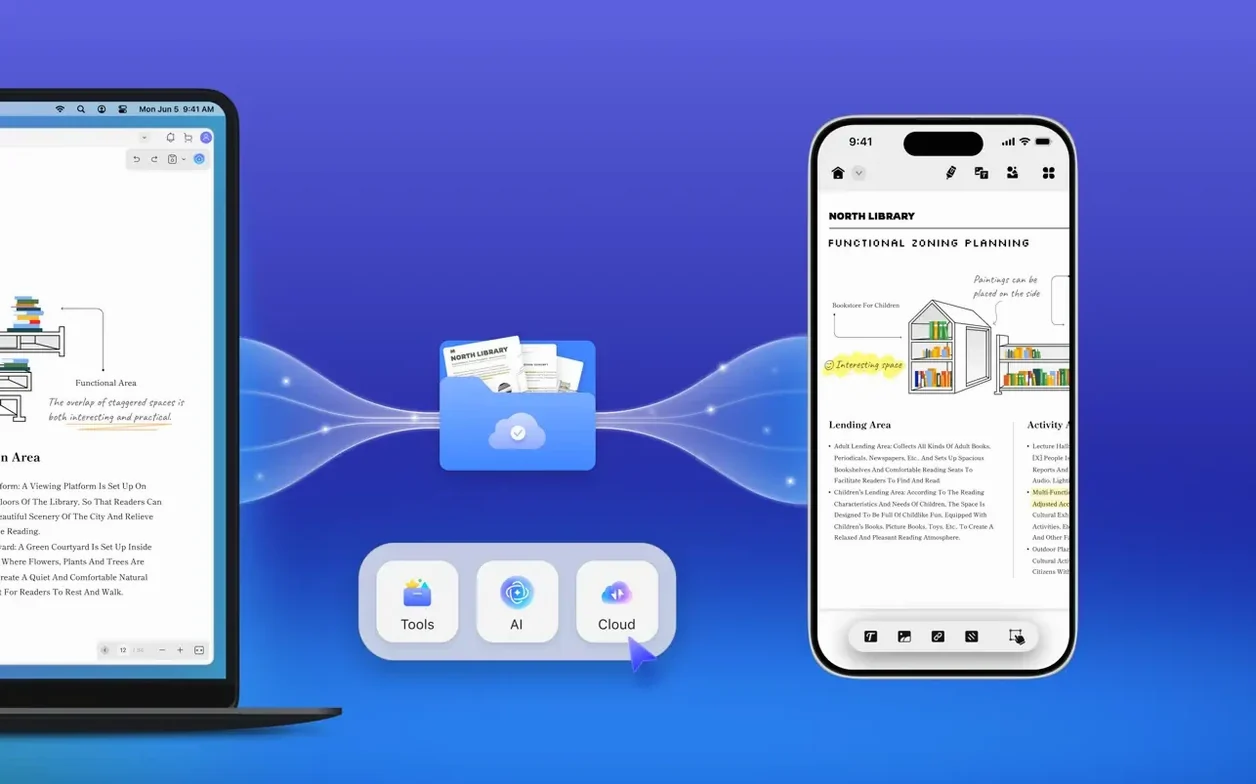
On the security side, the PDF/A detection toggle ties in with long-term archiving workflows—if you’re storing documents for compliance, knowing a file meets the standard before you file it away saves a headache later. And because the app supports both Apple Silicon and Intel Macs natively, it slots into a mixed office without performance quirks. You might edit a contract on an M1 MacBook Air, annotate a script on an older Intel iMac in the studio, and open the same file on an iPad later—the feature set travels across devices without breaking stride. That cross-device continuity, paired with macOS features like drag-and-drop from Finder and the share sheet, makes the app feel less like a standalone utility and more like a natural extension of the system’s own file-handling habits.
Version 2.5.6 refines several everyday workflows. Custom rotation for images and text gives you precise control when an imported scan sits at a slight angle. Batch printing can now split across documents when outputting double-sided PDFs, which keeps separate reports from bleeding into each other. New toggles for PDF/A document detection and digital signature detection let you spot archival files and signed documents at a glance. The multi-select delete reaches the Comment and Form lists, and a manual crop-box adjustment has appeared in the Remove White Margins mode for finicky page edges.
- macOS 11 or later
- Apple Silicon and Intel Macs
Questions I keep hearing
Can UPDF 2 read a PDF aloud?
Yes, it includes a text-to-speech feature that reads the document content back to you, which is helpful for proofreading or accessibility.
Does the AI feature work with scanned PDFs?
The AI chat can work with any PDF where the text is selectable; for scanned pages you would need to run the built-in OCR first to make the text recognisable.
Questions from the class 0
Sign in or join the class to ask a question.
Nobody has asked anything yet. If you have used it on a real job, say what the file did.
Also on the Office shelf
The whole Office shelf Vellum
Turns your manuscript into polished ebook and print editions without wrestling styles.
Vellum
Turns your manuscript into polished ebook and print editions without wrestling styles.
 Typora
Writes in Markdown and sees a clean, formatted document appear around your words as you type.
Typora
Writes in Markdown and sees a clean, formatted document appear around your words as you type.
 VueScan Pro
Brings its own drivers to keep your old scanner working long after manufacturer support ends.
VueScan Pro
Brings its own drivers to keep your old scanner working long after manufacturer support ends.
 Wolfram Mathematica
Complements your spreadsheet and text editor with thousands of built-in maths and AI functions.
Wolfram Mathematica
Complements your spreadsheet and text editor with thousands of built-in maths and AI functions.
 Things
Captures to-dos the moment they occur and organises them into a calm daily list.
Things
Captures to-dos the moment they occur and organises them into a calm daily list.
 XMind Pro
Turns messy meeting notes into a clear, branching mind map on your desktop.
XMind Pro
Turns messy meeting notes into a clear, branching mind map on your desktop.
 Text Workflow
Transforms messy text with chains of reusable steps you can save and share.
Text Workflow
Transforms messy text with chains of reusable steps you can save and share.
 SpeakMe
Reads text aloud on any recent Mac.
SpeakMe
Reads text aloud on any recent Mac.