 ASPNetWorld

Gestimer for Mac handles up to 17 interface languages, a sign the developer values reach. But the real draw for an experienced user is how it sidesteps the usual click-and-type routine.
Good for
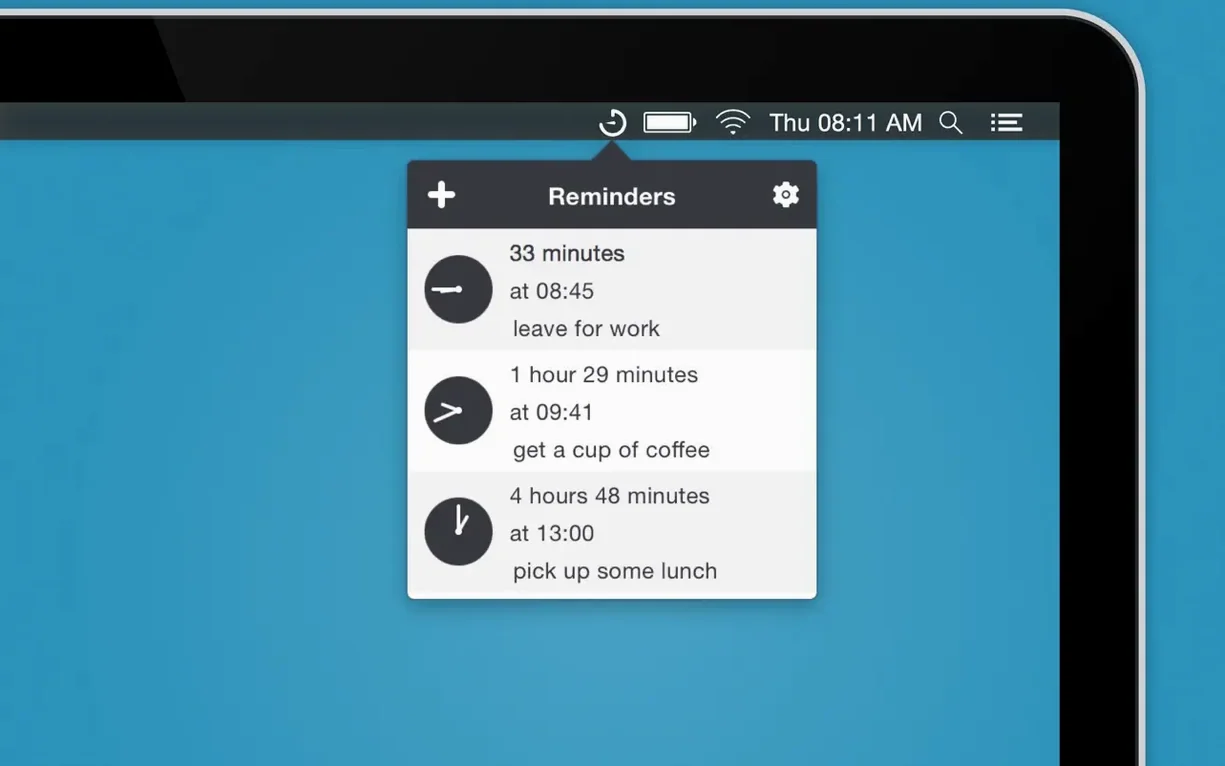
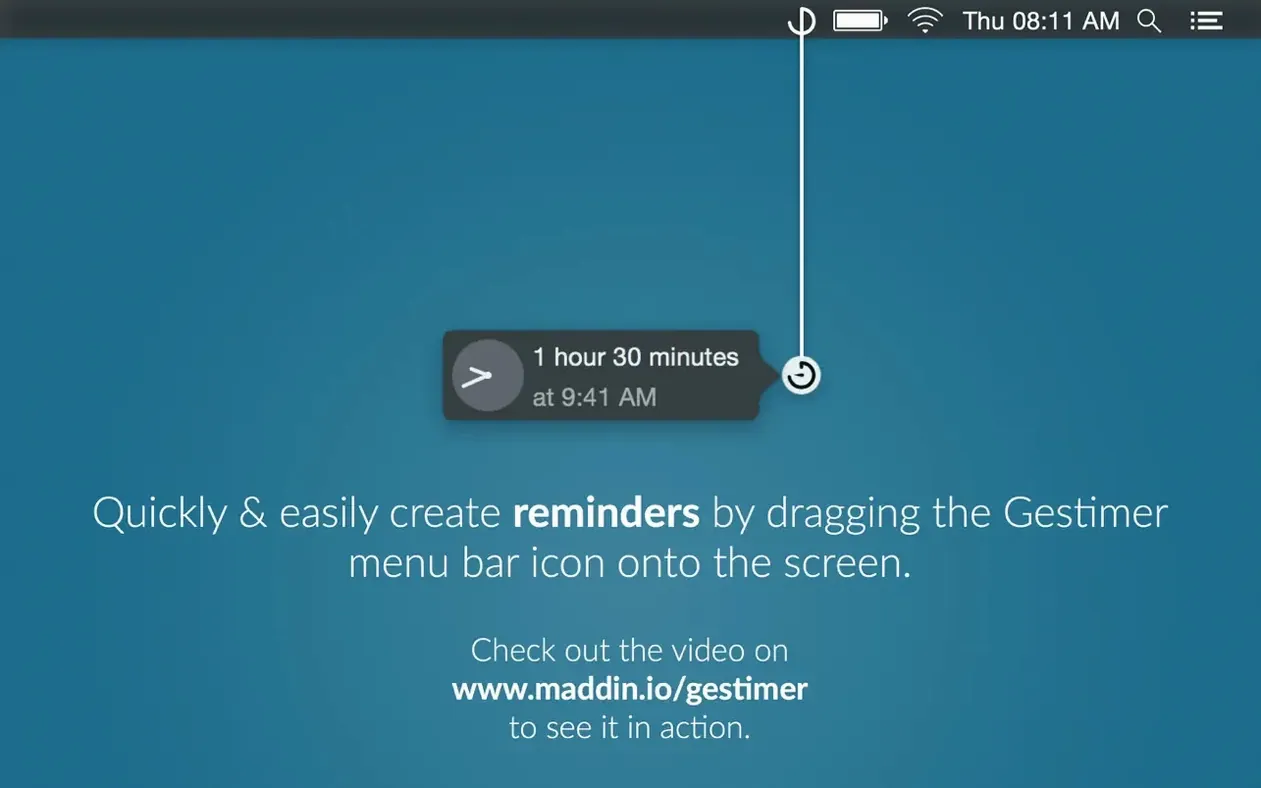
Quick, visual reminder creation — drag the menu bar icon onto the screen and a timer appears. The countdown to the next reminder shows right in the menu bar, so you never lose track. Quick titles let you name a reminder in a single field, no extra windows.
Keep in mind
This version (1.2.8) is the legacy Gestimer; Gestimer 2 is a separate app. It runs on macOS 10.10 or later and supports both ARM and 64-bit Intel Macs. The interface is available in Russian, English, German, Greek, Danish, Hebrew, Spanish, Italian, Traditional Chinese, Simplified Chinese, Korean, Polish, Portuguese, Ukrainian, Finnish, French, and Japanese.
Sits alongside your calendar and task manager
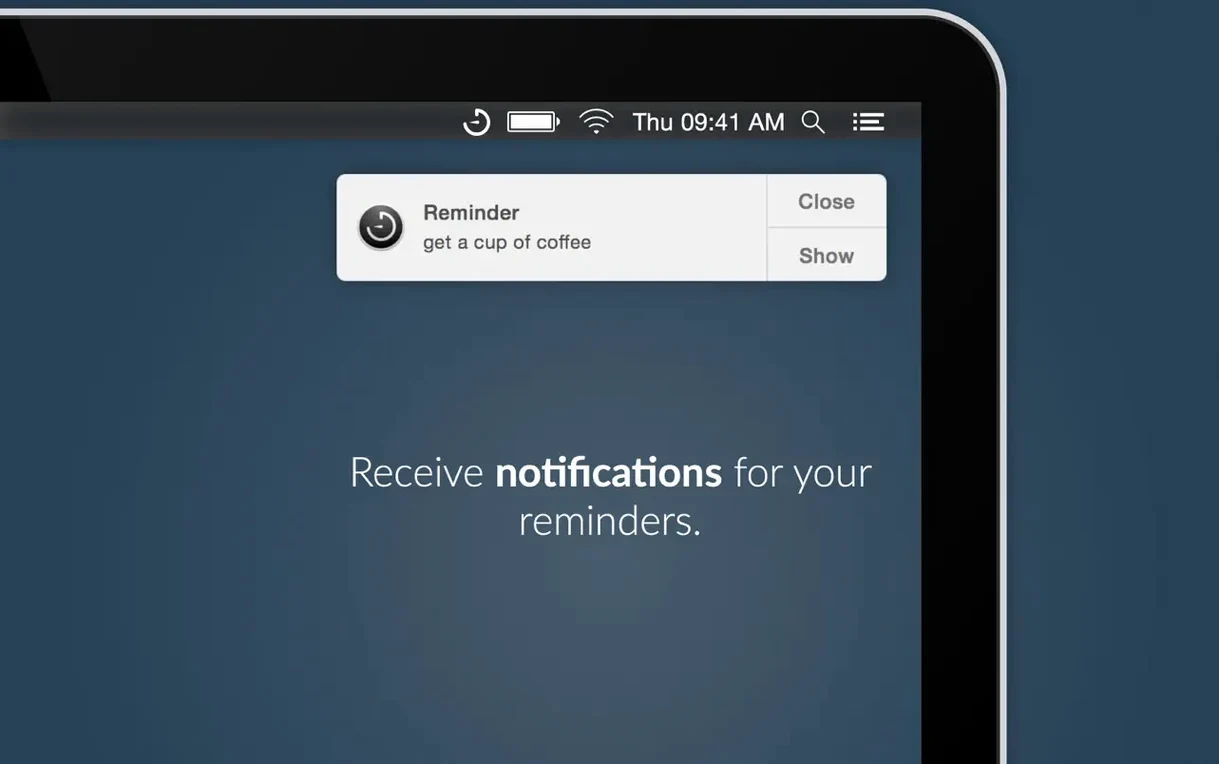
Gestimer doesn’t try to replace your calendar or task manager — it sits alongside them. The notifications it sends use macOS’s native notification system, so they appear in the same style as your calendar alerts, email pings and system messages. If you use Focus or Do Not Disturb mode, Gestimer respects those settings; notifications queue quietly until you’re ready.
The app syncs with Apple Reminders, which means any reminder you create in Gestimer can appear in the Reminders app on your phone or tablet. That sync works one-way: Gestimer sends reminders out to Apple’s system, but changes you make inside Apple Reminders don’t flow back. It’s a small distinction, but useful to know if you’re the sort of person who tweaks reminders on the go.
Because it lives in the menu bar, Gestimer doesn’t interfere with full-screen apps. I’ve run it alongside Logic Pro, Final Cut and even during screen-sharing sessions — it stays out of the way until you need it. The countdown in the menu bar updates in real time without stealing focus, so you can glance at it mid-task and keep going.
Drag and drop and other shortcuts
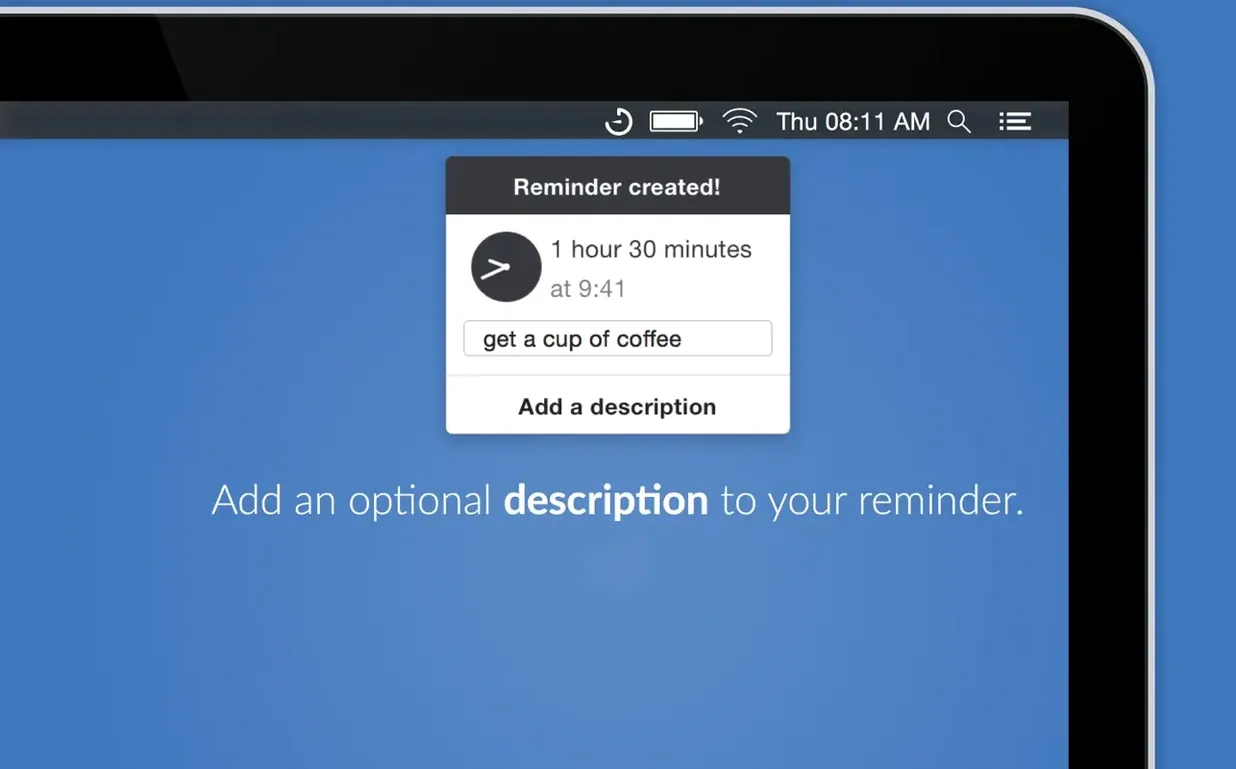
The standout shortcut is the drag gesture itself: click the Gestimer icon in the menu bar, drag it onto the desktop, and a timer starts. The direction of the drag doesn’t matter — up, down, left, right — it’ll still work. Release the icon and a small window appears where you type the reminder title. Press Return and the timer is set.
You can also create a timer without touching the mouse: click the menu bar icon, start typing, and the quick title field is already active. The keyboard shortcut ⌘⇧G (or whichever you assign in settings) opens the same field from any app. Once you’re used to it, you can fire off a reminder in under two seconds.
Postponing and repeating
When a notification arrives, Gestimer gives you the option to postpone. Click the notification’s Snooze button and the reminder reappears after a short interval — five minutes by default, though you can set your own in preferences. This is handy for things like “check the oven” or “reply to that email” where you know you’ll need a nudge again soon. There’s no repeat function for the same reminder, but postponing fills a similar gap for the same-day use case.
What people usually ask before installing
Is Gestimer a full task manager or just a timer?
It’s a timer and short-notification tool. It won’t replace Todoist or Things 3. It’s for the reminders that are too fleeting to go into a proper system: “call the vet at 3,” “take the cake out of the oven,” “stand up and stretch.” If that’s exactly what you need, it’s perfect. If you want recurring tasks or project management, you’ll want a different app.
Does it work with macOS Sonoma or newer?
Yes. I’ve used it on both Intel and Apple Silicon Macs without any trouble.
Can I set a reminder days in advance?
Technically yes — the timer allows any duration. But Gestimer is designed for same-day use. If you’re setting something for next Tuesday, you’d be better served by the built-in Calendar app or a dedicated task manager.
Does it need an internet connection?
No. Everything runs locally. The sync with Apple Reminders uses your existing iCloud connection, but Gestimer itself doesn’t phone home for anything.
Uses 15 MB of RAM and barely touches the CPU
Gestimer is light. It uses a few megabytes of RAM — I’ve seen it sit at around 15 MB during normal use — and barely registers on the CPU unless a notification is firing. The menu bar countdown updates once per second using a small polling loop, but that’s negligible on any modern Mac.
I’ve had it running for weeks without a restart. The only time I noticed a hiccup was during a macOS update when the menu bar reloaded itself; Gestimer reappeared after the system settled, so no data was lost.
The disk image install is straightforward: open the .dmg, drag the app to Applications, and launch it from Launchpad. The app itself occupies about 4 MB on disk. Uninstalling is just dragging it out of Applications.
The app doesn’t phone home or check for updates, so once it’s installed, it stays as-is — just make sure your macOS version is compatible and that you’ve allowed the app through any security settings if needed.
In short: it’s a small, focused tool that does one thing well and stays out of your way. If that sounds like your kind of app, it’s worth a look.
- macOS OS X 10.10 or later
- Intel 64-bit or Apple Silicon (ARM) processor
Questions I keep hearing
Can I see upcoming reminders at a glance?
Yes, Gestimer shows a countdown to the next reminder in the menu bar, so you always know what's coming.
Does Gestimer work on Apple Silicon Macs?
Yes, it supports both ARM and 64-bit Intel Macs.
Is this the same as Gestimer 2?
No, this version 1.2.8 is the legacy app. Gestimer 2 is a separate product with its own features.
Questions from the class 0
Sign in or join the class to ask a question.
Nobody has asked anything yet. If you have used it on a real job, say what the file did.
Also on the Office shelf
The whole Office shelf eBookBinder
 CHM Reader + CHM Converter
 XMind Pro
Turns messy meeting notes into a clear, branching mind map on your desktop.
 Wolfram Mathematica
Complements your spreadsheet and text editor with thousands of built-in maths and AI functions.
 VueScan Pro
Brings its own drivers to keep your old scanner working long after manufacturer support ends.
 Vellum
Turns your manuscript into polished ebook and print editions without wrestling styles.
 UPDF 2 - AI-Powered PDF Editor
 Typora
Writes in Markdown and sees a clean, formatted document appear around your words as you type.