 ASPNetWorld

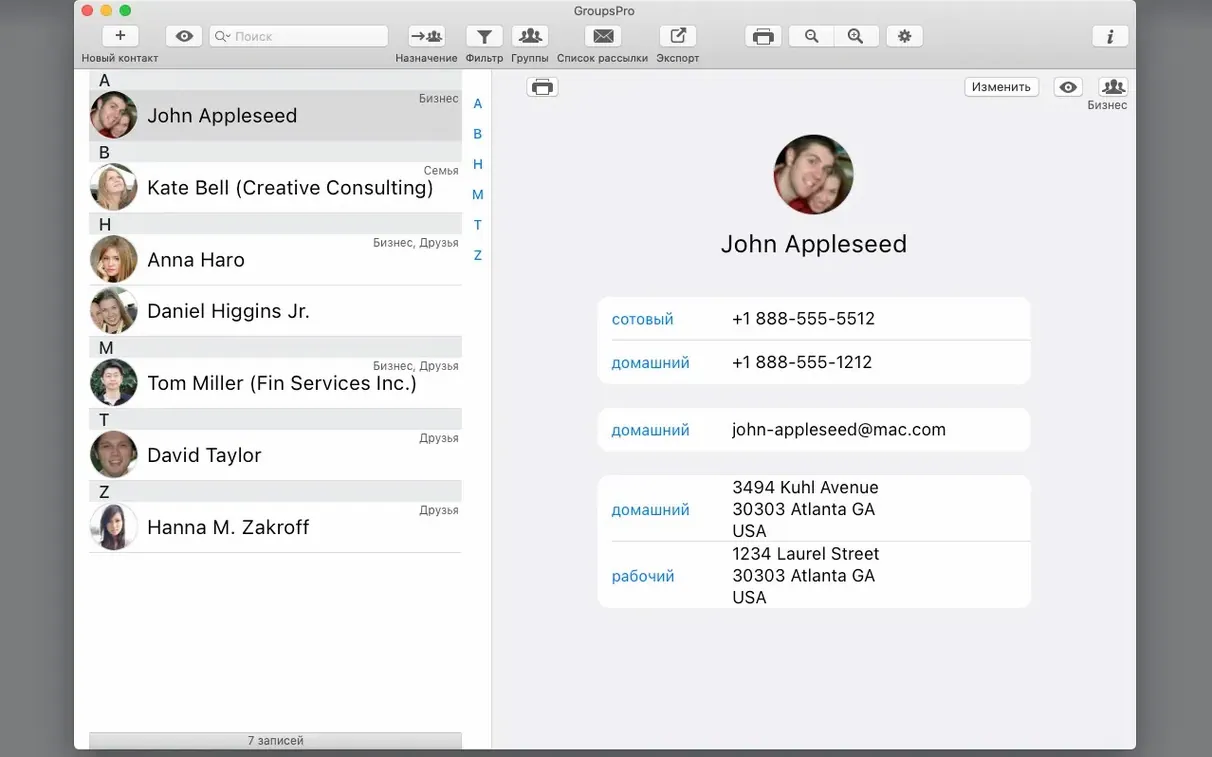
GroupsPro is for anyone who manages a growing address book — teachers coordinating class contacts, small-business owners running mailing lists, or event organisers grouping attendees. Before you install, you need to know if your Mac can run it.
Runs on macOS 10.13 or later, Intel only
macOS version — 10.13 or later. That covers High Sierra and everything newer.
Processor — Intel only. No native Apple Silicon support at the moment, but it should run under Rosetta 2 on M-series Macs.
Interface languages — Russian, English, German, Arabic, Spanish, Italian, Chinese (Traditional and Simplified), Korean, Polish, Portuguese, French, Swedish, Japanese.
What you get
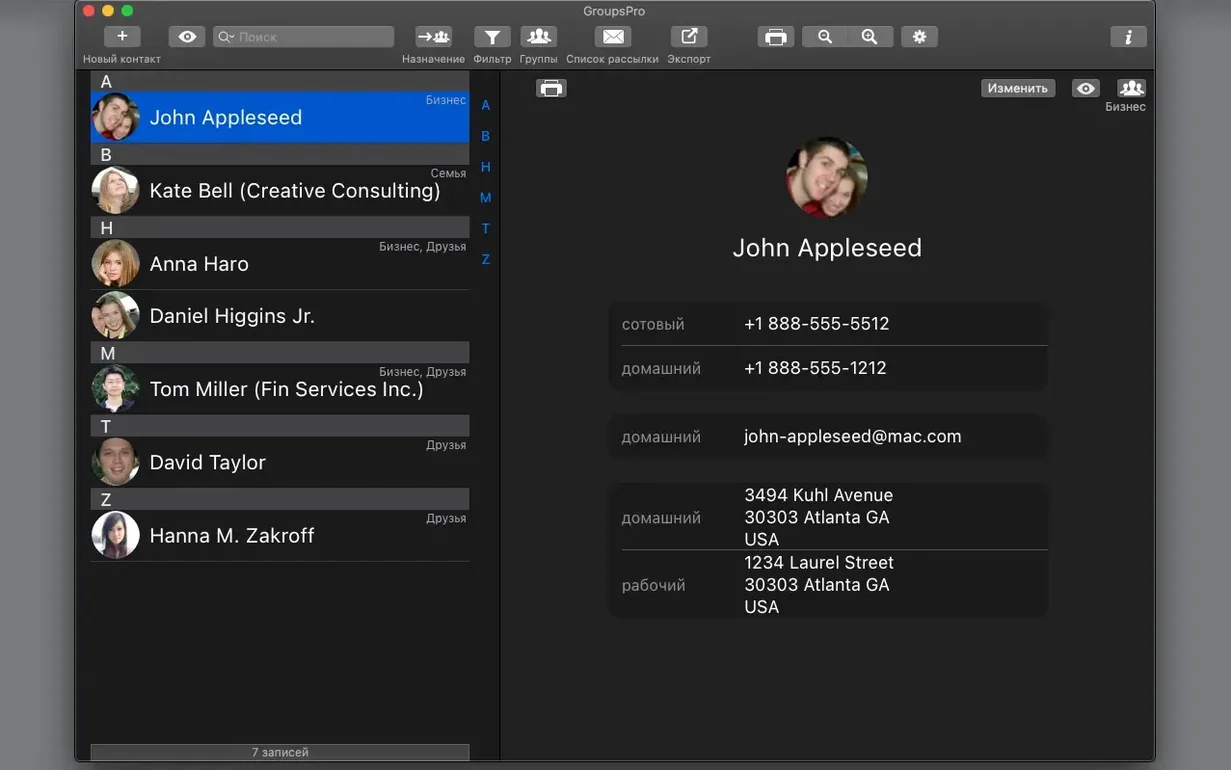
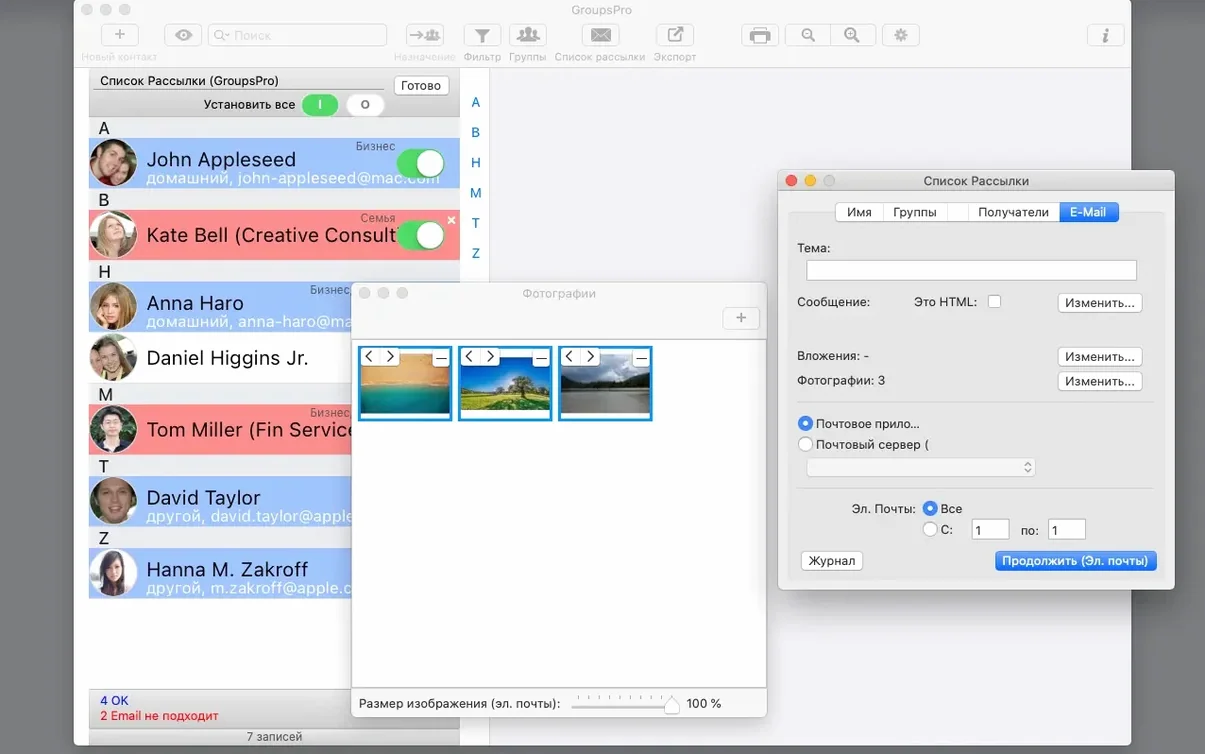
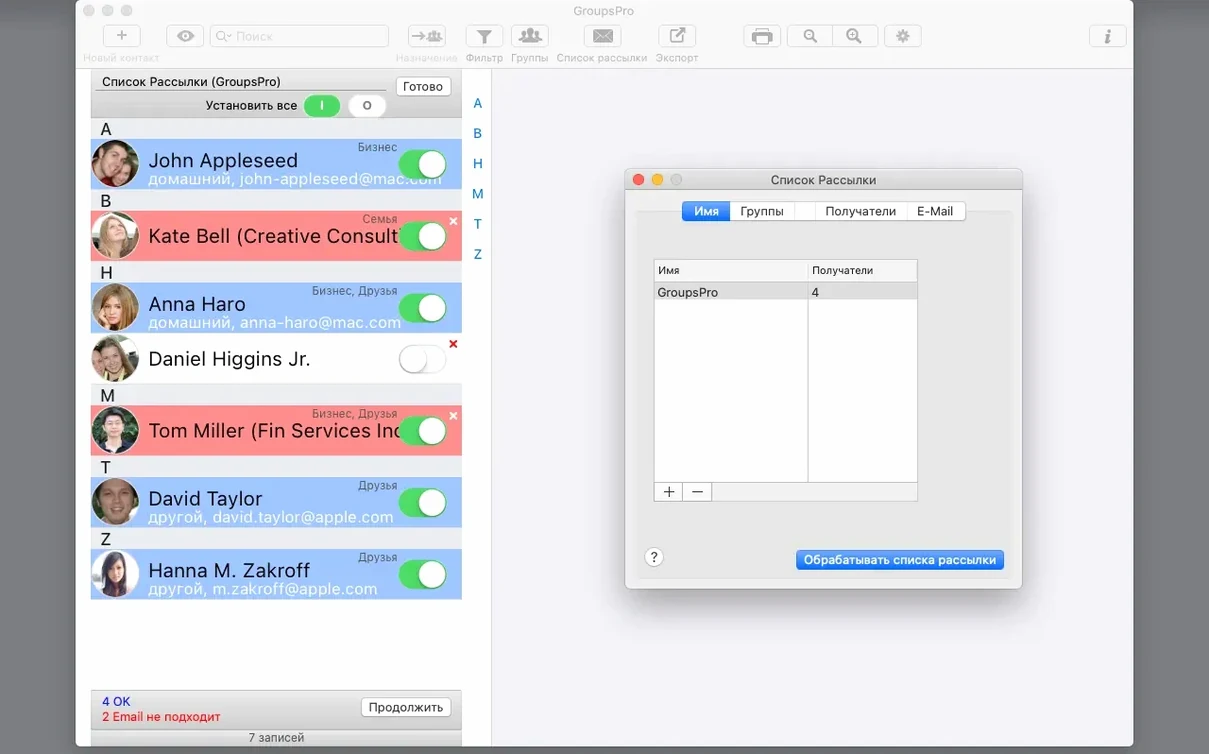
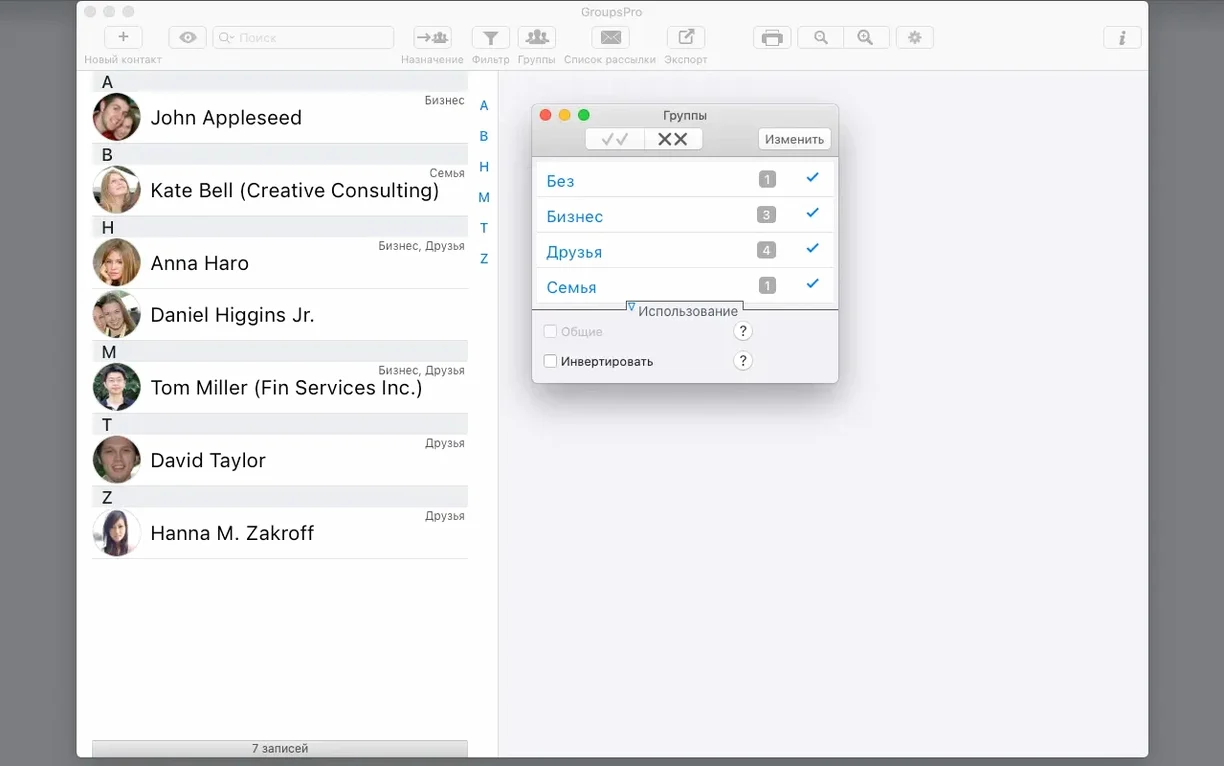
The app works directly with your Contacts address book. You can assign contacts to groups with a single click, create and edit contact groups, and build mailing lists that include text and photos. Mailing lists can hold group members or individual recipients. If you need to share your contacts elsewhere, GroupsPro exports to Excel or CSV files. It also lets you edit contacts on macOS versions earlier than 10.15.4, which is handy if you're stuck on an older system.
Common mistakes beginners make
I’ve seen a few patterns in my evening classes when people first try GroupsPro. The most frequent one is forgetting that the app works with your system Contacts, not as a separate database. A student once spent an hour building groups only to realise they’d never imported or created any contacts inside the Mac’s Contacts app — they were trying to add people who didn’t exist yet. So, step one: make sure your contacts are in the Mac address book before you launch GroupsPro.
Another slip-up is mixing up groups and mailing lists. A group is just a label you attach to contacts — it helps you find and sort them. A mailing list is a separate thing: it contains recipients (either individuals or whole groups) and carries the content you want to send. Beginners often assign a photo to a group and wonder why it doesn’t appear in an email. It won’t, because the photo lives on the list, not the group. Keep them straight and you’ll avoid that head-scratching moment.
Also, people tend to overlook the search field. GroupsPro searches across names, phone numbers, email addresses, postal addresses, departments and notes. That’s a lot of ground. I’ve watched someone scroll through a hundred contacts looking for a surname when typing three letters into the search box would have found it instantly.
Organised a pottery class of 40 contacts across two terms
Let me walk you through a session I had the other week. I was helping a friend organise her pottery class contacts — about forty people, spread across two terms. I opened GroupsPro and saw the main window with my Contacts list on the left. First thing: I created two groups, ‘Term 1’ and ‘Term 2’. That’s a button click and a name entry, done in seconds.
Then I needed to assign people. Each contact in the list has a small check box. I ticked the ones from the first term, clicked the ‘Assign to group’ button, and picked ‘Term 1’. The interface is fast — no waiting around. I repeated for the second term. What took me longer was finding the contacts in the first place, because my friend’s address book was a mess of duplicate entries and missing surnames. GroupsPro can’t fix your data hygiene, but it doesn’t get in the way while you tidy it up.
Next, I built a mailing list to send a welcome note to the first term. I named the list, selected the ‘Term 1’ group as its source, and dropped in a short HTML message with a photo of the studio. GroupsPro handles HTML, so I could add a bit of formatting. I also attached a PDF of the term schedule — attaching files is straightforward, just drag or browse. I set myself as a BCC recipient so I’d get a copy, then sent it through my Gmail SMTP server. The whole process, from opening the app to hitting send, was under ten minutes. The tricky bit was getting the SMTP settings right the first time — but once they’re saved, you don’t touch them again.
Creates mailing lists and exports to Excel unlike Apple's Contacts
GroupsPro sits in a specific niche. If you compare it to Apple’s built-in Contacts app, there’s no contest — Apple’s tool lets you create groups, but it’s bare-bones. You can’t build mailing lists, send email, or export to Excel from Contacts alone. GroupsPro adds those layers without leaving the address book ecosystem.
Against something like BusyContacts, GroupsPro is simpler. BusyContacts is a full contact manager with a more modern interface and cloud sync options. It’s better if you want to manage contacts across devices with a clean, card-style layout. But it doesn’t do mailing lists or SMTP sending out of the box. GroupsPro wins if your end goal is actually sending email to those groups.
There’s also Mailchimp for mass email, but that’s a web service, not a local app. Mailchimp gives you analytics, templates, and list management at scale. It’s a different weight class.
Searches by partial name without typing the full string
A few things aren’t obvious from the main window. The search box, as I mentioned, covers a lot of fields. But you can also search by typing a partial name — it doesn’t need the full string. If you’ve typed ‘Johns’ it will find ‘Johnson’, ‘Johnston’ and ‘Johns’.
The export to CSV or Excel is located in the File menu. It’s not on the toolbar, so new users sometimes hunt for it. Once you know where it is, it’s one click to save your whole contact list or just a selected group.
When you’re building a mailing list, the ‘Add group’ option lets you pull in all the contacts from a group at once. That’s faster than picking individuals. And if you want to send a PDF as an image rather than an attachment — maybe so it displays inline in the email body — there’s a checkbox for that in the attachment dialog. It’s tucked away but useful if you’re sending something like a flyer.
Finally, the app remembers your last-used SMTP settings. You set it up once, and it’s there next time you compose a mailing list. That’s the sort of convenience that only becomes obvious after you’ve had to re-enter server details in another app three times.
Q&A
Can I use GroupsPro if I don’t have an SMTP server?
Yes — you can send through your mail app instead. GroupsPro hands the message off to whatever email client you’re using.
Does it sync with my phone?
No, it works with the local Contacts on your Mac. If your contacts sync to iCloud, they’ll appear here, but GroupsPro itself doesn’t sync.
- macOS 10.13 or later
- Intel processor
Questions from the class 0
Sign in or join the class to ask a question.
Nobody has asked anything yet. If you have used it on a real job, say what the file did.
Also on the Office shelf
The whole Office shelf Gestimer
 eBookBinder
 CHM Reader + CHM Converter
 XMind Pro
Turns messy meeting notes into a clear, branching mind map on your desktop.
 Wolfram Mathematica
Complements your spreadsheet and text editor with thousands of built-in maths and AI functions.
 VueScan Pro
Brings its own drivers to keep your old scanner working long after manufacturer support ends.
 Vellum
Turns your manuscript into polished ebook and print editions without wrestling styles.
 UPDF 2 - AI-Powered PDF Editor