 ASPNetWorld
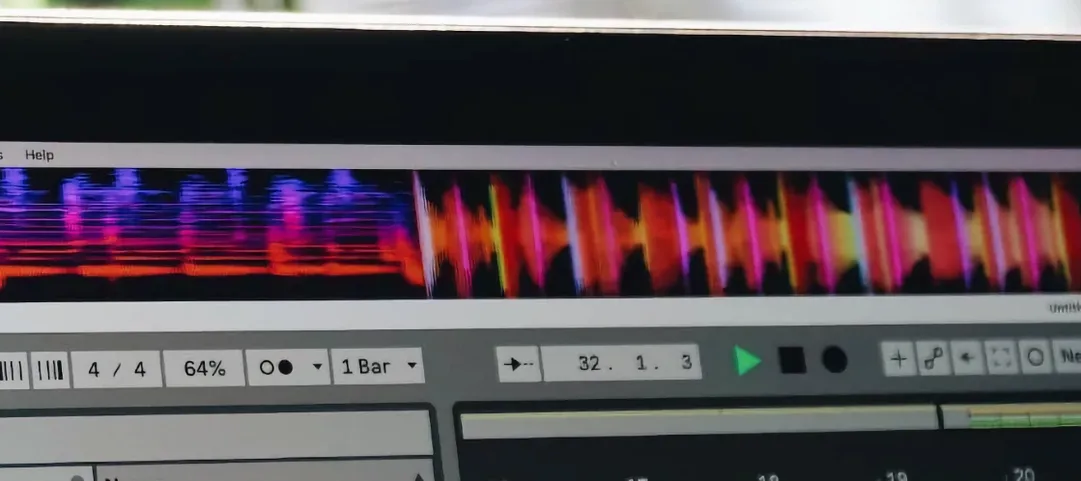
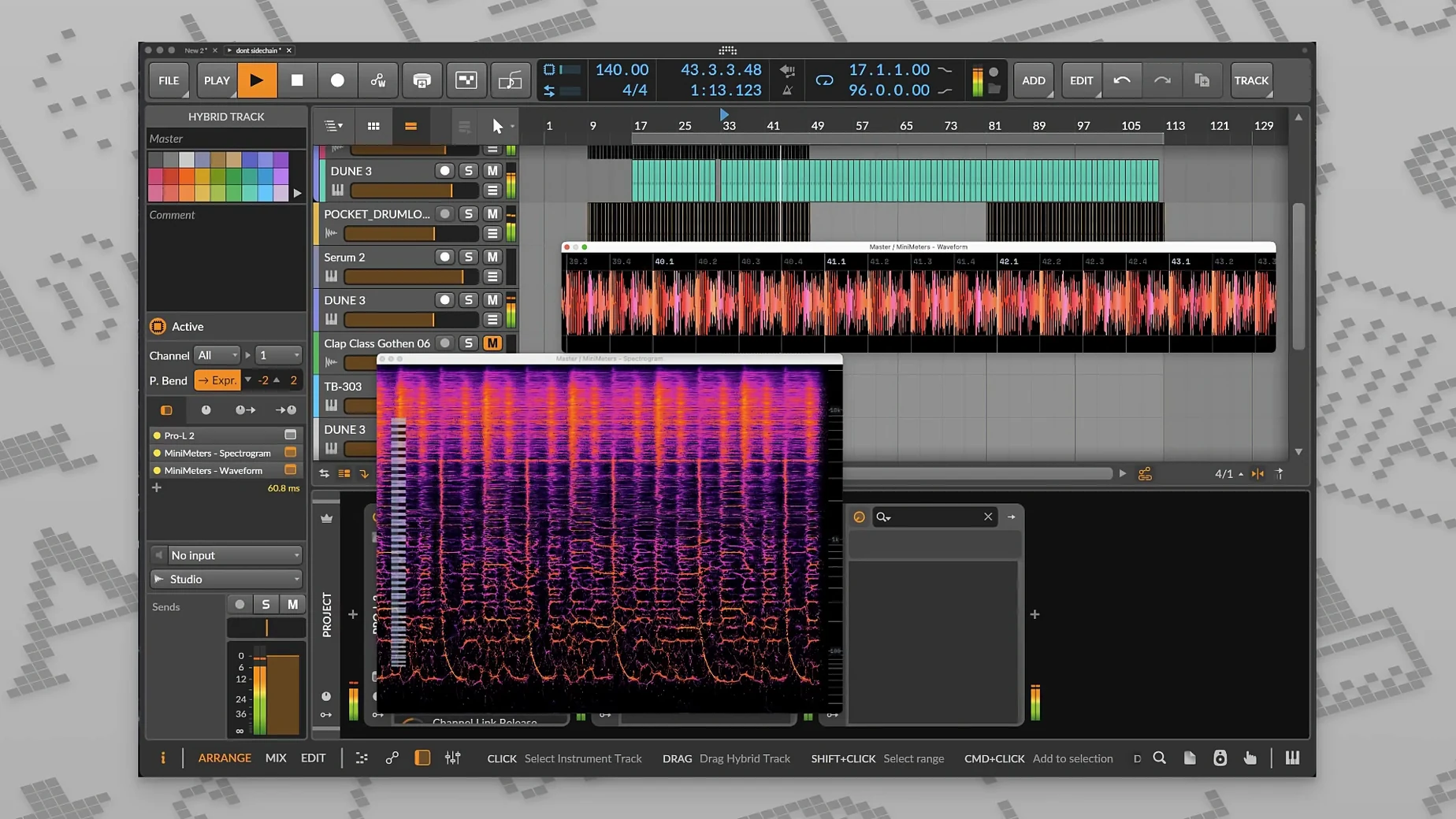
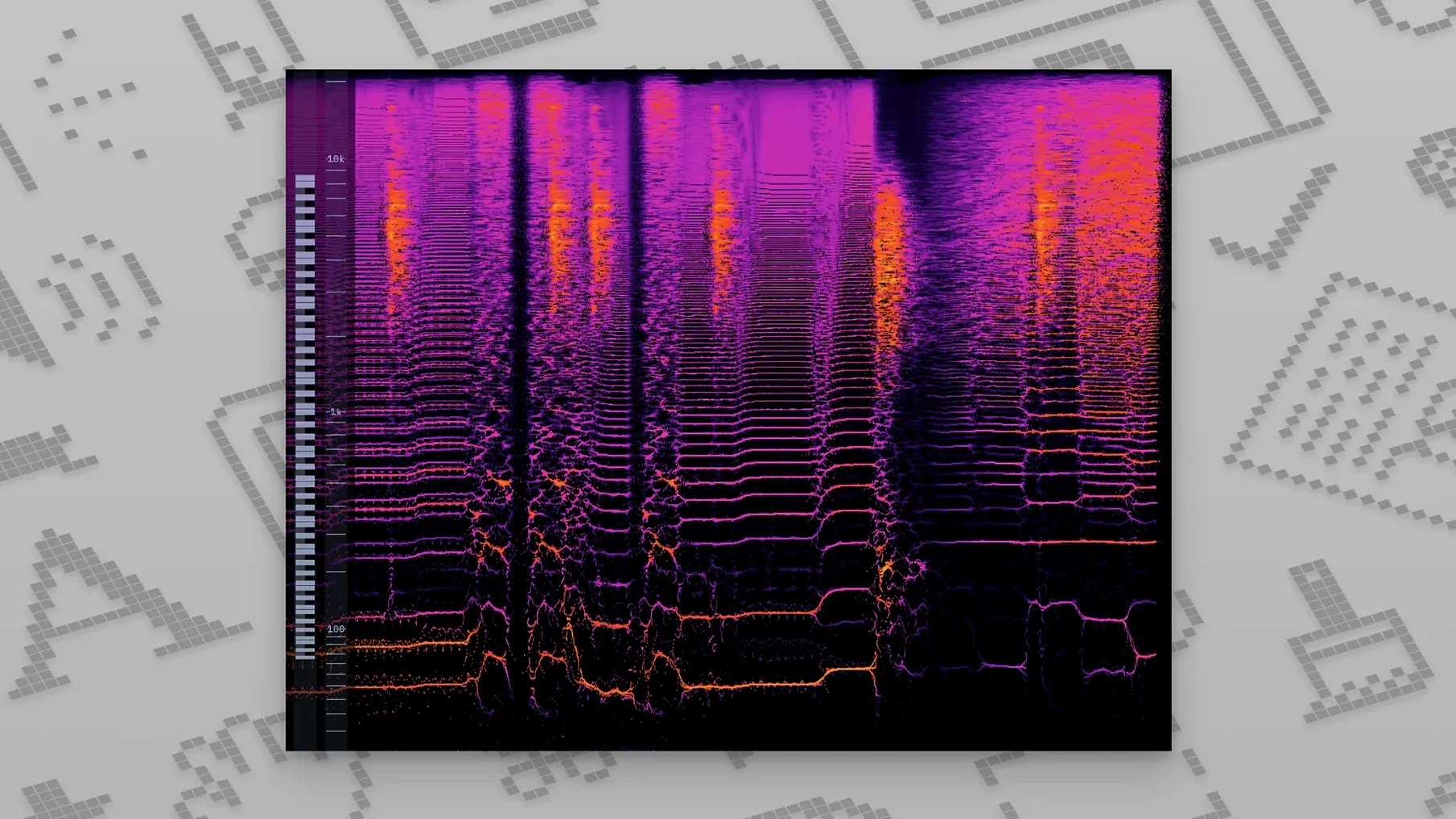
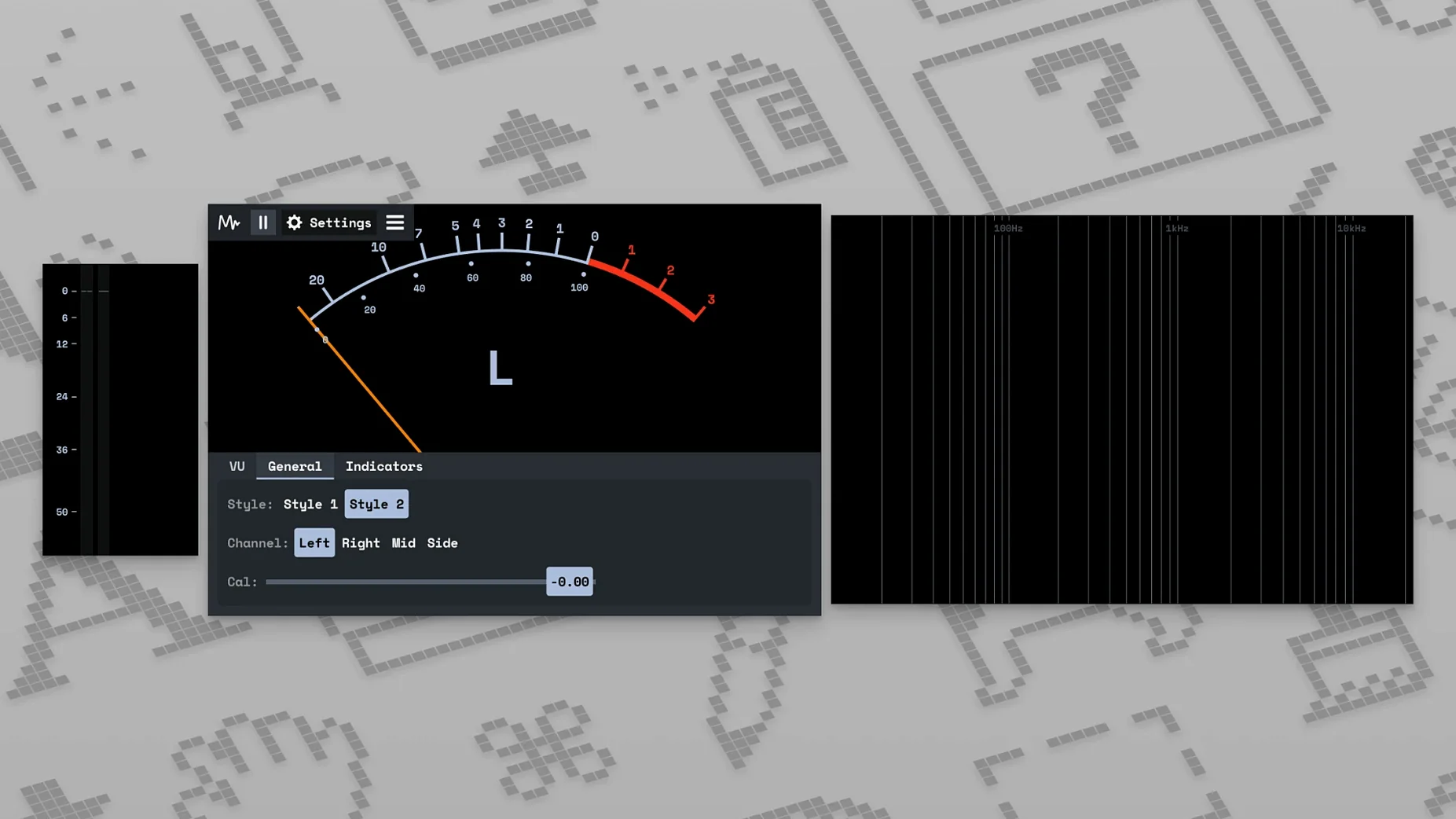
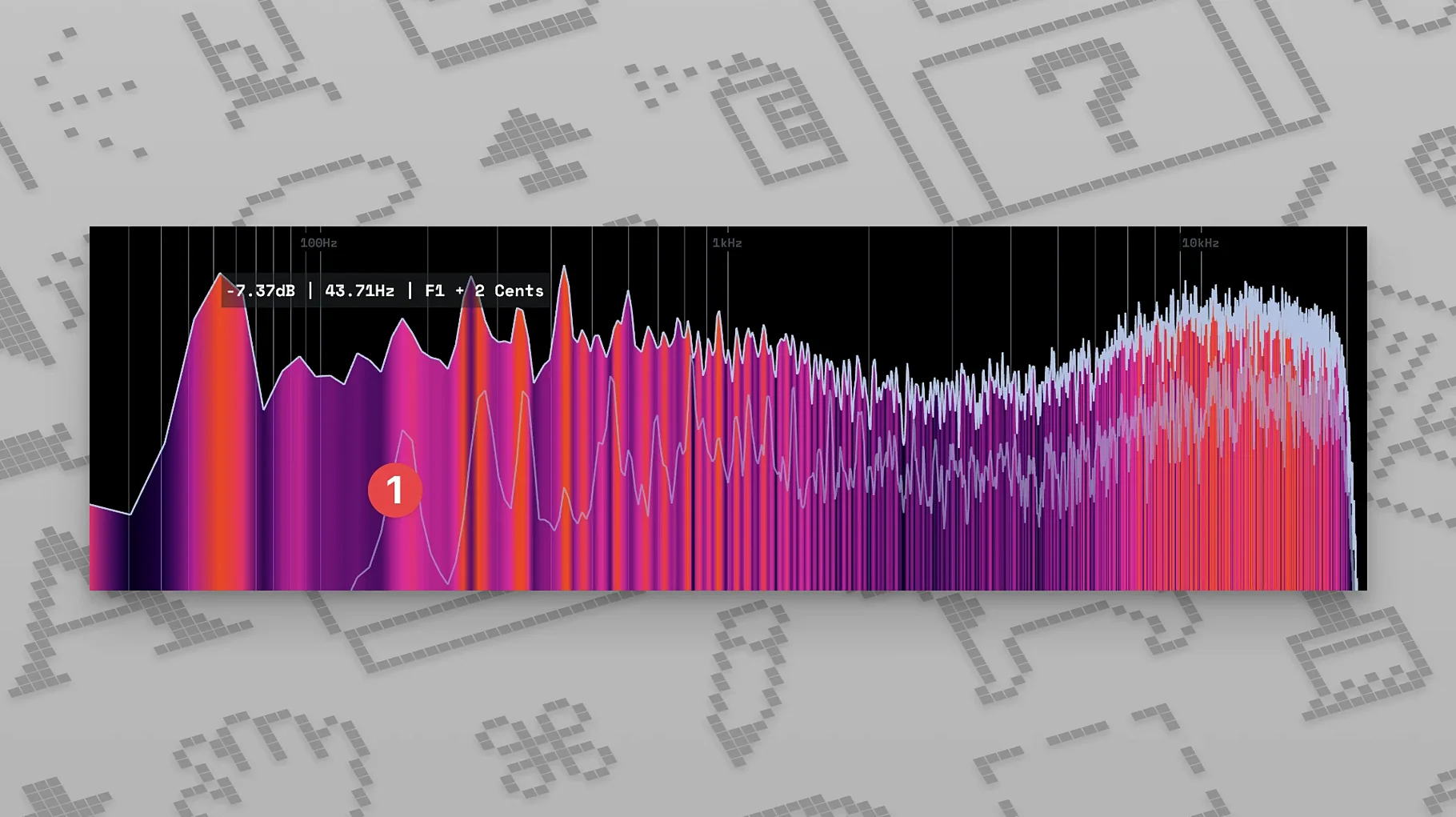
Judging a mix solely by ear in an untreated room is like cooking without tasting the sauce. Your listening position, headphones, and even ear fatigue can lie to you. MiniMeters puts a set of trustworthy, objective eyes on your audio signal, letting you confirm what your ears suspect.
A quick visual reference in four windows
- Start with the frequency spectrum. Open the real-time spectrogram to see the tonal balance of your track at a glance. A buildup of low-end energy you felt but couldn't pinpoint will show up as a bright, persistent band below 100 Hz, while a harsh vocal resonance might flare up around 3 kHz.
- Check the loudness story. Switch your focus to the LUFS meters. The readout gives you short-term, integrated, and peak loudness, all compliant with current broadcast standards. If you're preparing a master, this tells you immediately whether your limiter is working too hard or not hard enough.
- Inspect the waveform. The oscilloscope-style waveform display reveals the overall dynamics. A track that looks like a solid, unvarying block has likely been crushed; one with natural-looking peaks and troughs is breathing. You can spot transient detail that your monitors might smear.
- Confirm the stereo field. Glance at the stereo vectorscope and balance meter. It will expose a mix that collapses to mono too easily or one with phase issues pulling the image lopsidedly to one channel.
MiniMeters runs outside your DAW, fed by a small helper server called MiniMetersServer. Once the connection is made, the floating windows update with barely any perceptible delay, giving you a transparent second opinion that sits alongside your sequencer, ready to consult at any moment.
Right-click any meter to pin it on top of other windows
Out of the box, MiniMeters opens with a sensible default layout, but a few quick tweaks make it feel more like your own. Right-click any meter window and the context menu lets you pin it to stay on top of other applications — useful for the LUFS readout while you work inside a full-screen DAW. I always pin loudness first.
Head into the colour settings next. The default palette is clear enough, but switching the spectrum analyser to a darker background with a gentler gradient stops it from feeling like a Christmas tree in your peripheral vision during late-night sessions. The waveform display benefits from a higher contrast trace if you are checking transient shapes against a reference track. These are small changes, but they reduce the cognitive load when you flick your eyes across the screen for the fiftieth time in an hour.
One setting people overlook is the window refresh rate. Dropping it slightly can free up a surprising amount of CPU headroom on older Intel machines without making the meters feel sluggish. On an Apple Silicon Mac, leave it at full speed; the efficiency cores barely notice the load. Also, check the server audio buffer setting if you notice any stuttering between your DAW and MiniMetersServer — a modest increase, say to 512 samples, often smooths things out without adding meaningful latency for visual feedback.
A mastering engineer's sanity check
Consider someone preparing a six-track EP for digital distribution. The songs were mixed across three different studios, and the client has asked for a cohesive loudness and tonal balance across the whole set. Without a consistent metering reference, matching track-to-track loudness is guesswork.
This engineer loads all six mixes into a DAW session, inserts MiniMetersServer on the master bus of each track, and keeps the MiniMeters LUFS window floating on a second display. The integrated LUFS readout, compliant with the spec introduced in v0.7.0, gives a trustworthy number for every song. By toggling between tracks, they can spot that the second song is 1.2 LU quieter than the first and that the fourth song has a true-peak overshoot of 1.5 dB that their main limiter missed. The spectrogram confirms that the third track has a slightly hyped high shelf above 8 kHz compared with the others — a quick EQ match in the DAW and the EP hangs together. The engineer exports with confidence, knowing the numbers back up what the ears suggested.
Mixing a dense vocal into synths and drums without pushing the level
Imagine an afternoon vocal mixing session. The producer has recorded four takes of a lead vocal over a dense arrangement of synths and drums, and the goal is to make the voice sit clearly without pushing the level.
- Fire up MiniMetersServer first. Launch the server before opening the DAW so it is ready to accept a connection. A small icon appears in the menu bar, confirming it is listening. This order avoids the DAW complaining about a missing audio sink.
- Load the project and route the signal. Inside the DAW, insert MiniMetersServer on the vocal bus — not the master, because the focus is on the voice. Open the main MiniMeters app, which immediately picks up the stream and populates the meters.
- Watch the spectrogram during the first playback. The vocal shows a prominent hump around 250 Hz, a sign of proximity effect from the recording. The producer sets a bell EQ cut at that frequency and watches the spectrogram flatten in real time, confirming the adjustment visually before trusting their headphones.
- Check crest factor on the waveform. The waveform display reveals that the loudest phrase of the chorus hits a peak far above the verse. Rather than reaching for a compressor straight away, the producer manually clips the gain on that phrase. The waveform now looks more even, and the compressor that follows works more gently as a result.
- Glance at the stereo meter. The double-tracked ad-libs have been panned hard left and right. The vectorscope shows a pleasing wide spread that still hugs the centre, meaning the mix won't fall apart on a mono phone speaker. Satisfied, the producer saves and moves on.
The spectrogram graduated from simple bar graph to detailed frequency display
The jump to version 1.0 in early August 2025 marked the point where MiniMeters felt like a finished tool rather than a promising beta. The v0.8.0 spectrogram update had already turned the frequency display from a simple bar graph into a scrolling heat map with genuine time-domain information, which made it far easier to spot intermittent resonances — the kind that come and go with a particular syllable in a vocal or a snare hit. Before that, v0.7.0 brought the LUFS meter into full spec compliance, which meant the numbers finally matched what broadcast and streaming platforms expect. For anyone delivering to loudness-normalised services, that single change made the application usable for professional work.
Version 1.0.30, the current build, is quieter in its ambitions but more useful day to day. The release notes mention bug fixes and small UI clean-ups, and the practical effect is a meter suite that no longer drifts out of alignment when you resize windows or occasionally drops its connection to the server after waking a Mac from sleep. Those kinds of paper-cut issues might not make headlines, but removing them means you stop thinking about the metering tool and just use it.
Youlean lives inside the DAW as a plug-in, not a separate floating tool
Mac users looking for audio metering have several established options alongside MiniMeters, and they suit different temperaments.
Youlean Loudness Meter is a plug-in, not a standalone app, so it lives inside the DAW rather than as a separate floating tool. It offers deep loudness analysis, including a drag-and-drop offline mode and detailed history graphs. Where MiniMeters keeps things immediate and visual across multiple parameters at once, Youlean goes deeper on loudness alone. If your work revolves entirely around LUFS compliance and you want a written report, Youlean is the specialist. If you want a general-purpose visual dashboard that covers spectrum, waveform and stereo alongside loudness without opening five different plug-in windows, MiniMeters fits better. Running both side by side is not unusual.
Voxengo SPAN is a freeware spectrum analyser that many producers treat as a default insert. Its spectrum display is highly configurable, with adjustable slope, block size and averaging modes. What it does not do is loudness metering to broadcast spec, nor does it show waveform or stereo vectorscope in the same window. SPAN is brilliant at one thing — frequency analysis — and that is enough for a lot of people. MiniMeters brings four perspectives together in one unified interface, which reduces the number of separate tools you need to keep an eye on.
iZotope Insight sits at the professional end. It covers every metering type imaginable — loudness, spectrum, spectrogram, sound field, and more — with presets for different broadcast standards. The trade-off is a dense interface that rewards study and a system footprint that expects a powerful machine. MiniMeters exchanges Insight's exhaustive configurability for a simpler, lighter experience that loads in seconds and feels at home on a laptop screen. For a quick mix check or a second pair of eyes during composition, MiniMeters is the tool many will reach for first, saving Insight for the final quality-control pass.
No single metering application covers every need, and the sensible approach is to pick the one whose design matches how you like to work. MiniMeters earns its place by staying small, fast, and visually direct — the kind of utility you leave open all day and consult without breaking your flow.
Version 1.0.30 is a maintenance release focused on stability. The update tidies up several long-standing bugs and addresses minor user interface inconsistencies for a smoother metering experience.
- A Mac running macOS 10.15 or newer
- Supports both Intel processors and Apple Silicon natively
- English interface
Questions I keep hearing
What does MiniMeters actually measure?
It provides a real-time frequency spectrum display, a stereo balance and vectorscope meter, a waveform view, and a spec-compliant LUFS loudness meter showing both integrated and peak levels.
How does MiniMeters get audio from my DAW?
It uses a dedicated piece of software called MiniMetersServer to route audio from your music production software directly to the meter display on your Mac.
Questions from the class 0
Sign in or join the class to ask a question.
Nobody has asked anything yet. If you have used it on a real job, say what the file did.
Also on the VST Plugins shelf
The whole VST Plugins shelf Minuit Solstice
Rearranges samples on a spectral map for otherworldly textures.
Minuit Solstice
Rearranges samples on a spectral map for otherworldly textures.
 Metric Halo Production Bundle
Shapes individual instruments and buses with studio-grade processors.
Metric Halo Production Bundle
Shapes individual instruments and buses with studio-grade processors.
 Melodyne
Edits the pitch and timing of recorded audio as individual notes.
Melodyne
Edits the pitch and timing of recorded audio as individual notes.
 MeldaProduction MCompleteBundle
Provides a full suite of effects and instruments with consistent controls.
MeldaProduction MCompleteBundle
Provides a full suite of effects and instruments with consistent controls.
 Native Instruments Massive X
Generates deep, moving bass and lead sounds through a polyphonic wavetable synthesis engine.
Native Instruments Massive X
Generates deep, moving bass and lead sounds through a polyphonic wavetable synthesis engine.
 Neural DSP Archetype Petrucci
Recreates the signature amplifier and effects rig of a progressive-metal guitarist.
Neural DSP Archetype Petrucci
Recreates the signature amplifier and effects rig of a progressive-metal guitarist.
 Neural DSP Archetype Rabea X
Recreates a versatile guitar amplifier and a built-in analogue-style monosynth in one plugin.
Neural DSP Archetype Rabea X
Recreates a versatile guitar amplifier and a built-in analogue-style monosynth in one plugin.
 Neural DSP Mantra
Processes a vocal track with pitch correction, compression, saturation, and spatial effects inside your DAW.
Neural DSP Mantra
Processes a vocal track with pitch correction, compression, saturation, and spatial effects inside your DAW.